View payment data in CRM
All payments processed through SendPulse tools are automatically logged in your CRM system. This feature allows you to monitor customer payments, access contact and product data, and maintain accurate accounting records.
Read also: Sources of automatically added deals and contacts: Payments. Payment details also appear in deal cards and contact cards.
To view payments for subscriptions, read: Manage digital product subscribers.
View payments
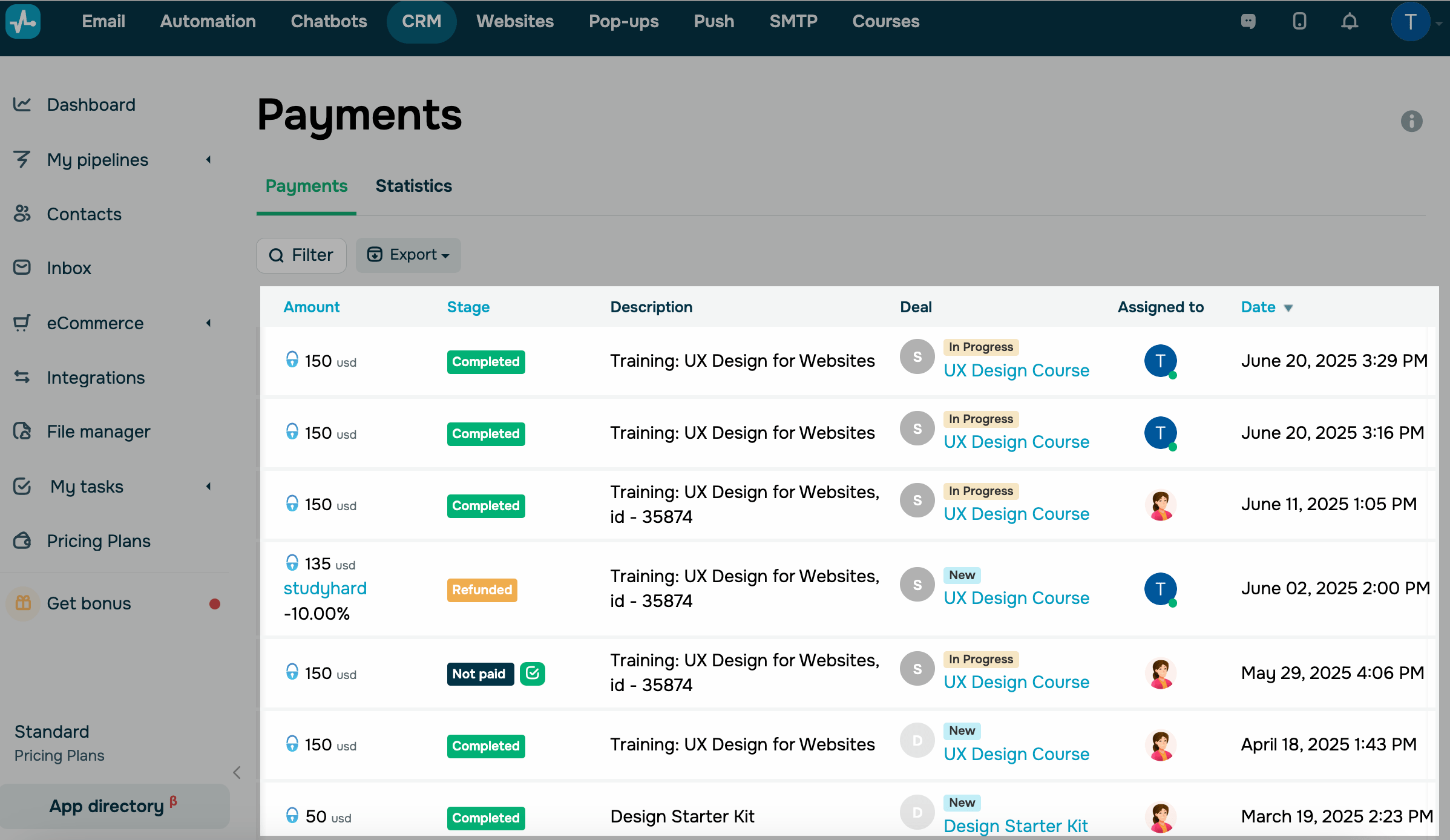
To view payments, go to CRM > eCommerce > Payments.
You can view details in the following columns:
| Amount |
The details about every payment, including the payment method used, amount, currency, and applied course promo code or CRM promo code. To view the payment method name, hover over its logo. To view the discount amount, hover over the promo code. |
| Stage | The current payment status. |
| Products | The products for which customers have paid. Hover over the number to see the list of products, amounts, and prices. |
| Description |
The products for which customers paid. Depending on how the payment was processed, the description may include the course name, website name, course ID, CRM product name, or button name from the campaign or chatbot. If a client makes a payment on your website, their selected payment method will appear here. |
| Deal | The CRM deal details linked to this payment, including the deal name, deal card link, and current status. |
| Assigned to | The team member assigned to your deal. |
| Date | The payment date and time. |
Search payments by filter criteria
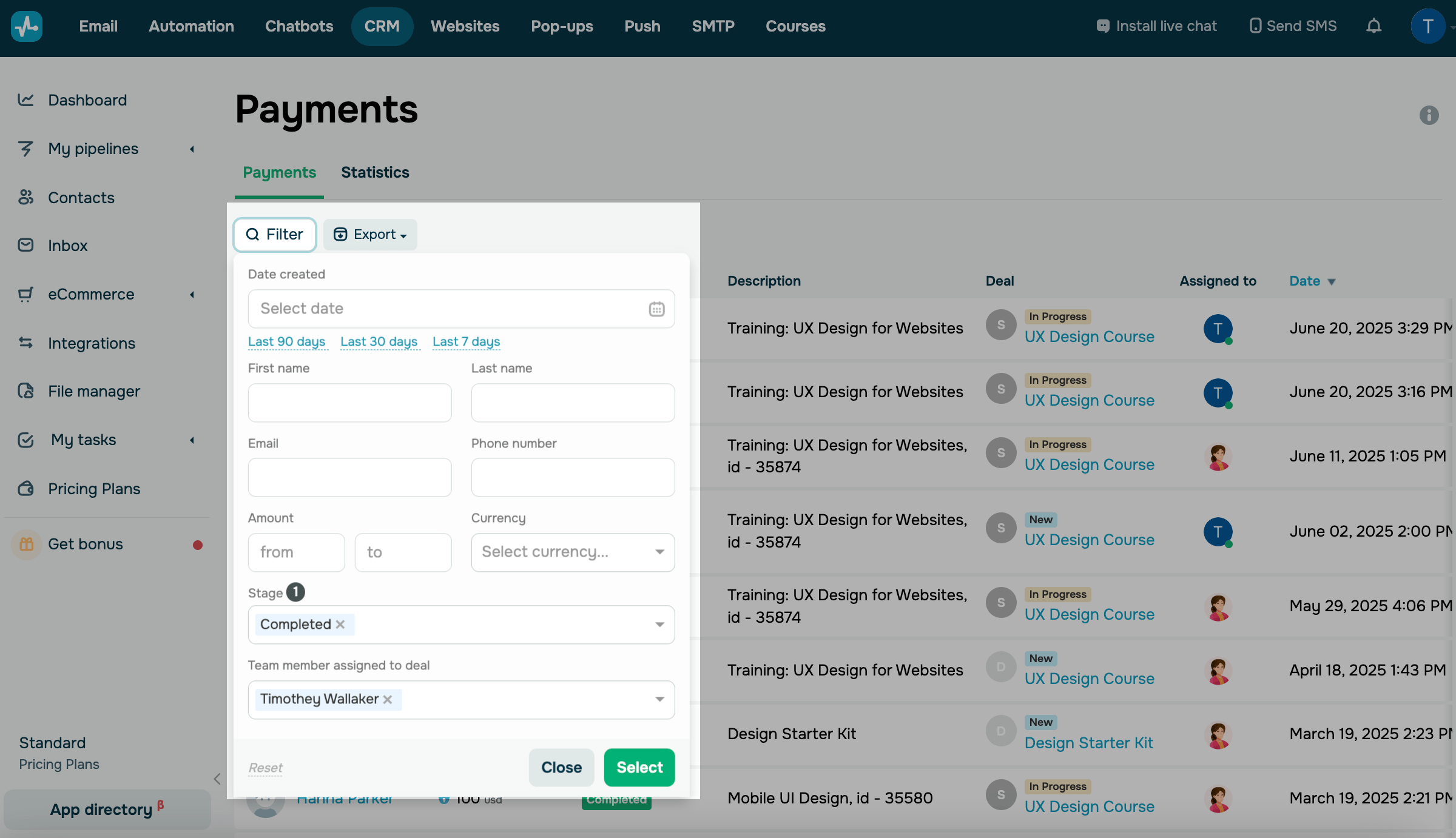
To view specific payment data, click Filter, and select your criteria. You can select multiple filtering criteria from the following:
- date created;
- contact first name;
- contact last name;
- email address;
- phone number;
- payment amount range;
- сurrency;
- Product type (physical, digital and subscription product)
- Payment type (first payment and repeat payment)*
- stage;
- team member assigned to deals.
*Note that SendPulse determines first-time and repeat payments per contact, not per product. If a contact has already paid for any product, their next payment is considered a repeat payment.*
Click Select to apply your filtering criteria.
View contact data
In the Contacts column, you can view customer data.
You can click a customer’s name to open their contact card in the sidebar.
Read also: View contact cards.
Export payments
You can download your payment data as a file. First, generate the file, then download it.
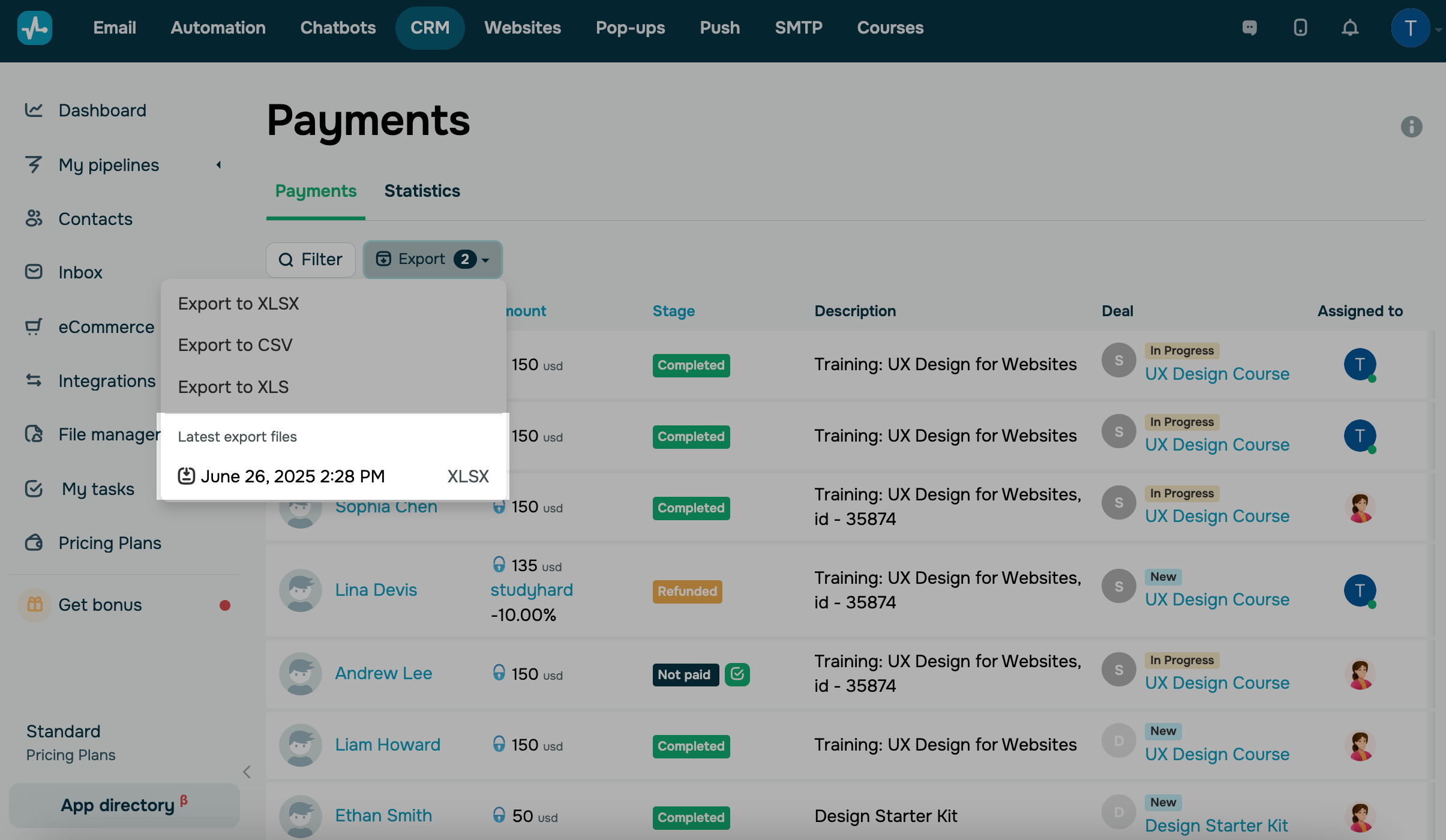
Click Export and choose a file format: XLSX, CSV, or XLS. Wait until the file is ready — you’ll see a notification in the upper right corner.
File generation runs in the background and may take some time depending on the number of records. Don’t reload the page until the export is complete.
Once your file is ready, you’ll find it in the export menu. Its name will include the date created and file format. Click Export, then click the file name to download it.
The export file includes product IDs that help you match a payment with a specific product, for example, when two products share the same name.
Product ID is a unique code that SendPulse generates automatically. SKU is an identifier you set manually in the product card.
If a payment doesn't include a product or SKU, the corresponding cells remain empty.
 Last Updated: 17.12.2025



or