View the contact list
In the contact list, you can see all the clients added to your CRM system, along with their key details, deals, and tags. Viewing the list helps you quickly find a contact, filter your database by a specific criterion, and choose data to display.
Let’s talk about how to view the contact list and manage how it is displayed.
View the contact list
To view your contact list, go to the Contacts section. This list shows all contacts you created manually or added when creating a deal, as well as those pulled in from sources of automatically added deals.
On the page, you will see each contact's name and details, the number of deals they are linked to, their tags, and contact fields.
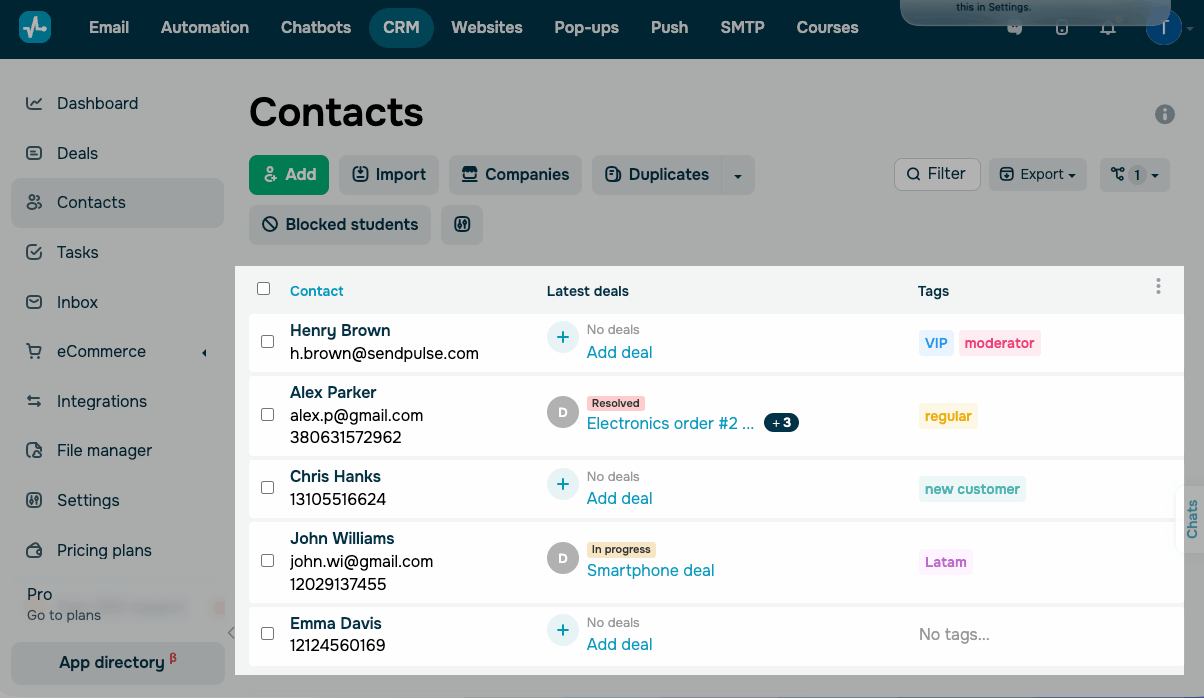
To view contacts by a specific criterion, use a filter.
Users only see the contacts their role allows them to access.
Read also: Manage your team’s CRM system access.
Set up the list display
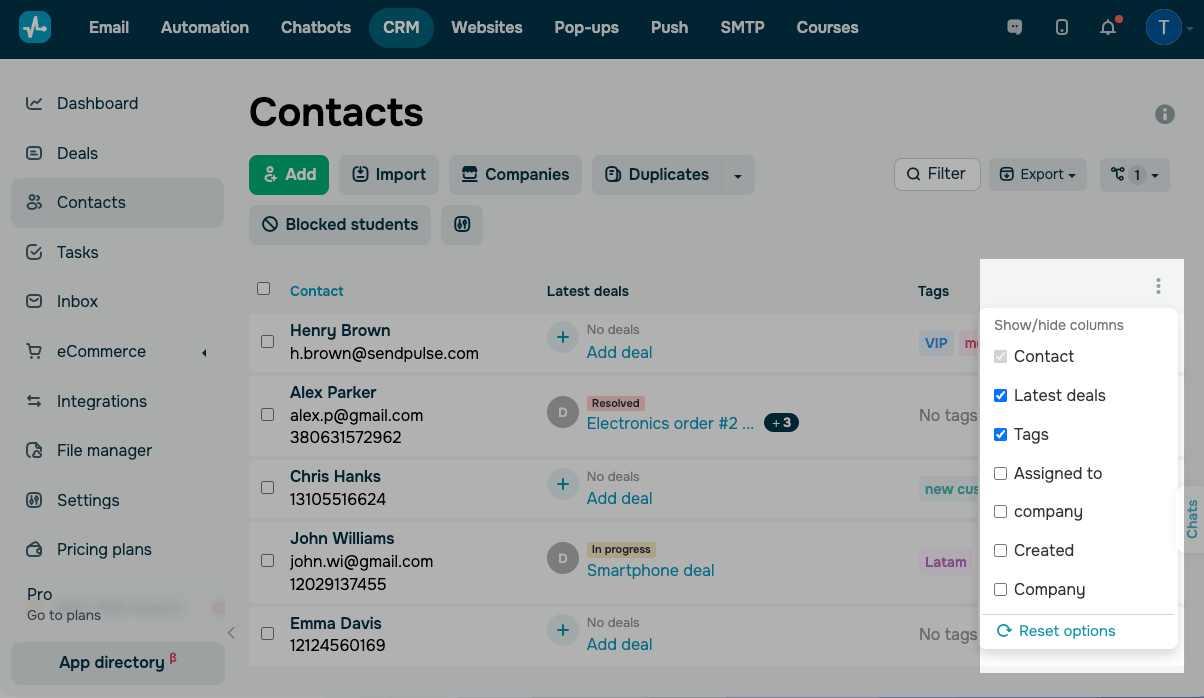
You can choose which fields to show in the list. Click the three dots at the top of the list and select the fields you need.
To set the number of records shown, in the lower-right corner, choose how many to display in the View field: 10, 20, or 50.
Read also: Manage contacts, View contact cards.
 Last Updated: 03.07.2025




or