Сreate a subscription
Subscriptions automate recurring payments for digital products and services. They help you manage subscriptions, monitor subscriber activity, and keep subscription data synchronized with your CRM.
Read also: Subscription basics.
Let’s talk about how to create subscriptions.
Create a digital product
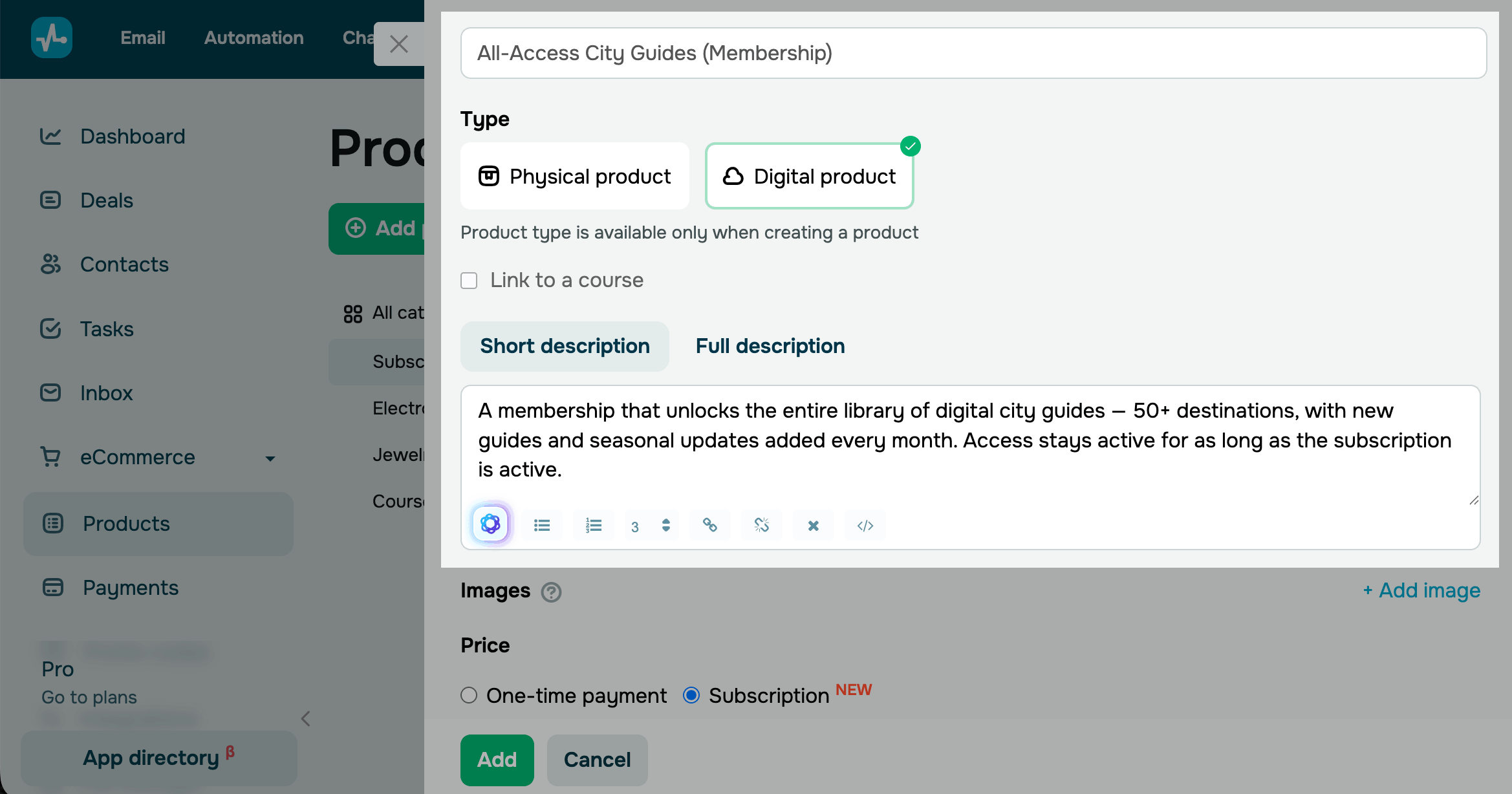
To create a subscription, go to CRM > eCommerce > Products and click Add product.
Add a product name and select the Digital product type. Then, add a short and full description. You can also format the text and generate or improve a description using AI.
To add an image, click Add image and upload or choose an image from the file manager. The first image you upload is used as the main product image.
We recommend giving the subscription a clear, specific name. In the description, explain what subscribers get and how often they are charged.
All information you add about your product will be displayed in the product cards in chatbots and websites.
Set a subscription price
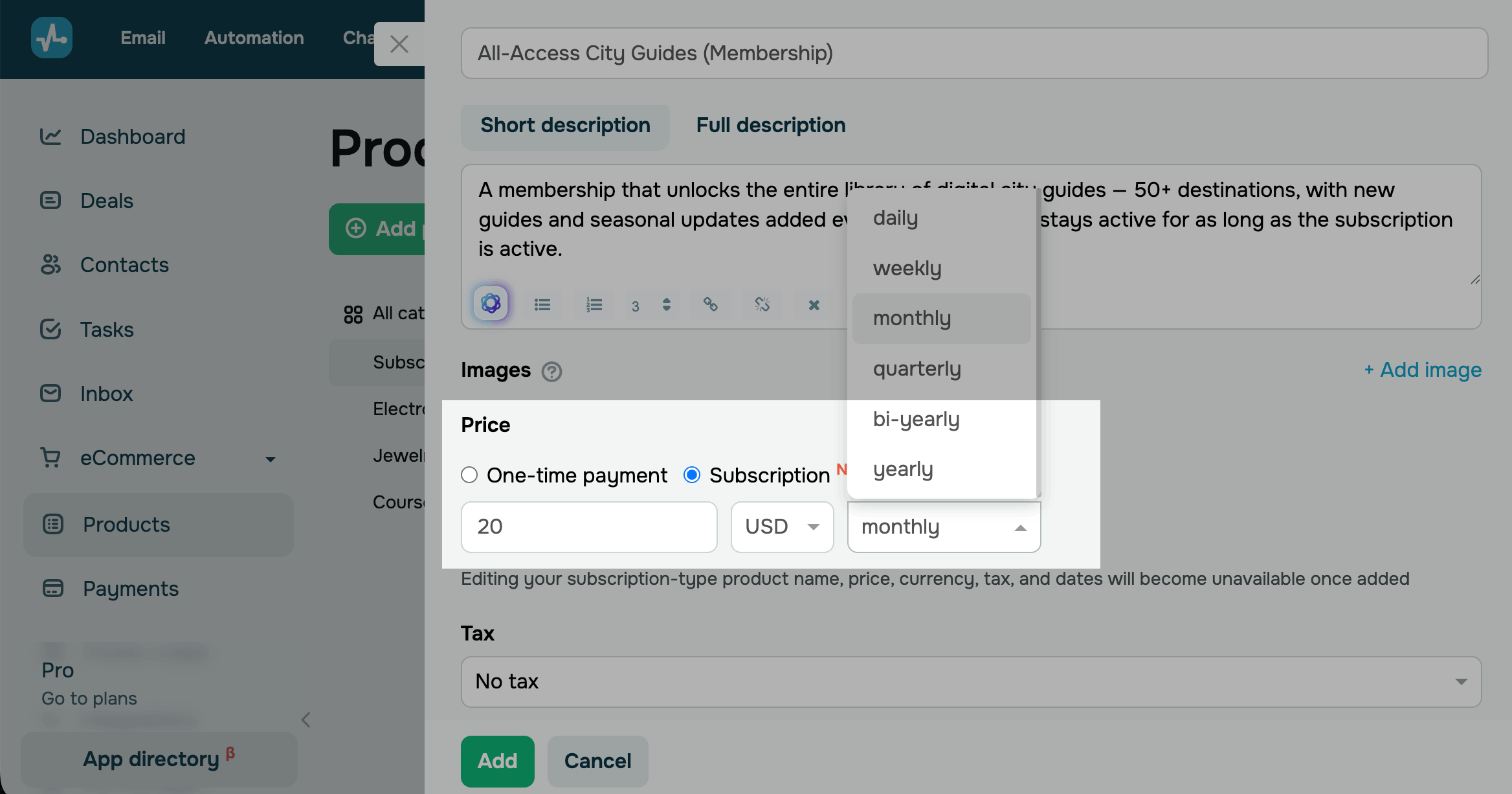
In the Price section, select Subscription. Enter a price and choose a currency.
Select a billing cadence SendPulse will use to charge your customers.
| Daily | Charges the customer every day. |
| Weekly | Charges the customer every week. |
| Monthly | Charges the customer every month. |
| Quarterly | Charges the customer every 3 months. |
| Bi-yearly | Charges the customer every 6 months. |
| Yearly | Charges the customer every 12 months. |
The subscription starts when the customer completes their first payment and stays active until it is canceled.
Add product attributes
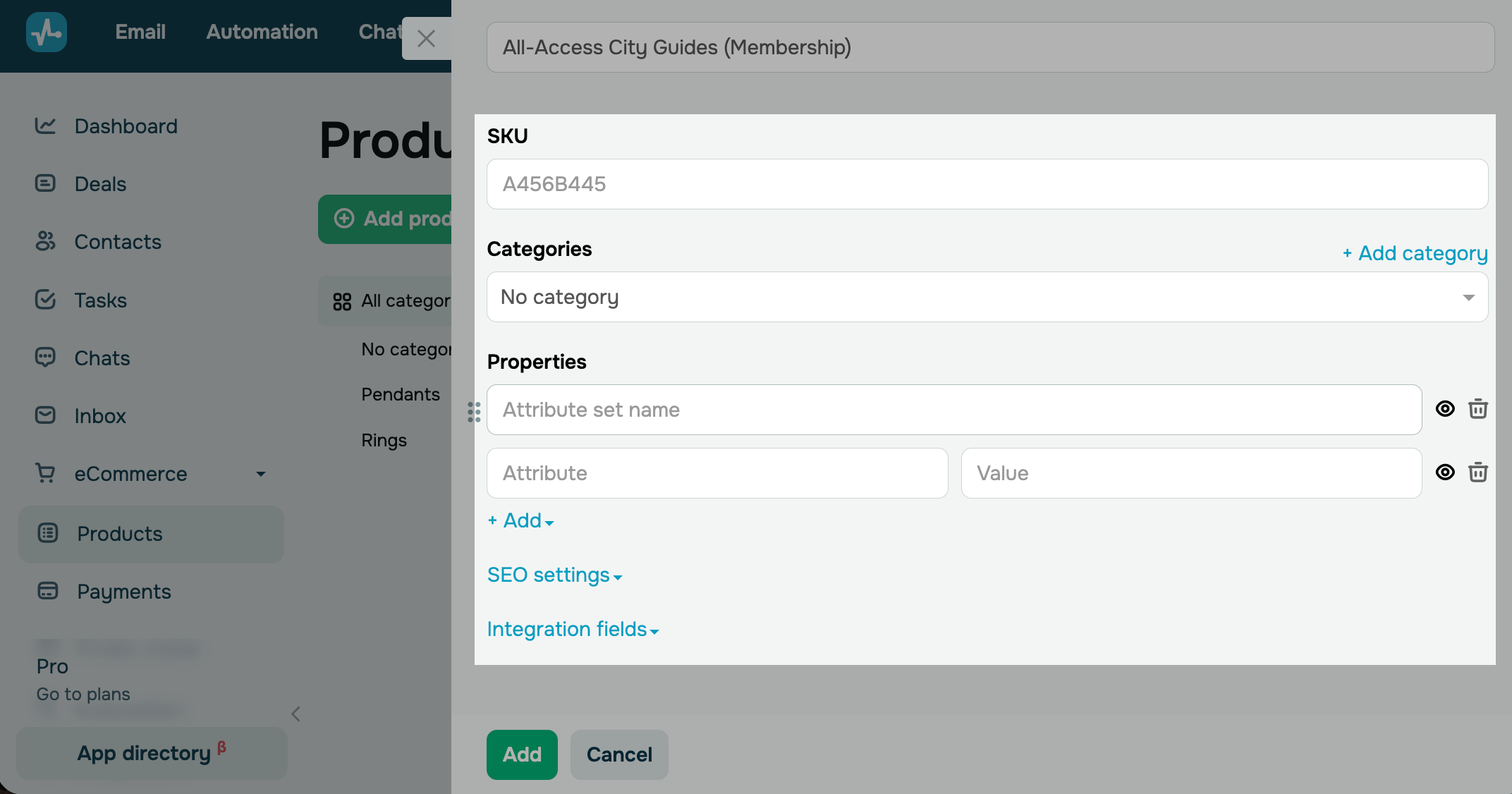
Optionally, add other product attributes, such as category, SKU, properties, SEO settings and integration fields. This information will be sent to other SendPulse tools where you select to sell this product.
After you finish adding details, click Add.
Once you save a subscription, you won’t be able to edit its name, price, currency, tax, or duration.
Complete the setup
After creating a subscription, add it to your chatbot flow or website.
Read more: Collect subscription payments.
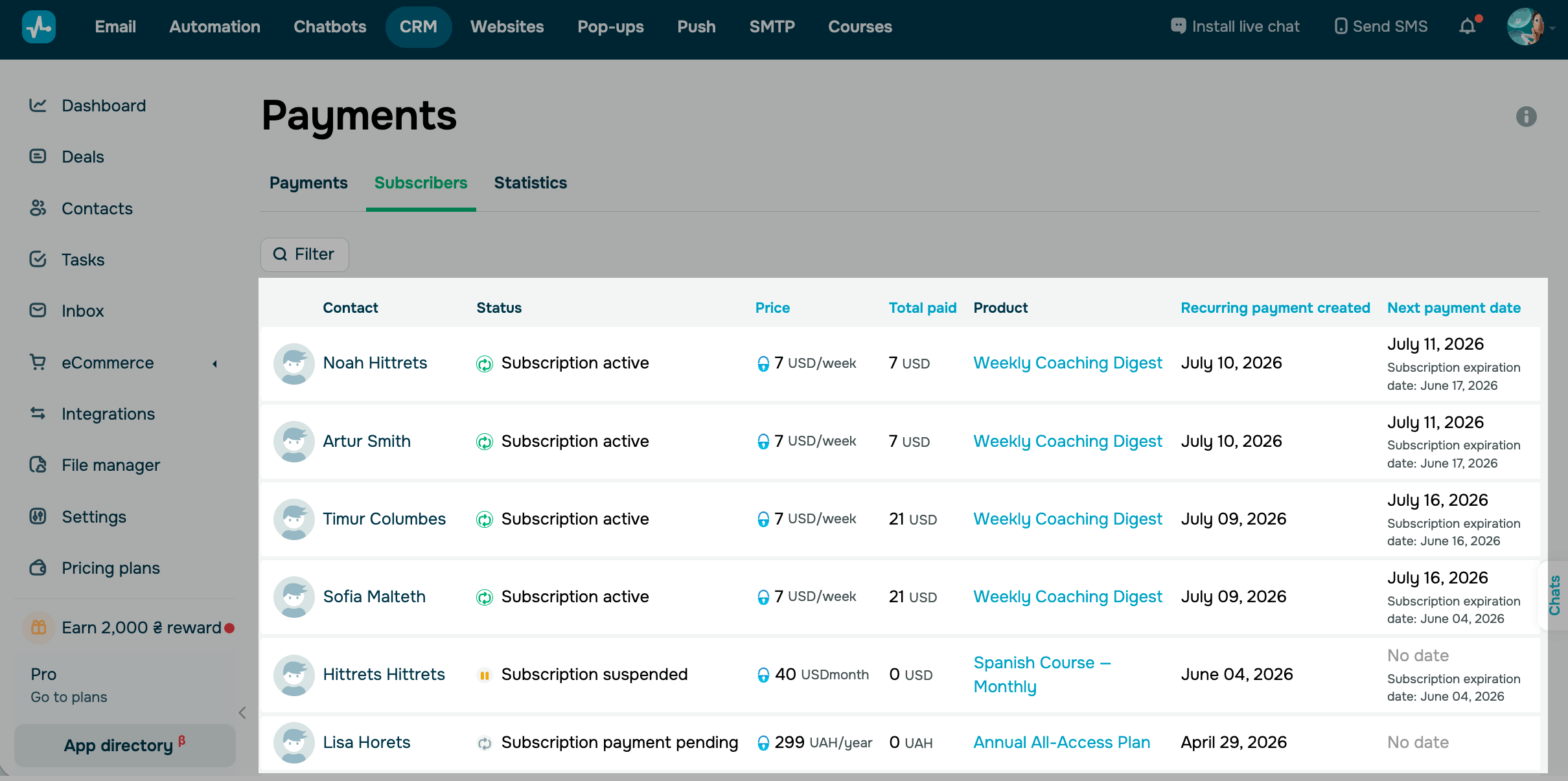
Once the customer pays, the subscription appears in CRM > eCommerce > Payments > Subscribers, where you can track and manage it.
Read more: Manage digital product subscriptions.
 Last Updated: 20.01.2026


or