Subscription basics
A subscription is a recurring payment model for a digital product or service that is charged automatically on a fixed schedule. Use subscriptions to sell ongoing access to courses, paid communities, memberships, or any other digital product, without asking the customer to pay manually each time.
With subscriptions, you can:
- Charge customers automatically on a daily, weekly, monthly, quarterly, bi-yearly, or yearly schedule.
- Capture recurring payments through your chatbot, payment link, or website.
- Track every subscriber, their billing dates, and the total amount they have paid in one list.
- Pause, resume, or cancel subscriptions, and keep their data in sync with your preferred payment solution.
Here's how businesses can use subscriptions:
- An online school sells access to webinar recordings in a Telegram bot. It creates a digital product with the Subscription price, adds it to a flow as a CRM Product element, and sends the subscriber a link to the recordings in the next message. The subscription then renews on each billing date.
- A paid community owner sells monthly membership on their website. They add the subscription product to the Product widget, and the customer pays for the first month in the shopping cart. Each renewal payment appears in the customer's deal.
- A design studio sells a client monthly access to its template library. A team member adds the subscription to an existing deal, creates a payment link, and sends it to the client in a chat. The client pays for the first month right away and for each following month automatically.
Let's talk about how to set up and manage subscriptions in SendPulse.
Create a subscription
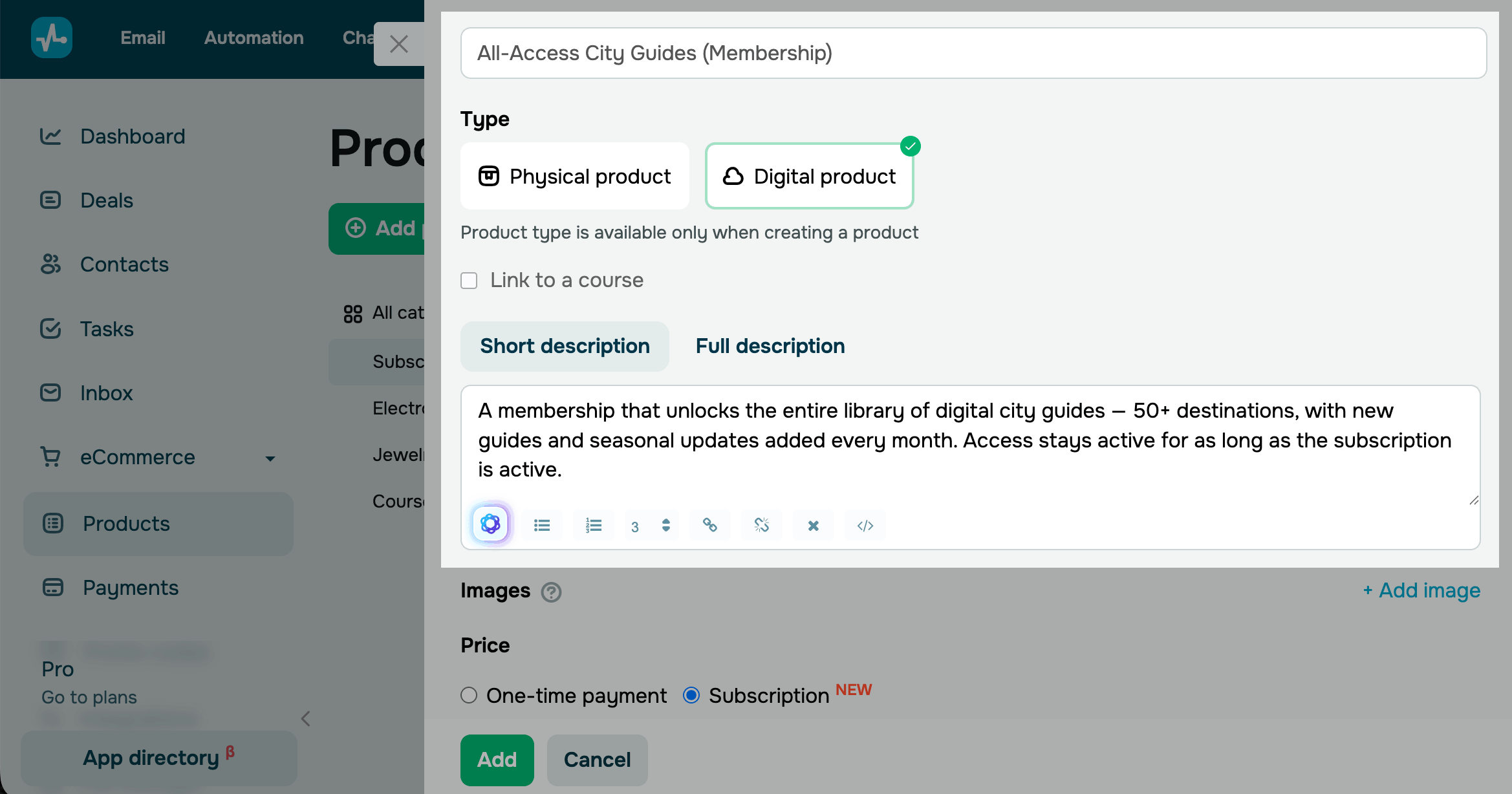
To create subscription, go to CRM > eCommerce and click Add a Product. In the Type select Digital product and in the Price select Subscription. Choose how often SendPulse should charge your customer. Add other information about your product.
Read more: Create a subscription.
Connect a payment method
To accept payments from your customers, connect a payment solution to your account. Choose the solution in your website's shopping cart settings, in the chatbot element, or in the payment link.
Go to Account settings > Accept payments and connect one.
Subscription payments are currently supported only by WayForPay.
Set up subscription sales
After you create the product card, place the subscription where your customers can see it and pay for it. You can sell one subscription in several channels at once. Choose a channel and add the CRM product to it.
Website sales are available on the Pro plan and higher, payment links on the Lite plan and higher, and chatbot payments on paid plans.
Via chatbots
To add a subscription to your chatbot, go to the Chatbots section and open the chatbot flow builder. Add a Message element, select a CRM product card, and set a payment method for recurring payments.
Read more: Accept recurring payments.
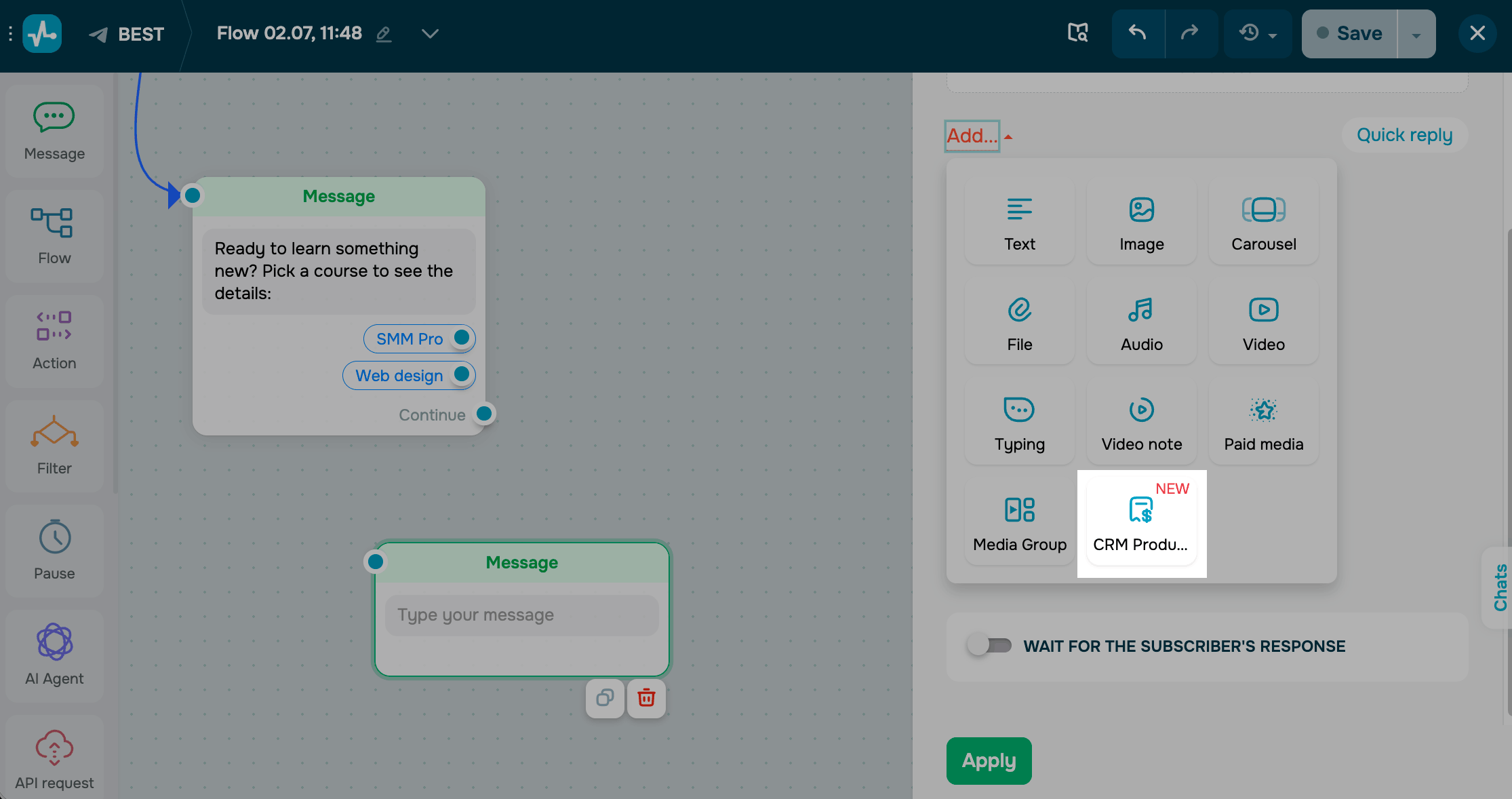
Continue building the flow to give subscribers access to your product or service. For example, you can add a Message element with a link or file, send an API request to another tool, or add an Action.
Read more examples: Recurring payment triggers.
Via website
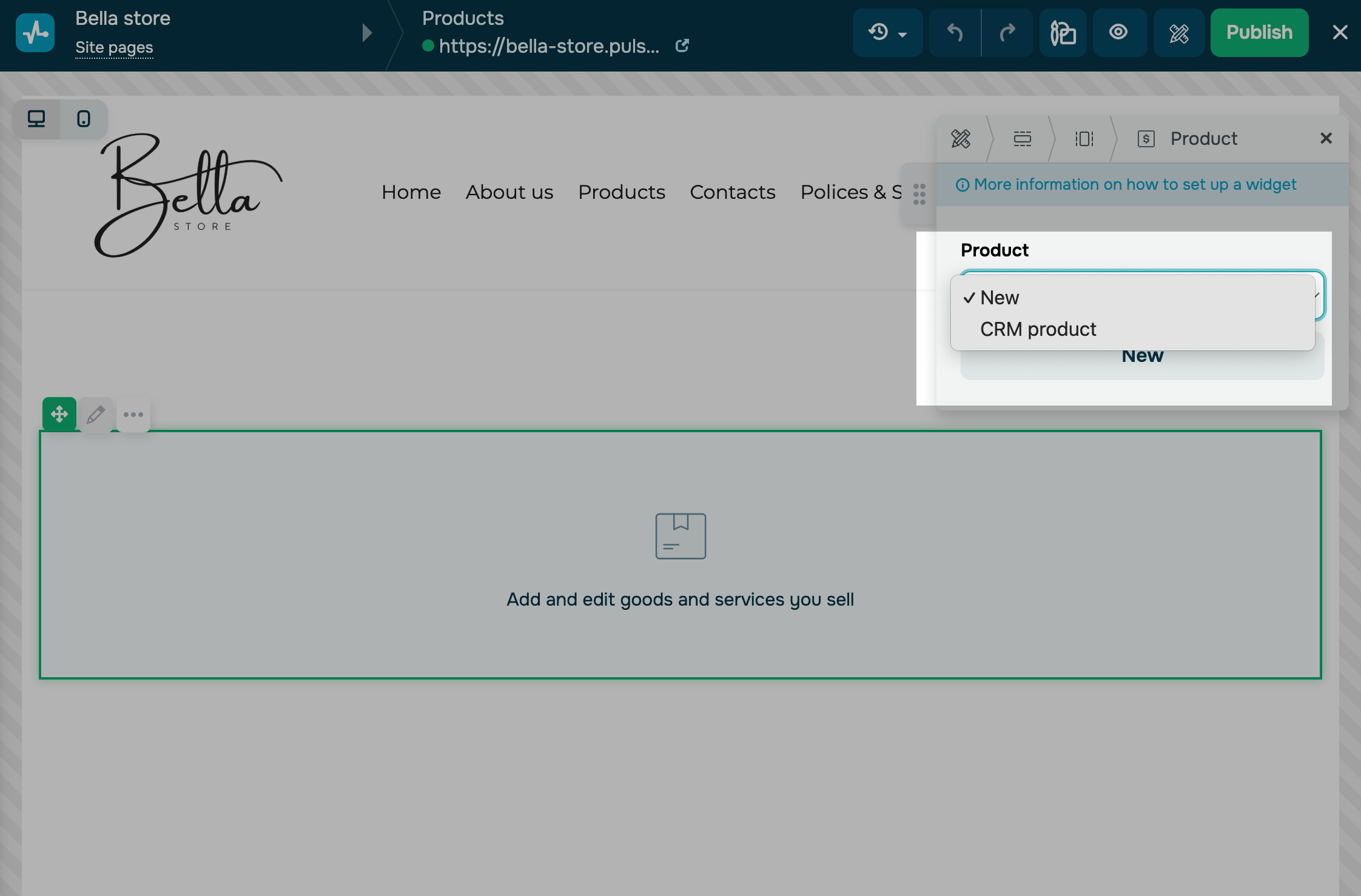
To add a subscription to your website, go to the Website section and open a page in your website builder. Add the Product widget, then select the CRM product linked to your subscription.
Read more: Add a product to your website.
On the shopping cart editing page, add a payment method and choose a pipeline and a stage where SendPulse creates deals.
Once a customer pays, you can set up automation to give them access to your digital product through a subscription. For example, create a flow in Automation, add the Product purchase trigger, and choose what happens next: send an email, or add another action.
Read also: Subscription payment overview and Automate CRM system management.
Track and manage subscribers
After the first payment that starts the subscription, your selected payment provider charges the customer automatically on each billing date. Before each charge, the customer receives an email about the upcoming payment.
For payments from your website and chatbot, SendPulse creates a deal with the customer's contact in the pipeline you choose. A payment from a payment link goes to the deal you created that link from. The product and the payment appear in the deal on the Products and Payments tabs, and the deal history shows the payment status.
You can view your subscribers, billing dates, and subscription statuses, as well as pause, resume, or cancel each subscription.
Read more: Manage digital product subscriptions.
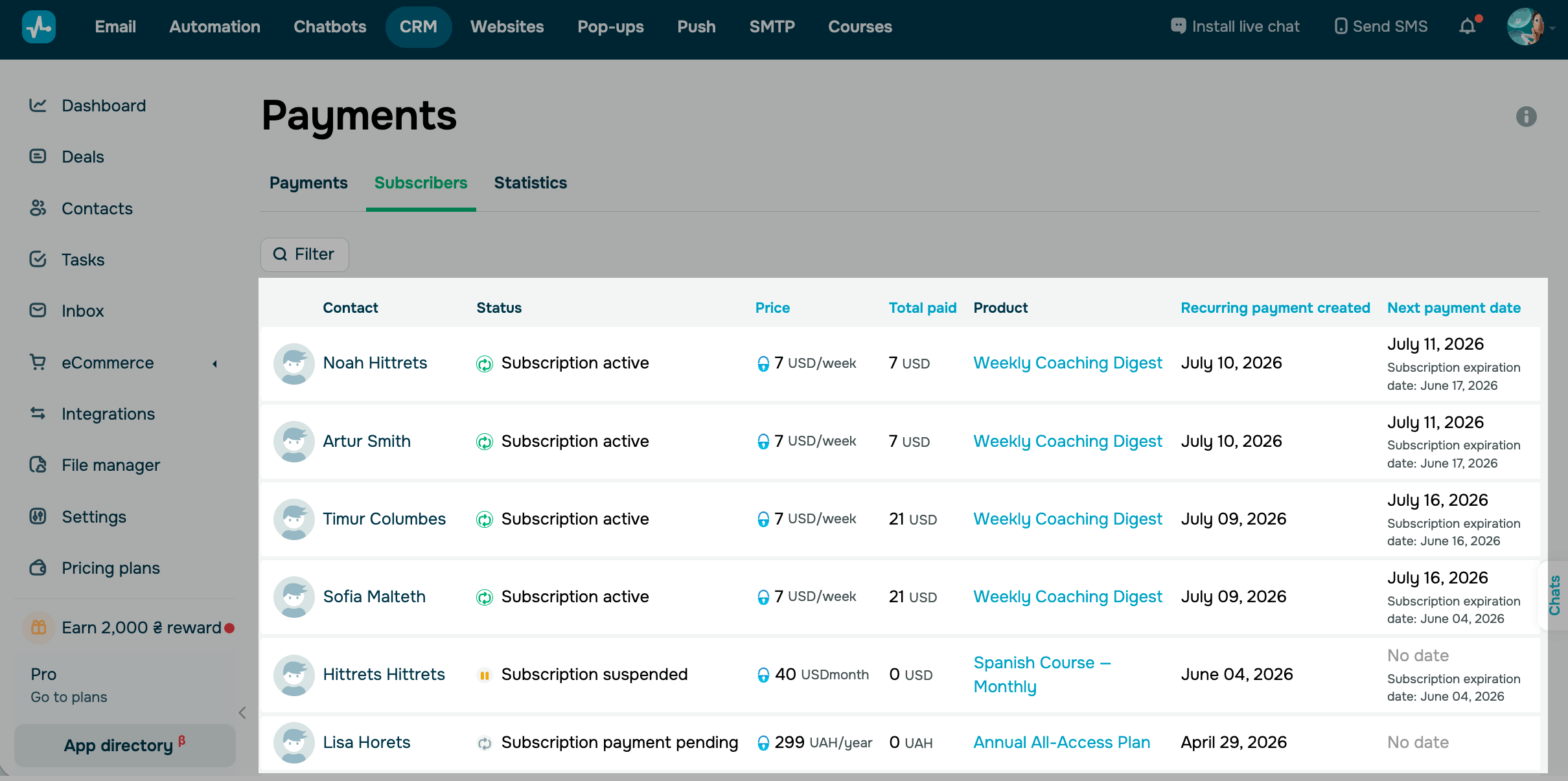
After these steps, you will have a product card, a connected payment solution, and a sales channel. The customer pays for the subscription and gets access to your product, and you see every payment in the CRM system. Next, you can edit and hide products, create promo codes, and view products in deals.
 Last Updated: 02.07.2026



or