Set a contour
Contour creates a frame around an element. It helps highlight specific elements, such as forms, buttons, or product cards. In SendPulse’s website builder, you can adjust border thickness, color, and rounding.
In this article, we will talk about how to use contours for visual impact and styling.
You can adjust its thickness or color and apply rounding to all corners or each one individually. Rounding settings are applicable to every corner in the following elements:
To access contour settings in a block or column, turn on the Contour toggle.
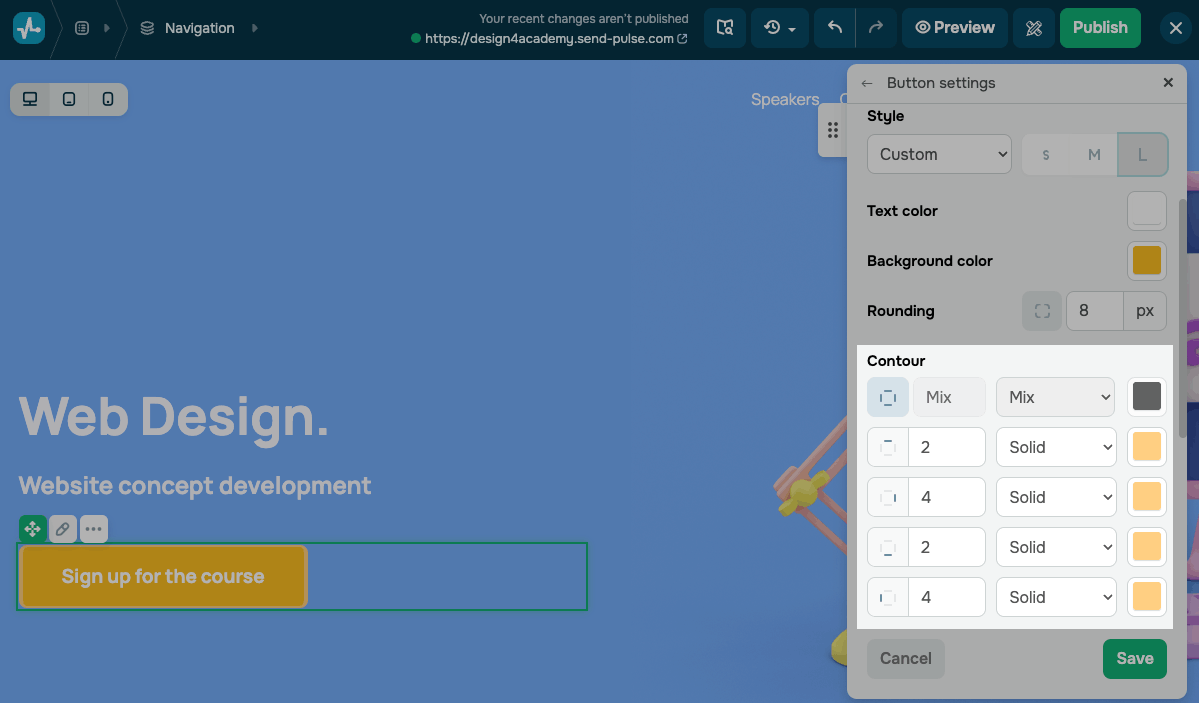
To access contour settings in widgets, select Custom in Button style.
| Thickness |
Set a line width from 1px to 20px. To set the thickness for each side separately, click the icon and enter a value for the top, right, bottom, and left sides. |
| Corners | Set a rounding. To customize each corner individually, click the icon and adjust its size. |
| Style | Set the line style.
Options include: Solid, Dashed, or Dotted. To set the style for each side separately, click the icon and choose a style for the top, right, bottom, and left sides. |
| Color |
Select a line color using the palette. To set the color for each side separately, click the icon and choose a color for the top, right, bottom, and left sides. |
By default, contour settings match your primary button style, including the rounding.
 Last Updated: 18.07.2025





or