Disconnect a WhatsApp chatbot and revoke the credit line
When you stop using a WhatsApp chatbot or move your phome number to another provider, you also need to remove SendPulse from your account on Meta's side. Complete the steps in the exact order below. If you skip or change the order, your business will still appear as connected to SendPulse in Meta.
For example, if you remove SendPulse from your partners in Meta first and delete your chatbot afterwards, the credit line stays attached, and neither you nor SendPulse can detach it.
Let's talk about what the credit line is, how to disconnect in the right order, and how long this takes.
Before you begin
To avoid losing data or access, make sure that:
- You have admin access to your Meta Business Portfolio.
- You've checked how many WhatsApp chatbots use this business portfolio. You'll need to disconnect all of them.
- You've exported any data you want to keep. When you delete a chatbot, its flows and contacts are permanently deleted.
If you plan to use your chatbot again, disconnect it instead of following the steps in this article. Disconnecting keeps your chatbot's flows and contacts. They're restored when you reconnect the same phone number.
Basics
Businesses need a payment method in Meta to send messages through the WhatsApp Business API. SendPulse provides this by sharing its credit line with your business. Meta delivers your messages, and the cost is deducted from your SendPulse balance.
Keep in mind these two things about the credit line:
- Meta attaches it to your business in Facebook, not to an individual WhatsApp Business account. One business portfolio can hold multiple WhatsApp Business accounts that use the same credit line. According to Meta, removing a credit line applies to all WhatsApp Business accounts in the business portfolio that are shared with the provider.
- Meta removes the credit line only after you delete the last chatbot connected to that business portfolio in SendPulse.
Read more: Revoke a shared credit line.
There are three common reasons to disconnect, and each one affects the credit line differently. Before you start, find the reason that applies to you.
| Reason | What to do | What happens to the credit line |
| You no longer want to use WhatsApp | Delete every SendPulse-powered WhatsApp chatbot in this business portfolio. Then remove SendPulse from the partner list in Meta. | Removed after you delete the last chatbot, depending on your billing period. |
| You're switching to another provider | Delete the chatbot in SendPulse, and then have your new provider migrate the phone number. | Released regardless of the migration status. Your new provider will share its own credit line with your business. |
| You want to delete one chatbot but keep the rest | Delete only the chatbot you don't need. Keep SendPulse in the partner list so your other chatbots continue to work. | Remains linked to your business. This is expected, since the credit line covers the entire business portfolio. |
If you deleted one chatbot but kept others, SendPulse stays in your partner list in Meta. This is expected, and no action is needed.
Revoke the credit line
Warning: Don't start in Meta. Delete your chatbots in SendPulse first. If you remove SendPulse from your partners, revoke its app permissions, or disconnect it in the WhatsApp Business app before that, SendPulse loses the API access it needs and can't release the credit line.
To revoke the credit line, delete your chatbot in SendPulse first, and then remove SendPulse as a partner in Meta.
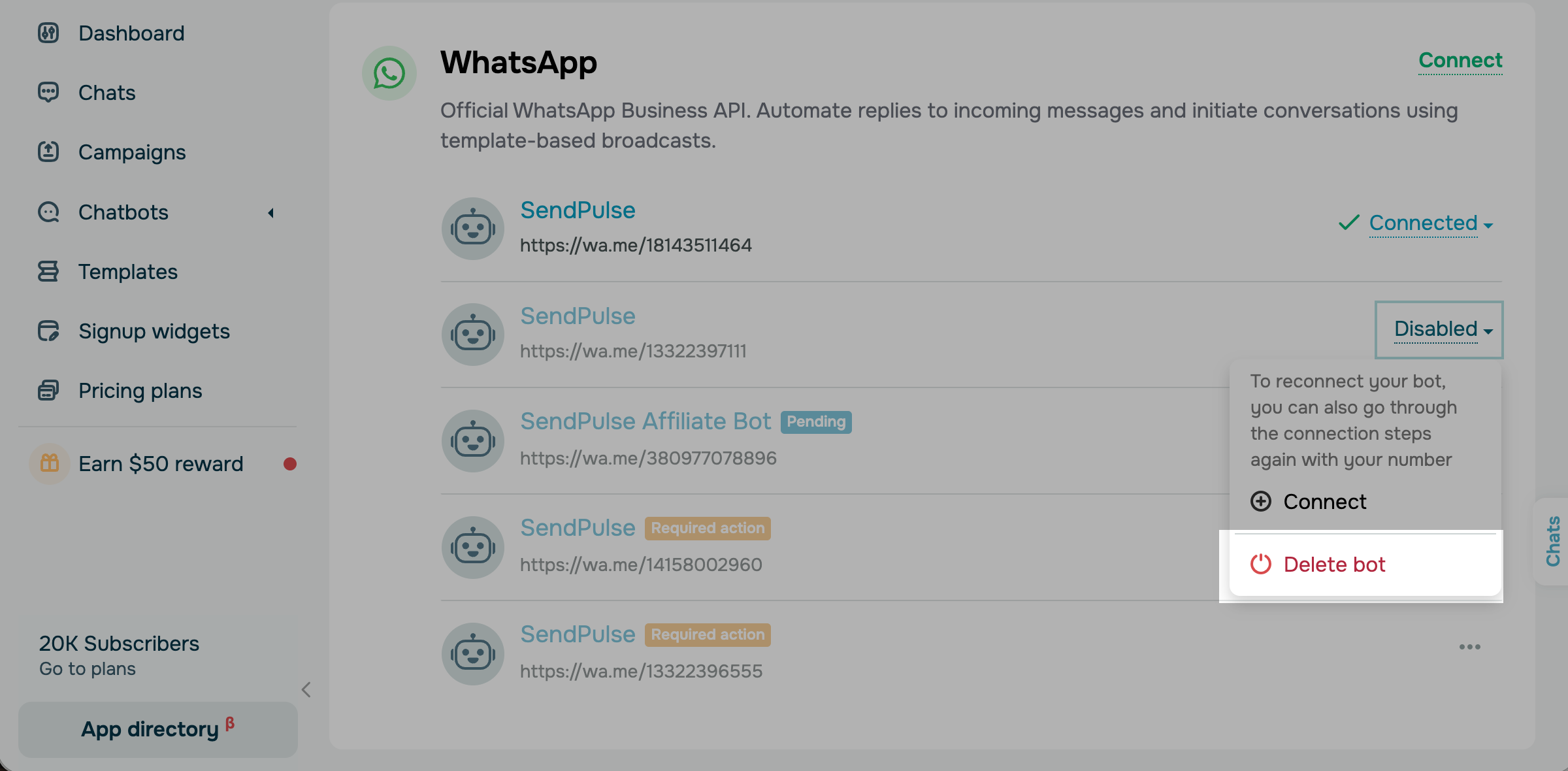
To delete a WhatsApp chatbot in SendPulse, go to your SendPulse account > Manage bots. Next to your chatbot, click its status and select Disconect. Then, once you confirm the action, click its status again and select Delete.
Read mode about disconnecting your WhatsApp bot: How to delete a WhatsApp chatbot.
If you have other WhatsApp chatbots in the same business portfolio, delete all of them. If even one chatbot remains, the credit line stays linked to your business.
SendPulse is listed as a partner in two places, and you need to remove it from each one. If you remove SendPulse from a WhatsApp Business account, the partnership ends only for that account. If you remove it from the business portfolio, the partnership ends for the entire portfolio, including all its WhatsApp Business accounts.
To delete SendPulse from a business portfolio, go to your Meta Business Suite account > Settings > Users > Partners. Select SendPulse, click Options in the upper right corner, click Remove from business portfolio, and confirm.
To delete SendPulse from WhatsApp Business account, go to your Meta Business Suite account > Settings > Accounts > WhatsApp accounts. Select your WhatsApp Business account, open the Partners tab, click the trash can icon next to SendPulse, and click Confirm.
Read also: How to remove a partner from your WhatsApp Business account.
Afterward, the Partners tab of your WhatsApp Business account will no longer list SendPulse.
Wait for the credit line to be revoked
Meta usually revokes the credit line quickly.
Sometimes, it can't be revoked because of an unpaid balance. When this happens, the credit line can only be revoked after Meta's invoice is paid. Meta sends invoices to providers on the 2nd or 3rd of the next month, with payment due by the end of that month. This means the credit line may still appear in Meta for six to eight weeks after your last paid message.
During this time, you may see the Access removed status in WhatsApp Manager or a remaining balance in your account. This is expected.
You may not be able to delete a WhatsApp Business account with an unpaid balance. In this case, wait for the last billing period's invoice to be paid and try again.
Once Meta revokes the credit line, SendPulse is no longer listed as a partner in your business portfolio. You can then connect your WhatsApp Business account to another provider or delete it.
Switch to another provider
Revoking the credit line doesn't move your phone number. Your new provider takes care of the migration on its own.
Meta requires four things before a migration can start: your Meta Business Account has a verified status, your existing WhatsApp Business account is approved, that account has a valid payment method attached in Payment Settings, and two-step verification is off for the number.
To start the migration, Meta requires:
- A verified business portfolio.
- An approved WhatsApp Business account.
- A valid payment method in your account's Payment Settings.
- Two-step verification disabled for the phone number.
Read more: Migrating a business phone number from one Solution Partner to another and Prepare your phone number before connecting
Check for a personal payment method
Meta charges any personal payment method added to your WhatsApp Business account, even if the account also uses a provider's credit line. In accounts connected through Coexistence, this payment method can't be changed.
To avoid unexpected charges, check your payment settings in Meta before you connect a phone number.
Messages you send are charged to your SendPulse balance. If Meta has charged your own payment method as well, contact support. We'll check if Meta billed SendPulse for the same messages, and if not, we'll refund the amount you were charged. This refund is available only once, so after that, use a WhatsApp Business account without extra payment methods.
Read more: Troubleshoot WhatsApp payment issues.
Contact support if your credit line isn't revoked
If you've deleted all your chatbots, more than two months have passed, and SendPulse is still listed in Meta, contact support and include:
- your SendPulse account ID;
- your Meta business portfolio ID;
- your WhatsApp Business account ID;
- the phone number in international format;
- a screenshot from WhatsApp Manager showing the credit line.
 Last Updated: 08.10.2026



or