Connect Google Analytics 4 to your subscription form
The Google Analytics 4 (GA4) integration sends events from your SendPulse-powered subscription form to GA4, which helps you track form submissions and other analytics.
With this integration, you can:
- Count subscriptions as a key event in GA4 and measure form conversion rate.
- Attribute new subscribers to specific traffic sources and UTM campaigns.
- Continue tracking submissions after the shutdown of Universal Analytics.
Let's talk about how to configure GA4 on your website and view subscription data.
How it works
When a visitor submits your subscription form, the form script detects which Google library is installed on your page (gtag.js or Google Tag Manager) and sends an sp_form_submit event through the matching API.
Prerequisites
Before getting started, make sure you have:
- A Google Analytics 4 account with an active data stream for your domain.
- GA4 installed on your website through
gtag.jsor GTM. - A subscription form created in SendPulse and embedded on the page where you want to track submissions.
Send events to GA4
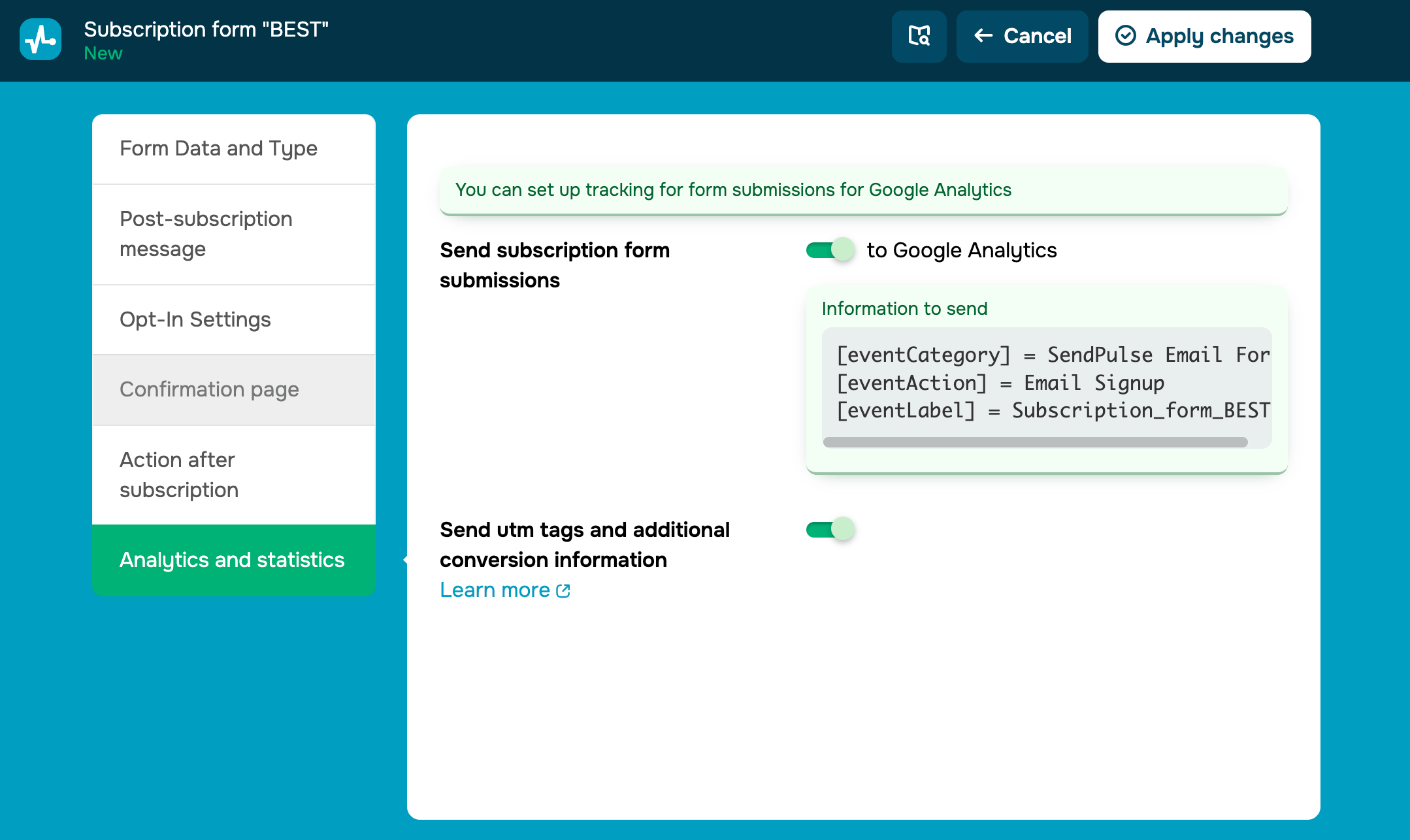
Open your subscription form in the SendPulse editor and go to Form settings > Analytics and statistics. Turn on the Send subscription event to Google Analytics toggle.
You can also capture UTM parameters and traffic sources when users join your mailing list. To do this, turn on the Send utm tags and additional conversion information toggle.
Configure GA4 on your website
The form supports two integration methods. Choose the one that matches how GA4 is installed on your website.
Through GA4 code (gtag.js)
If you installed GA4 through gtag.js, no extra setup is needed. When your form is submitted, the script automatically sends the following event:
gtag('event', 'sp_form_submit', {
  eventCategory: 'Sendpulse Email Form',
  eventAction: 'Email Signup',
  eventLabel: '<your form name>'
});
Make sure the GA4 snippet loads on the page before the form script.
Through Google Tag Manager
If you installed GA4 through GTM, the form pushes the event to dataLayer:
window.dataLayer.push({
  event: 'sp_form_submit',
  eventCategory: 'Sendpulse Email Form',
  eventAction: 'Email Signup',
  eventLabel: '<your form name>'
});
To forward this event to GA4, create a trigger and a tag in your GTM container. In the trigger, select Custom Event as the type and enter sp_form_submit as the event name. In the tag, select Google Analytics: GA4 Event as the type, link your GA4 configuration, and bind the tag to the trigger you've created. Publish the container.
Event parameters
The sp_form_submit event has the following parameters:
eventCategory |
SendPulse-powered subscription form |
eventAction |
Email signup |
eventLabel |
Form name or ID |
In GA4, eventCategory and eventAction are not standard dimensions. To use them in reports and explorations, register them as custom dimensions. Go to Admin and select Data display > Custom definitions, then create a custom dimension for each parameter you want to analyze.
Test the integration
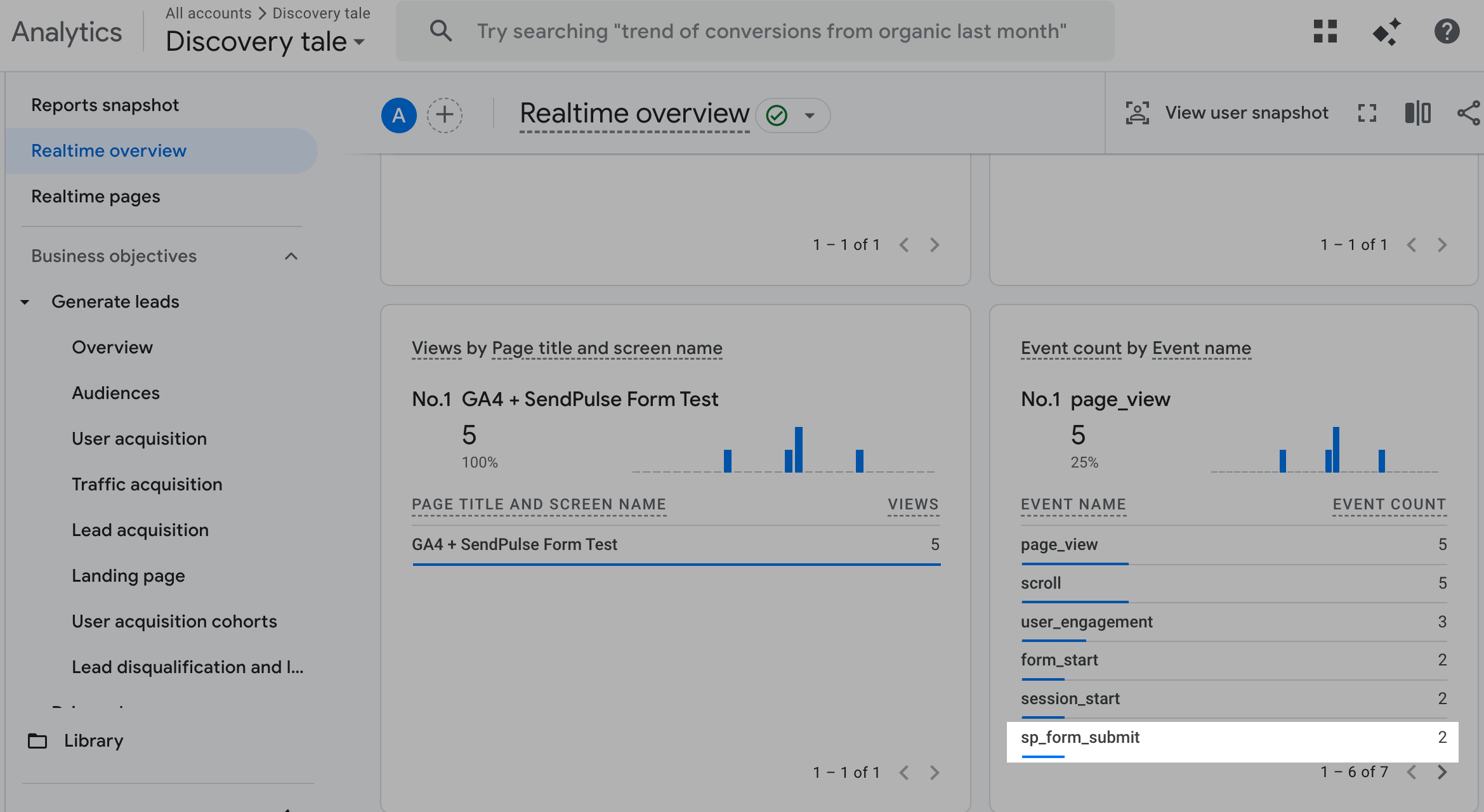
To confirm that GA4 receives the event, open your Google Analytics 4 property and go to Reports > Realtime. Open the page with your form in another tab and submit a test subscription.
Note: Standard GA4 reports update with a delay of up to 24–48 hours
The sp_form_submit event appears in the Realtime report within a few seconds. This means that setup is successful and your form is connected to Google Analytics 4.
Troubleshooting event tracking issues
Events are sent, but not visible in GA4. What should I check?
Confirm that the GA4 snippet or GTM container loads on the page before the form script. Make sure your IP is not excluded by an internal traffic filter in GA4 as well.
Do I need to update my setup if I used Universal Analytics?
Yes. Google has shut down Universal Analytics, so the legacy analytics.js library no longer collects data. Switch to GA4 and install it through gtag.js or Google Tag Manager.
Why don't eventCategory and eventAction appear as dimensions in GA4?
GA4 uses a different data model than Universal Analytics. To analyze these parameters in reports, register them as custom dimensions in the GA4 Admin panel.
View subscription data
You can view information about your subscribers in Reports.
To view live sp_form_submit triggers as they launch, go to Reports > Realtime Overview.
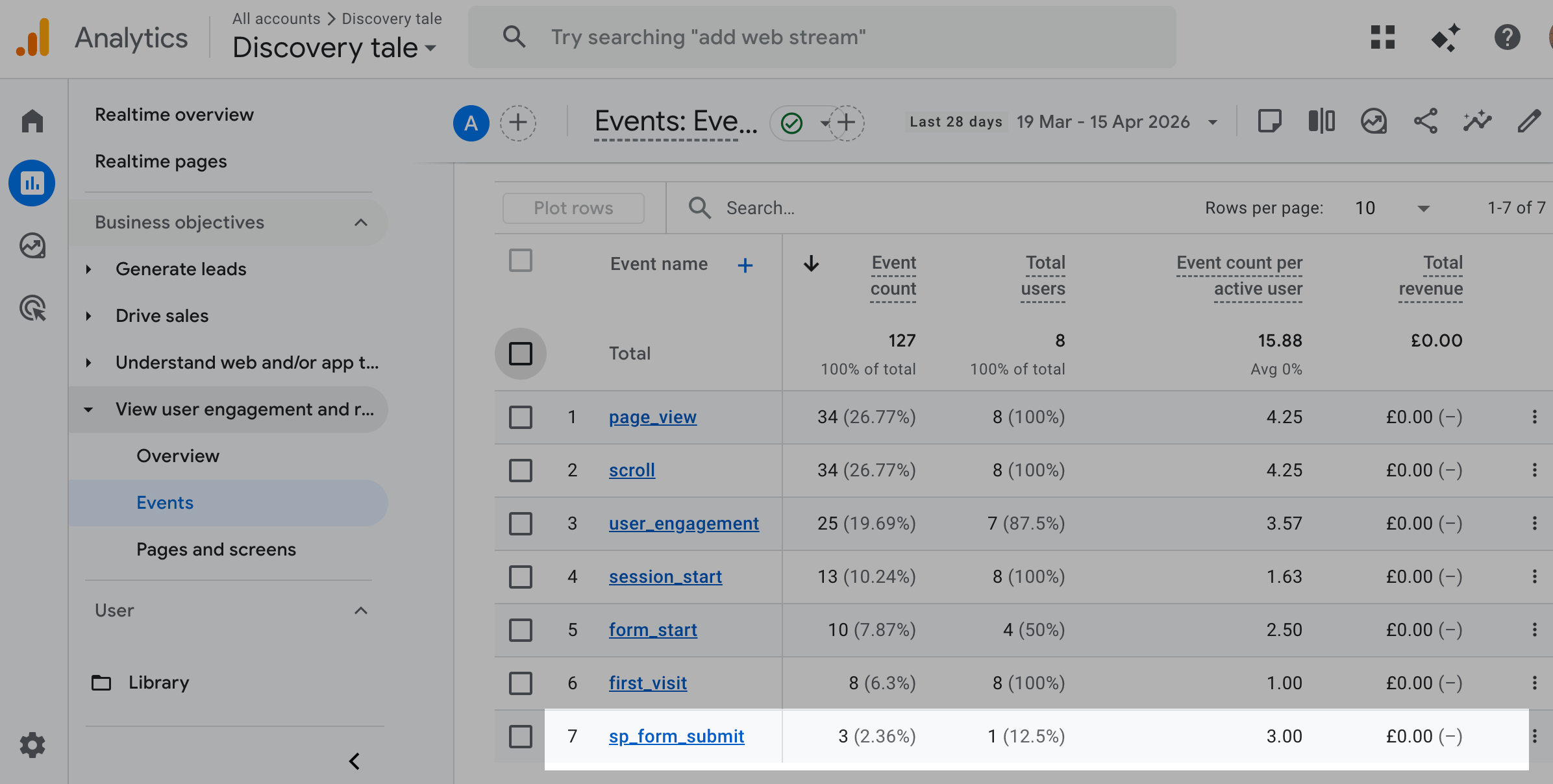
To view the total number of subscription events for a specific timeframe, go to Reports > View user engagement > Events.
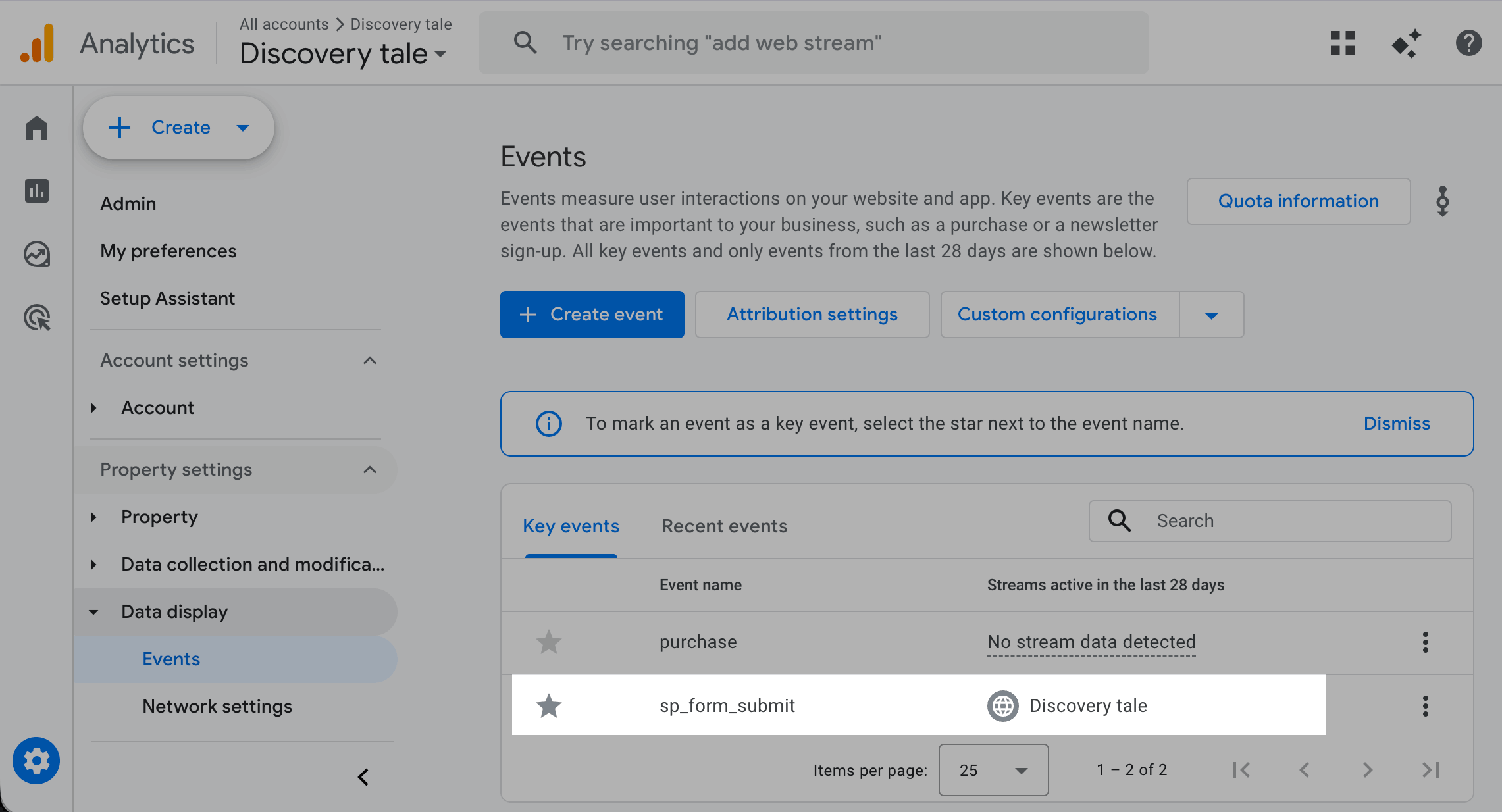
To count subscriptions as conversions, mark the event as a key event in GA4. Go to Admin and select Data display > Events. Find sp_form_submit on the list and turn on the Mark as key event toggle.
To view subscription counts when sp_form_submit is marked as a key event, go to Reports > Generate leads > Traffic acquisition.
Google Analytics metrics can show different data depending on the settings. See Google Analytics 4 documentation to learn how to use the settings.
 Last Updated: 07.12.2023





or