Notify students about course events in Telegram
You can connect a Telegram chatbot to your course to automatically notify students about course events, including new lessons, tests, certificates, and assignment review results.
Students can access course content from your message in the Telegram Mini App without using the web version of their account or the mobile app.
Let's talk about how to connect a chatbot to your course, edit notifications, and see which students receive them.
Connect a chatbot to your course
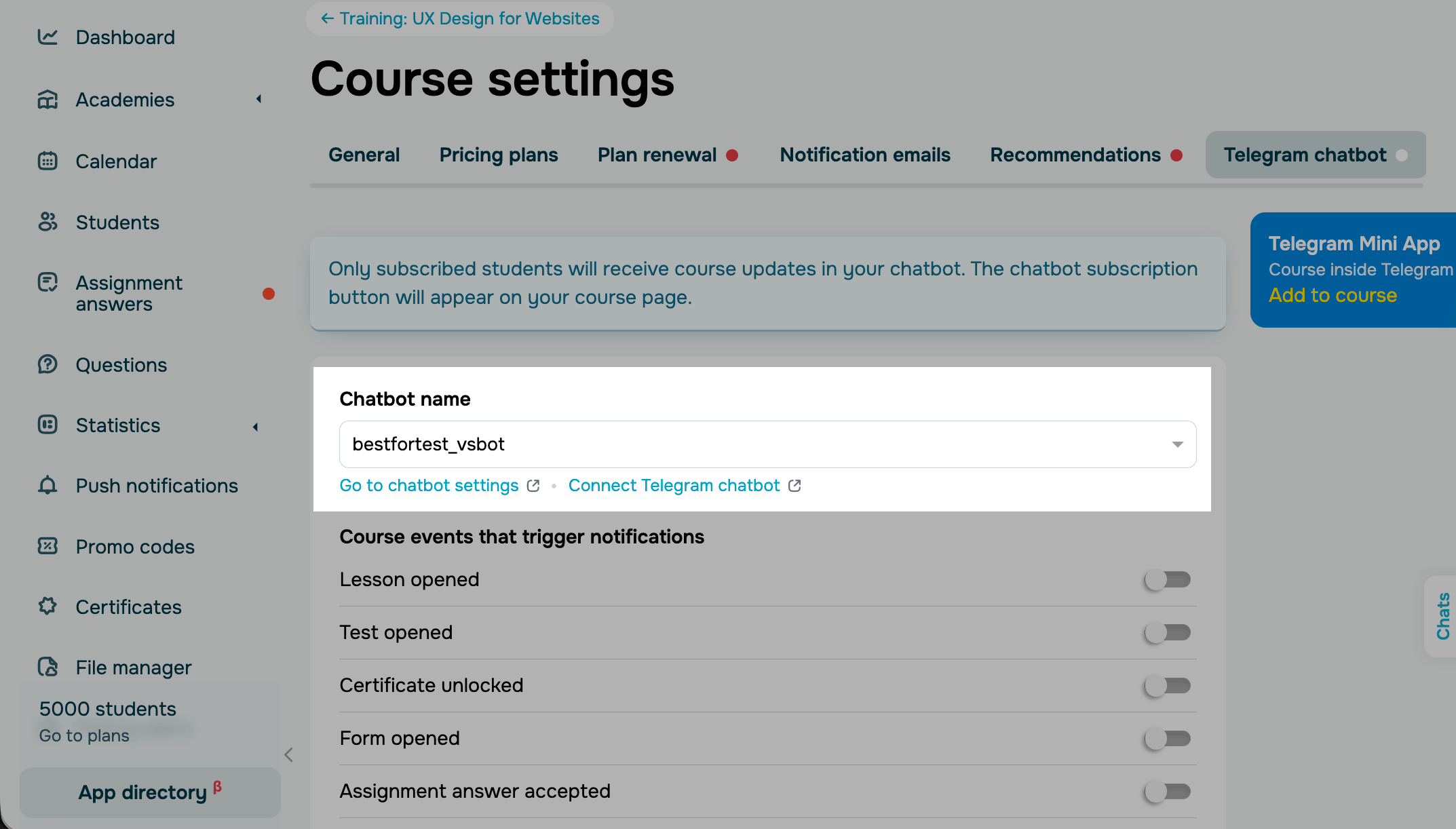
Go to your course settings and open the Telegram chatbot tab.
In the Chatbot name section, select a chatbot from the list of connected Telegram chatbots.
If you don't have a chatbot yet, click Connect Telegram chatbot. You will be redirected to the Chatbots section where you can connect your chatbot. Once you finish, return to your course settings.
Manage notifications
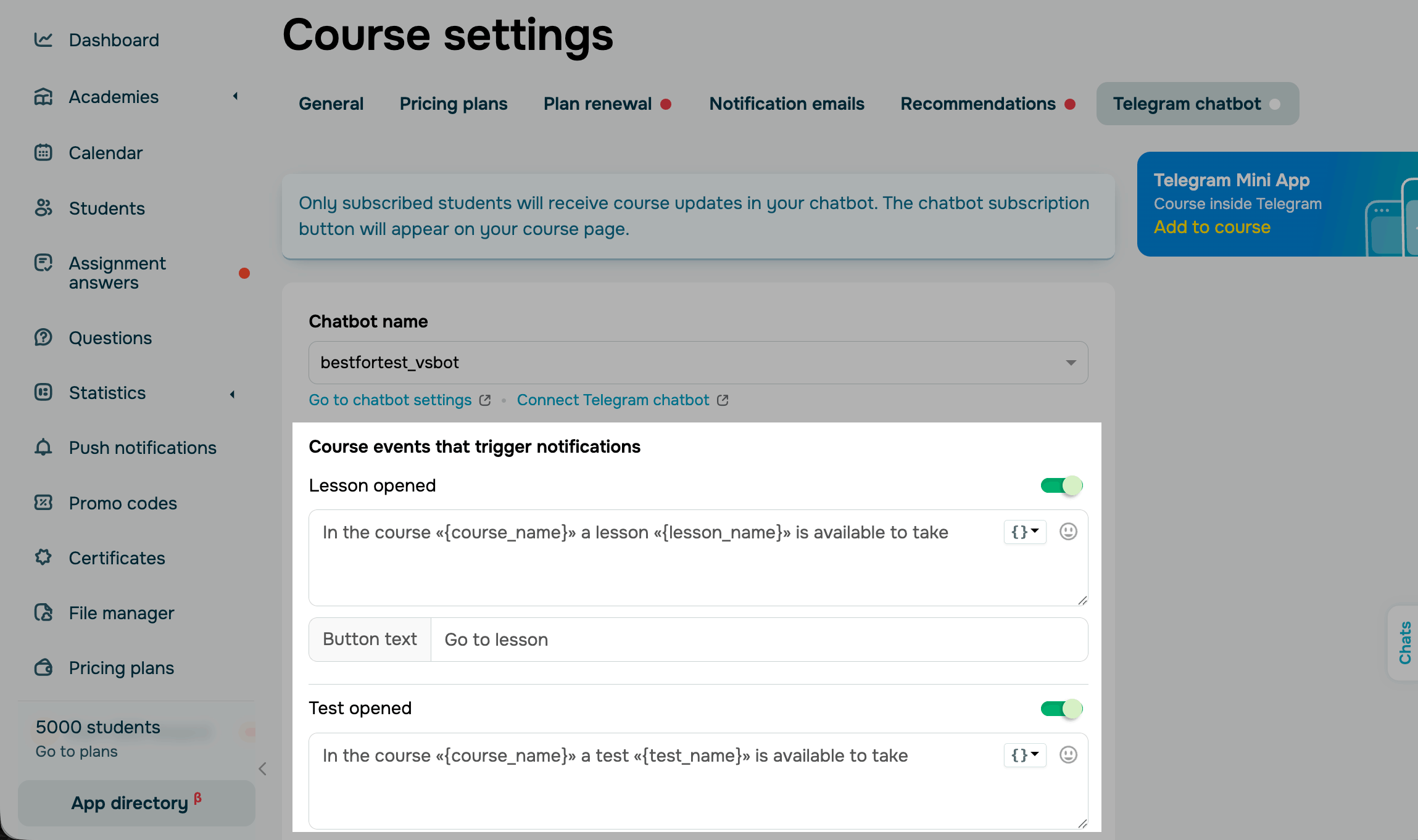
Once you connect a chatbot, notifications will turn on automatically. You can view each notification's text, edit it, or turn the notification off.
Students receive notifications about the following events:
| New lesson available | A new course lesson became available to the student. |
| Test available | A test became available to the student. |
| Certificate available | A certificate became available to the student. |
| Assignment accepted | An instructor accepted the student's answer. |
| Assignment rejected | An instructor rejected the student's answer. |
| Assignment returned for revision | An instructor returned the student's answer for revision. |
| New message in the assignment chat | A new message appeared in the assignment chat. |
The system adds a default text and button for each event type. Each message includes the course, lesson, test, or certificate name.
To customize a message, edit the text in its section. You can also use course variables and add emoji.
Subscribe students to the chatbot
Only students whose accounts are linked to your chatbot receive notifications.
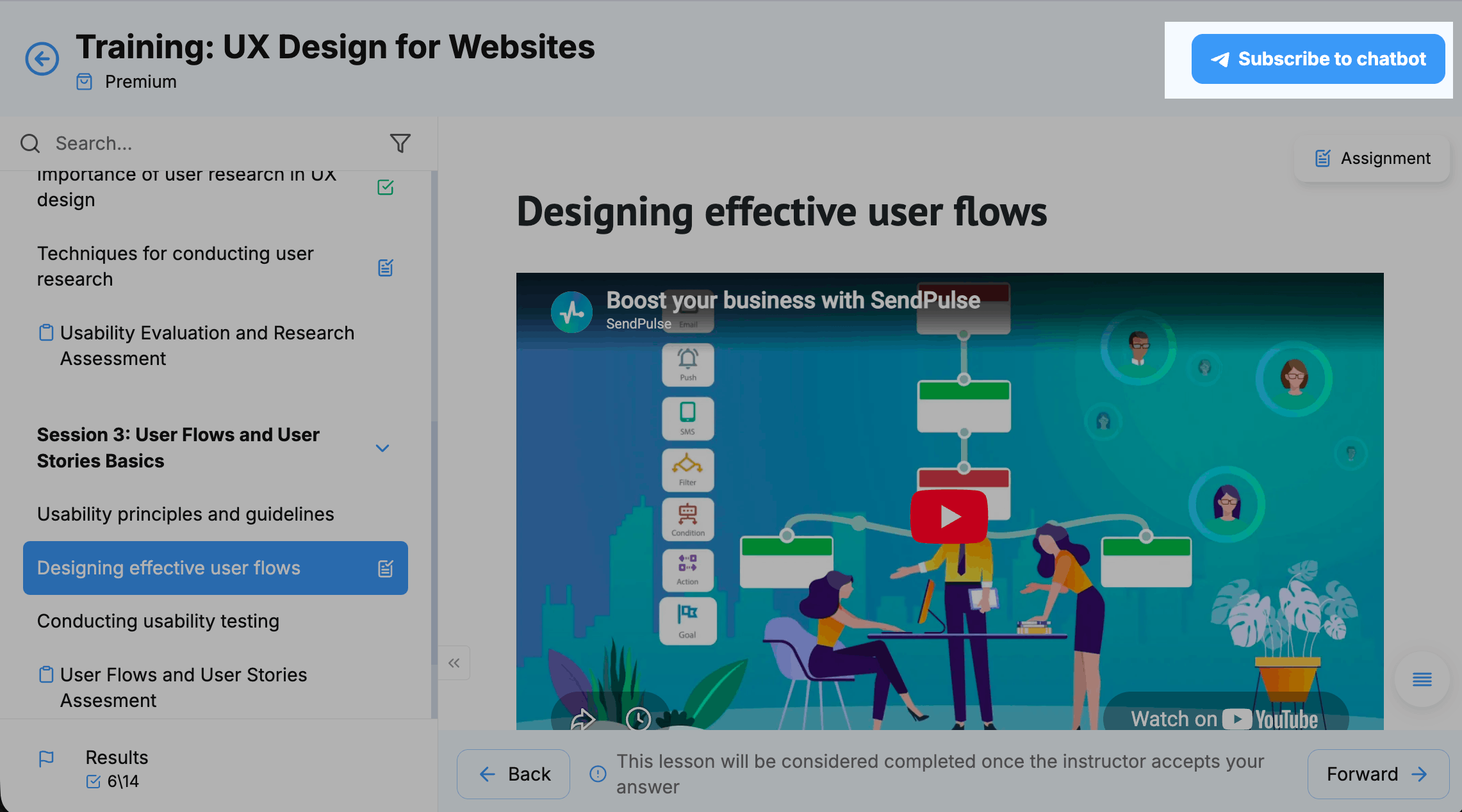
Students who enroll in your course through the linked chatbot are subscribed to it automatically.
If they enroll using a different method, they can still subscribe from their account using the Subscribe button that appears once you link your chatbot.
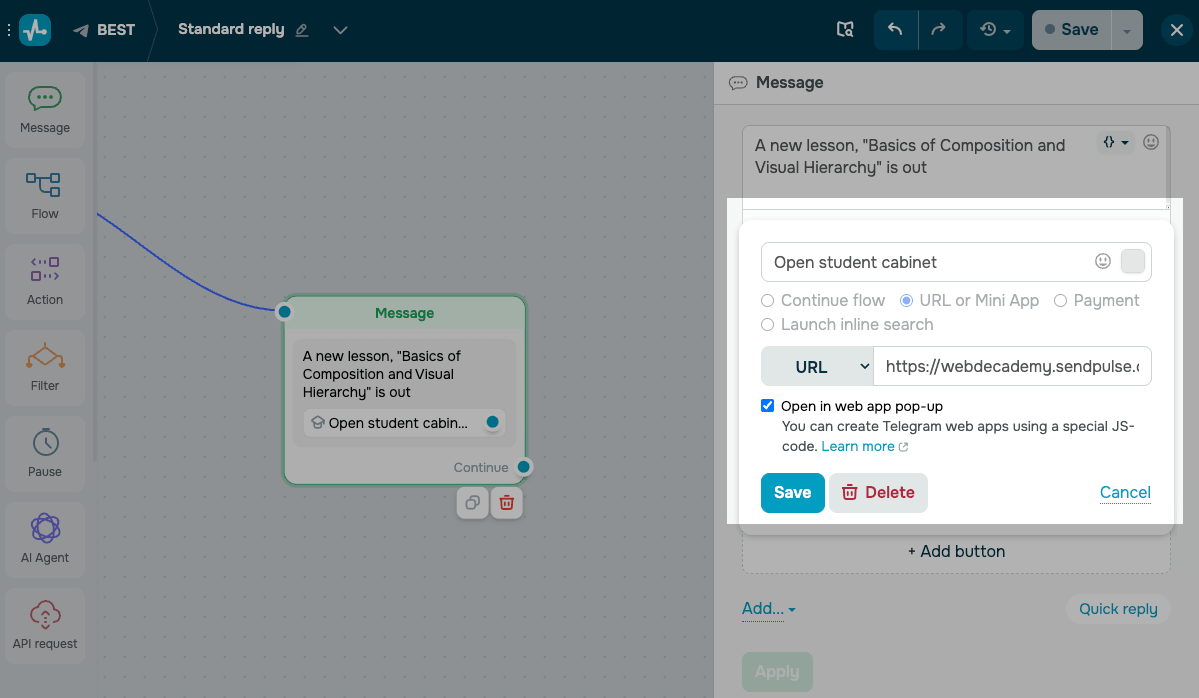
Students can also subscribe to your chatbot through a Telegram Mini App link.
To add this link, add a Message element to your chatbot flow and click Add button. Enter a button label. Select the URL or Mini App button type. Select URL from the list and paste a student account link, such as https://webdecademy.sendpulse.courses/courses/my-courses.
Select the Open in web app pop-up checkbox, then save your button.
When a student opens this link for the first time, they will be taken to their account. Then, they will need to log in and confirm their email address.
If the student account is not linked to a chatbot subscriber profile, SendPulse links it automatically. The student can then receive notifications about course events.
Subsequent visits to the Mini App do not require signing in again.
You can create your own Telegram web app using JS code.
 Last Updated: 15.07.2026



or