Transfer chatbot subscriber data to the CRM system
You can automatically transfer new subscriber data and move your chatbot’s existing audience to a contact list in the CRM system.
Enable the option
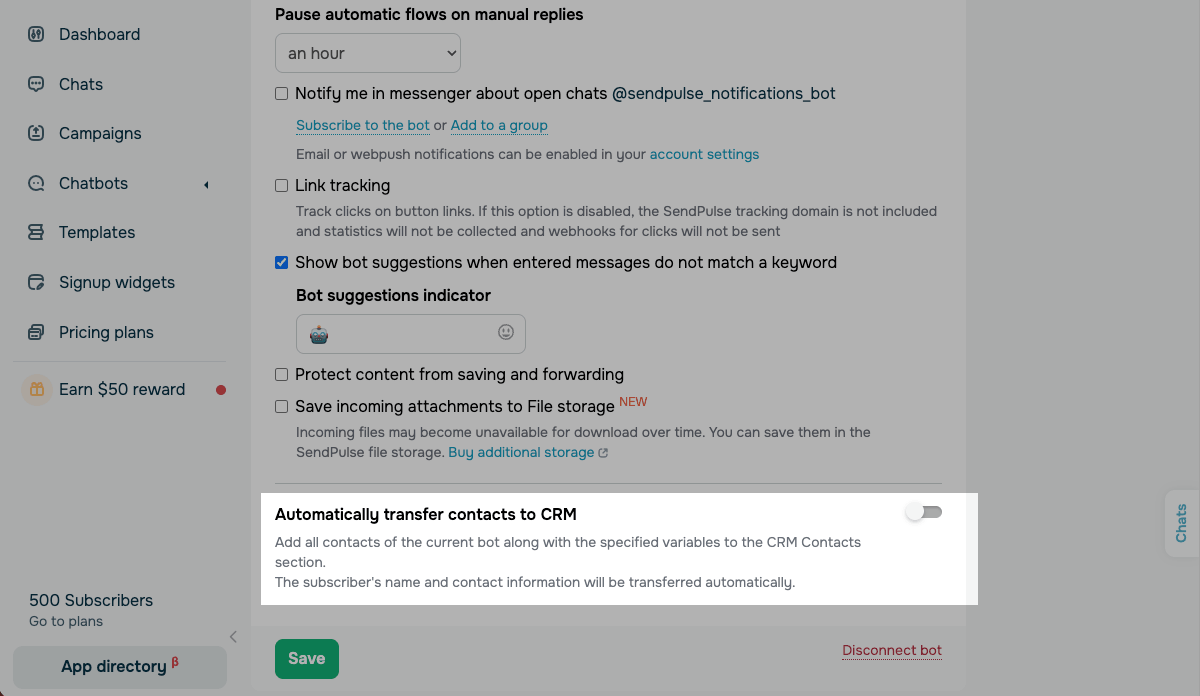
Go to your chatbot's page, navigate to Bot Settings, and select the Automatically transfer contacts to CRM checkbox.
Map the variables
Select chatbot variables on the left and CRM contact fields on the right to map them.
You can mark specific variables as required for creating a CRM contact. A CRM contact is created only after your chatbot receives the specified data. Required fields help you filter out contacts that lack enough data for CRM processing. To make a variable required, select the checkbox next to it in the Variable (Bot) column.
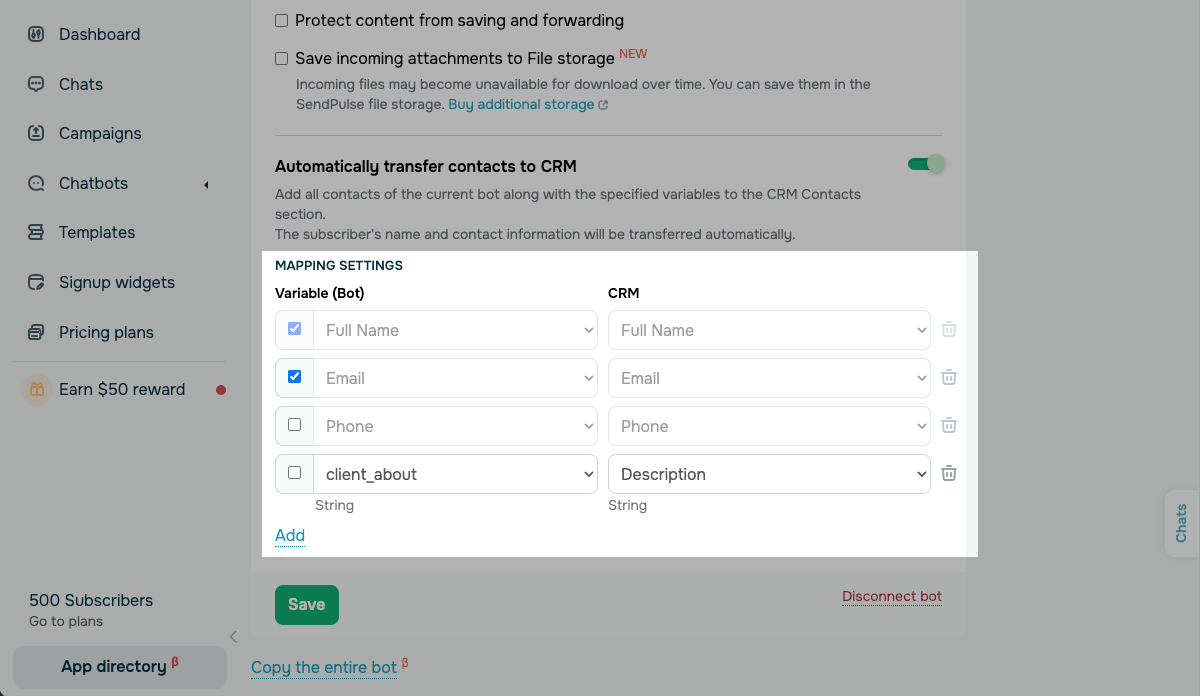
If a required variable is empty, the contact is not transferred to the CRM until the variable is filled in.
This also works for existing bot contacts. Once a required field is updated, for example, after a flow that collects additional data, the contact is transferred to the CRM.
Click Save to apply the settings. Your chatbot subscriber data will then be transferred to your CRM contacts.
 Last Updated: 27.12.2024




or