Connect AI models to your chatbot
With SendPulse, you can connect AI models to your chatbot to analyze user inputs, determine intent, and generate automated replies that align with user goals.
For example, your chatbot can respond based on message tone, extract structured data from user responses, or personalize product recommendations depending on customer preferences. You can also limit AI usage, activate voice recognition, and reuse prompts across flows.
Let’s go over how to connect a model for further setup in the AI Agent element.
Usage features
Once you integrate AI model with your chatbot, users in Standard reply flows will automatically follow the Yes path and receive AI-generated responses. Therefore, you need to make sure users know that your bot can reply to them. For example, add your bot communication guidelines to a welcome or trigger flow that you add to your menu.
When using OpenAI with chatbots, AI uses an internal information library — it processes users’ requests and gives results directly in the chat with a client. You can also enable web search, add your own files, or integrate with other tools through n8n to retrieve data from external sources.
AI does not have a long memory. When processing a request, only the last user messages are taken into account. In the model settings, you can set a conversation context size. We recommend you monitor your bot’s conversations with customers to correct its prompts.
You can add an OpenAI bot to your Telegram group. You will be able to trigger this bot using @mentions, /commands, keywords, and OpenAI requests if this integration is enabled.
Make sure your bot has admin rights in your Telegram group, including permissions to assign other admins.
Read more: How to create posts in a Telegram channel or group via your SendPulse chatbot.
Set up the integration
Enter your API key
Choose a bot and go to Bot settings > Integrations. Next to OpenAI*, click Enable.
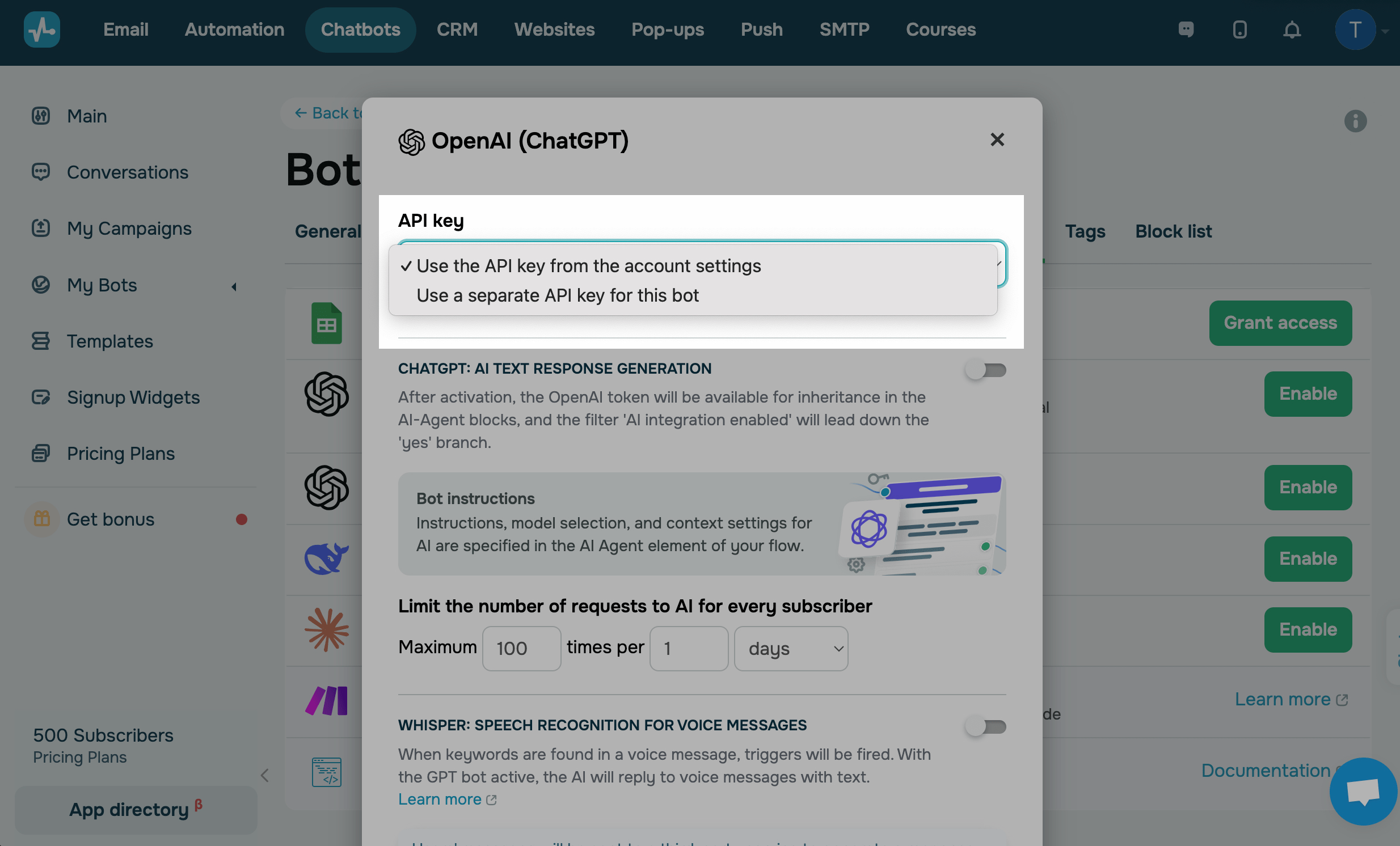
Select a connection method.
| Use the token from the account settings | If you use one OpenAI account for different SendPulse tools, including the chatbot builder, you can add your token to the general account settings. |
| Use a separate token for this bot | If you need to use a dedicated OpenAI account for your current chatbot, select this option, and in the next field, enter your key. |
* You can also connect DeepSeek, Claude and Gemini models and follow the same steps outlined here. Read how to get and copy API keys: Integrate ChatGPT with SendPulse tools, Integrate DeepSeek with SendPulse tools, Integrate Claude with SendPulse tools, Integrate Google Gemini with SendPulse tools.
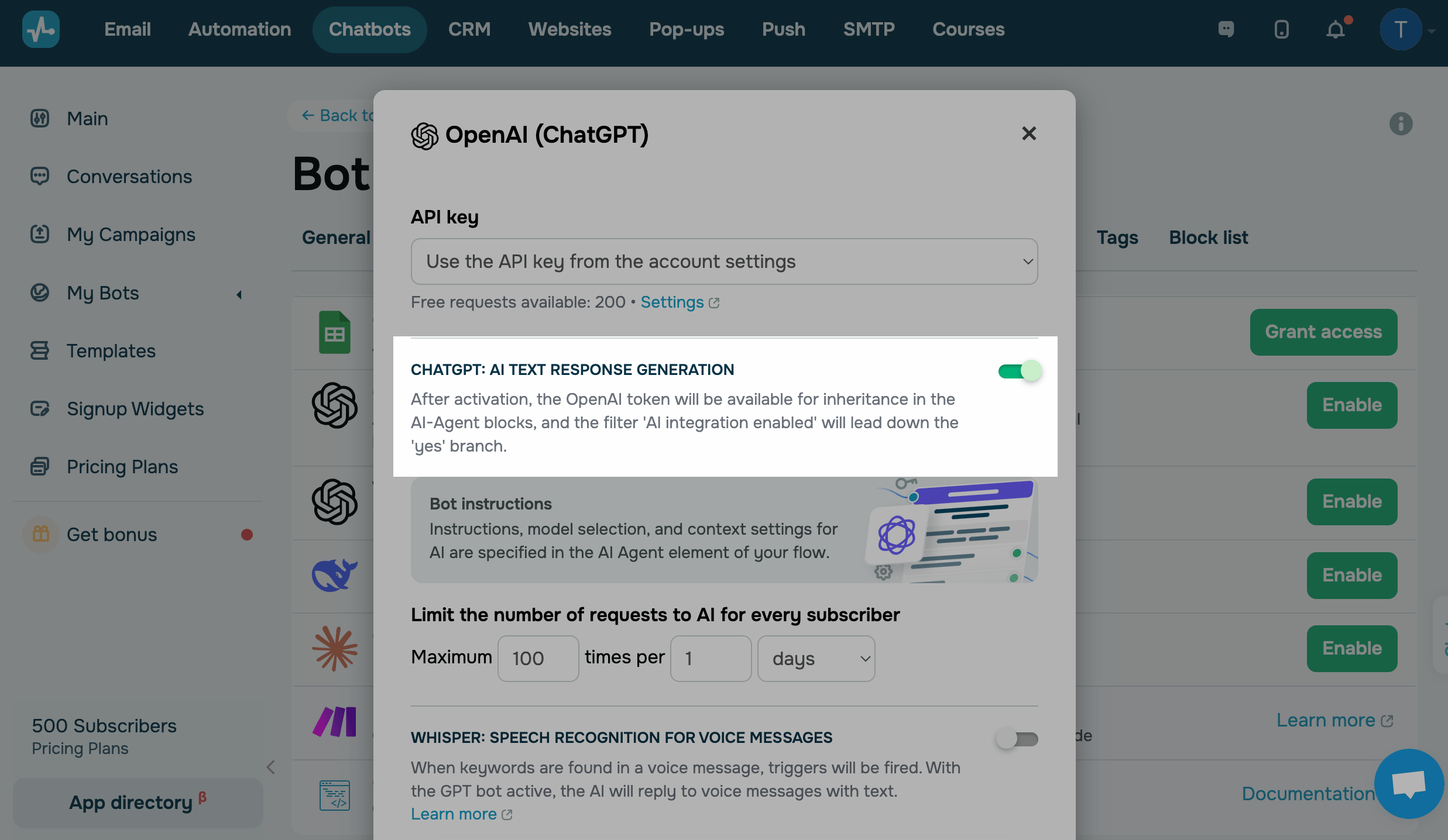
Enable text generation
Turn on the AI text response generation toggle to make users follow the Yes path and receive AI-generated replies instead of standard responses. Your OpenAI token will also become available in the AI Agent element.
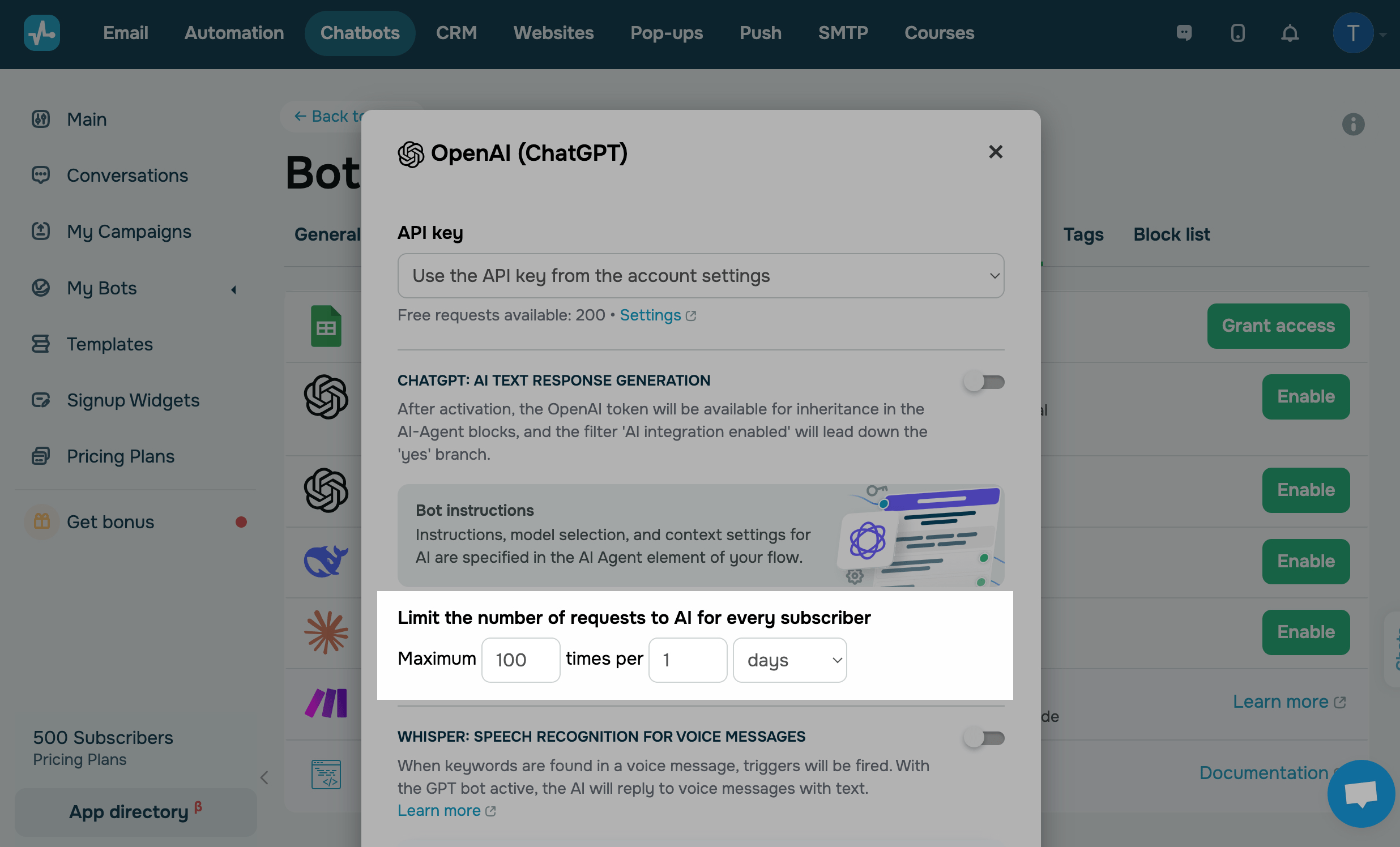
Limit the number of subscriber requests
To avoid subscribers from submitting an excessive number of paid requests to your chatbot, you can set limits.
In the Limiting AI bot triggering to one contact field, specify a number of requests and a number of days, hours, or minutes within which users can send them.
By default, a subscriber can send 100 requests daily.
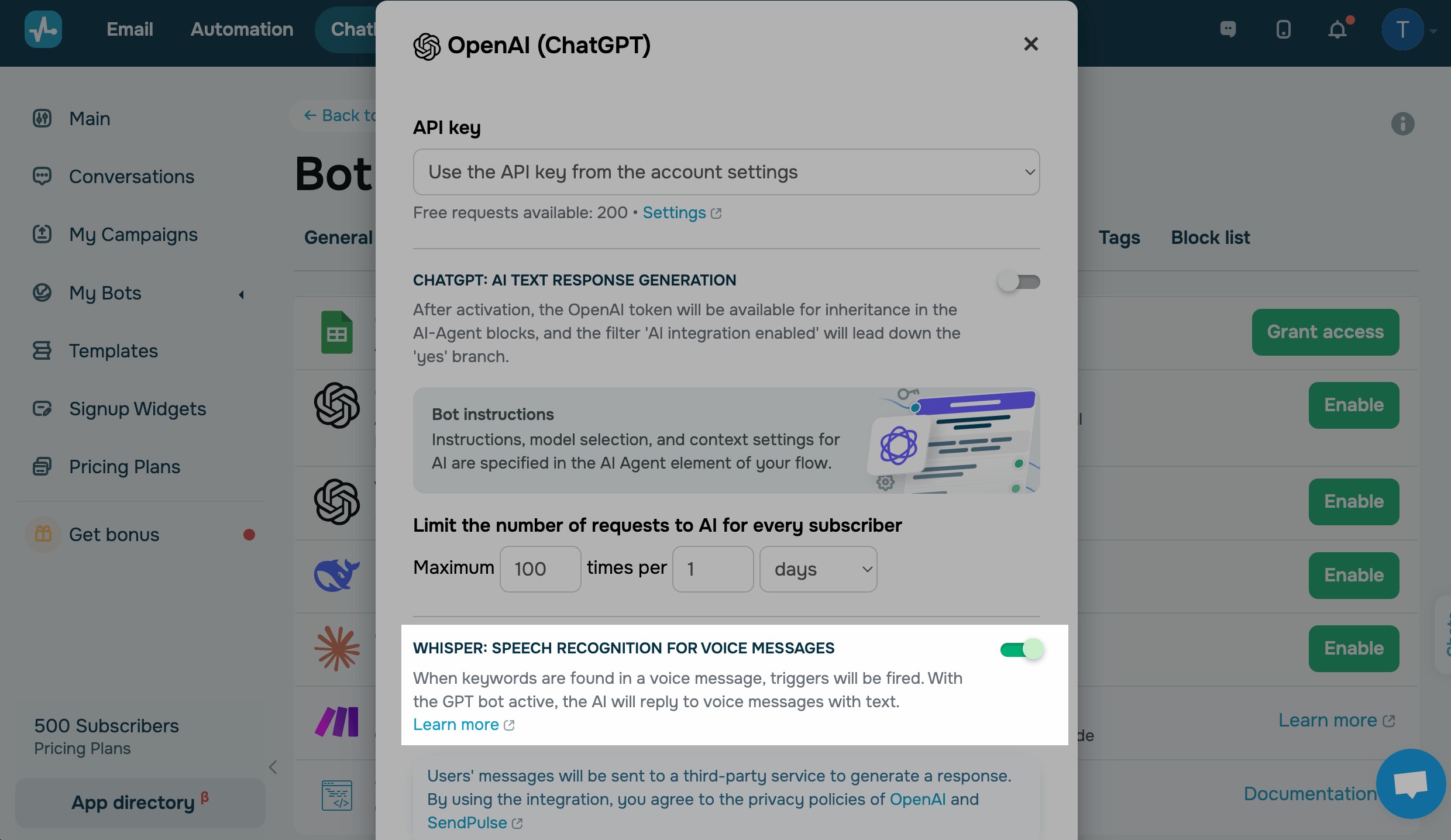
Enable speech recognition for voice messages
Supported in AI models by OpenAI.
Turn on Speech recognition for voice messages toggle to allow the AI to process voice messages and reply with text. When it detects keywords, your chatbot triggers relevant flows.
Read also: How to set up voice recognition of subscribers’ messages in your chatbot.
Enable AI agent disclosure
Some regions require you to disclose when subscribers are interacting with AI. In the EU, for example, the EU AI Act applies from August 2, 2026. If these requirements apply to your audience, add a disclosure notice to your chatbot’s AI replies.
Turn on the AI agent disclosure toggle. In the input field, keep the default text or enter your own to match your brand and applicable requirements. You can enter up to 2,048 characters.
Your AI agent adds the disclosure to its first reply only. Later AI messages won’t include it.
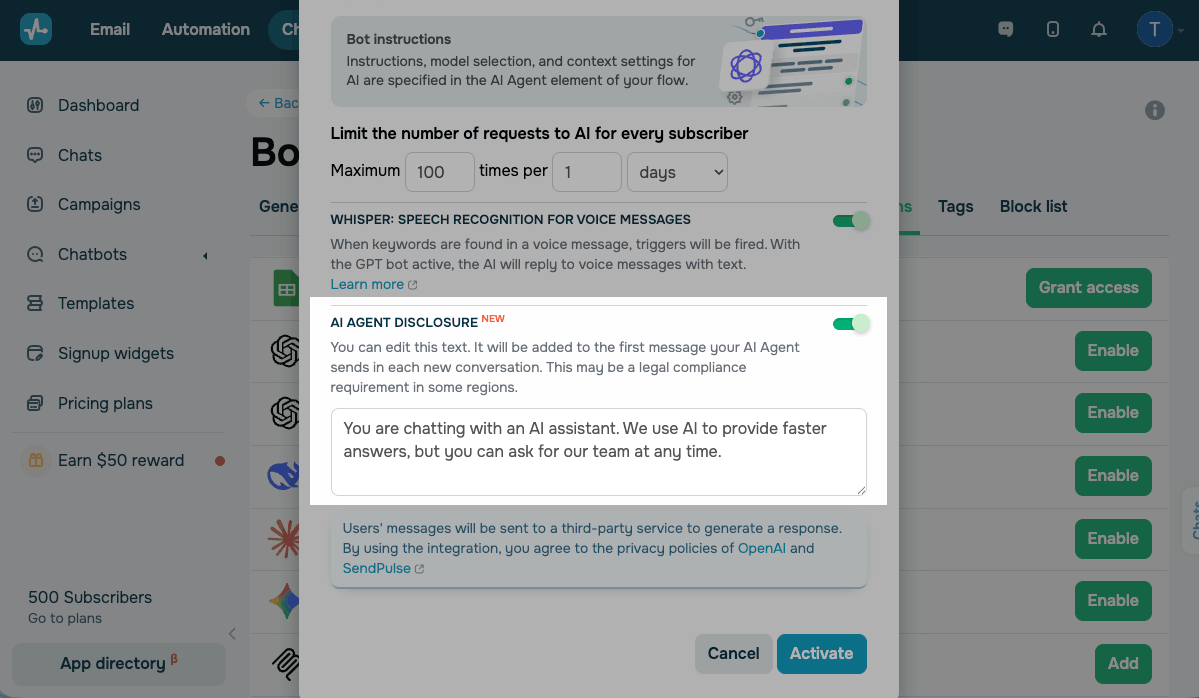
The setting applies across all AI integrations within the same chatbot. If you edit the text or turn on the toggle in one integration, the change applies to all others. The disclosure applies to every AI agent in your chatbot, regardless of which model or flow generates the reply.
Activate integration
After you fill in the fields, click Activate and continue configuring the model in the AI Agent element.
Before saving, you need to enable either text generation or speech recognition in voice messages.
Use cases
Let's see various examples of how you can use a chatbot with an OpenAI integration. You can see more examples on the Examples page.
If you have a bot for a feature-loaded service, you can train it to independently manage conversations with clients and generate answers to questions about your products and working hours.

For this example, the ChatGPT model used 2048 tokens. We added short info about the company, its business, and contacts. The bot can develop a dialog based on the data received.
Prompt example: You are a bot assistant to the "Paper and pencil" company. Our company sells stationery and office supplies. A lot of items are in stock, but it is better to clarify by phone: (856) 267-5442.
Store address: 4472 Central Avenue, Newark.
Working hours: 9:00 AM – 7 PM.
Use the following text to answer questions about product availability and price: "Let us check and get back to you."
Use the following text to answer questions not related to office supplies: "Sorry, I have no information about it."
For the second example, we collected a database of frequently asked questions and answers to limit the scope of bot answers and provide accurate information about our services.

For this example, the model used 700 tokens. In the Bot instructions field, we added basic questions and answers to them. Users don’t have to ask these questions verbatim, and the AI will know enough about your business to be able to answer naturally.
Prompt example: The bot analyzes and provides information only from the given Q&A list.
Question: What is a bio link page?
Answer: A bio link page is a one-page site that can help you promote your brand on social media. Create a SendPulse account and build a bio link page using the landing page builder. Read more: https://sendpulse.com/en/features/landing-page-builder
Question: What elements can be added to my bio link page?
Answer: Text, Cover, Gallery, Button, Subscription form, Payments. Read more: https://sendpulse.com/knowledge-base/landing-page/builder/create-landing-page#adding-elements
 Last Updated: 04.07.2024




or