Integrate SendPulse with PrestaShop
The SendPulse module for PrestaShop allows you to export email addresses to SendPulse and import them from SendPulse to PrestaShop to collect contacts for further email campaigns.
The Module Installation
Go to Modules & Services
Open the PrestaShop admin panel where you can set all preferences for proper functioning. Navigate to "Modules" → "Modules and Services."
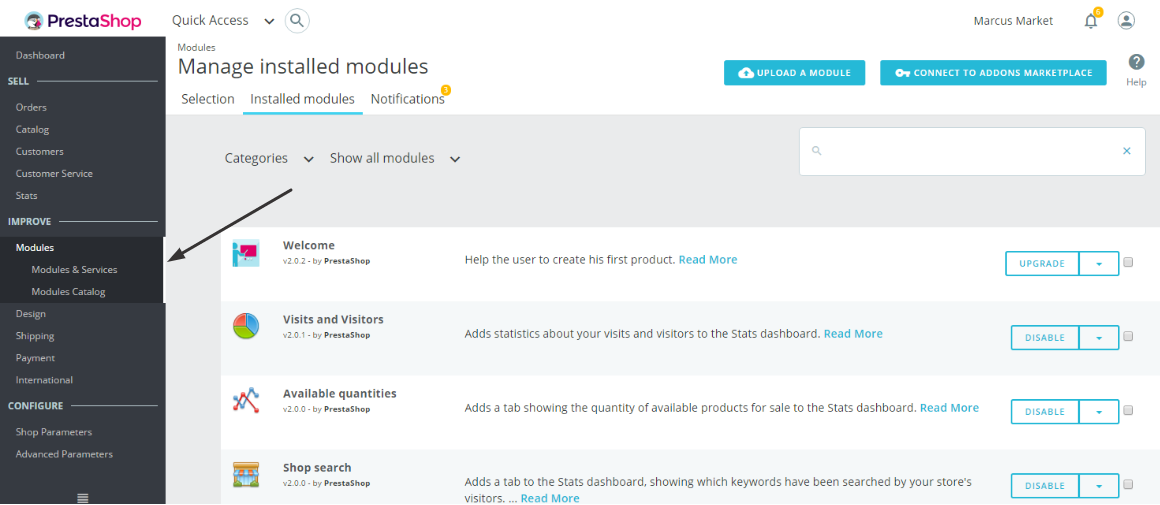
Add a new module
Click "Upload a module" in the opened window of a right upper panel.

You will see the directory for files uploading.
Select the module
Select the module from the computer. Then click the button, "Upload this module."
Install the module
Install it by click "Install".
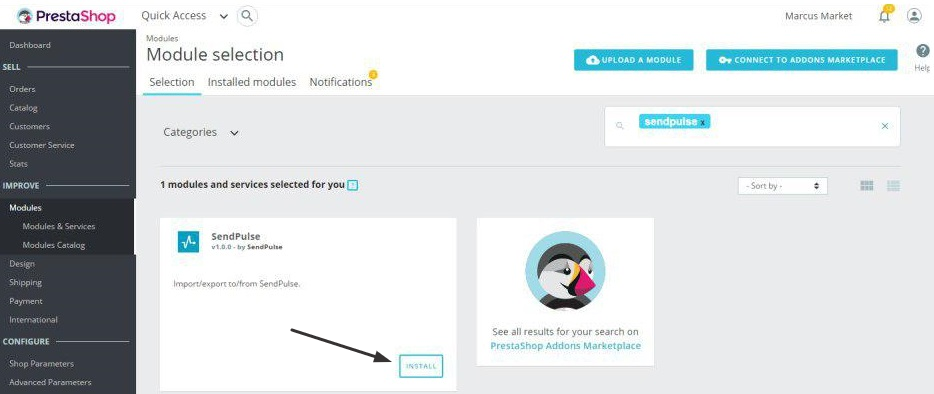
The installing is over. Now you need to configure the module.
Configuring the Module
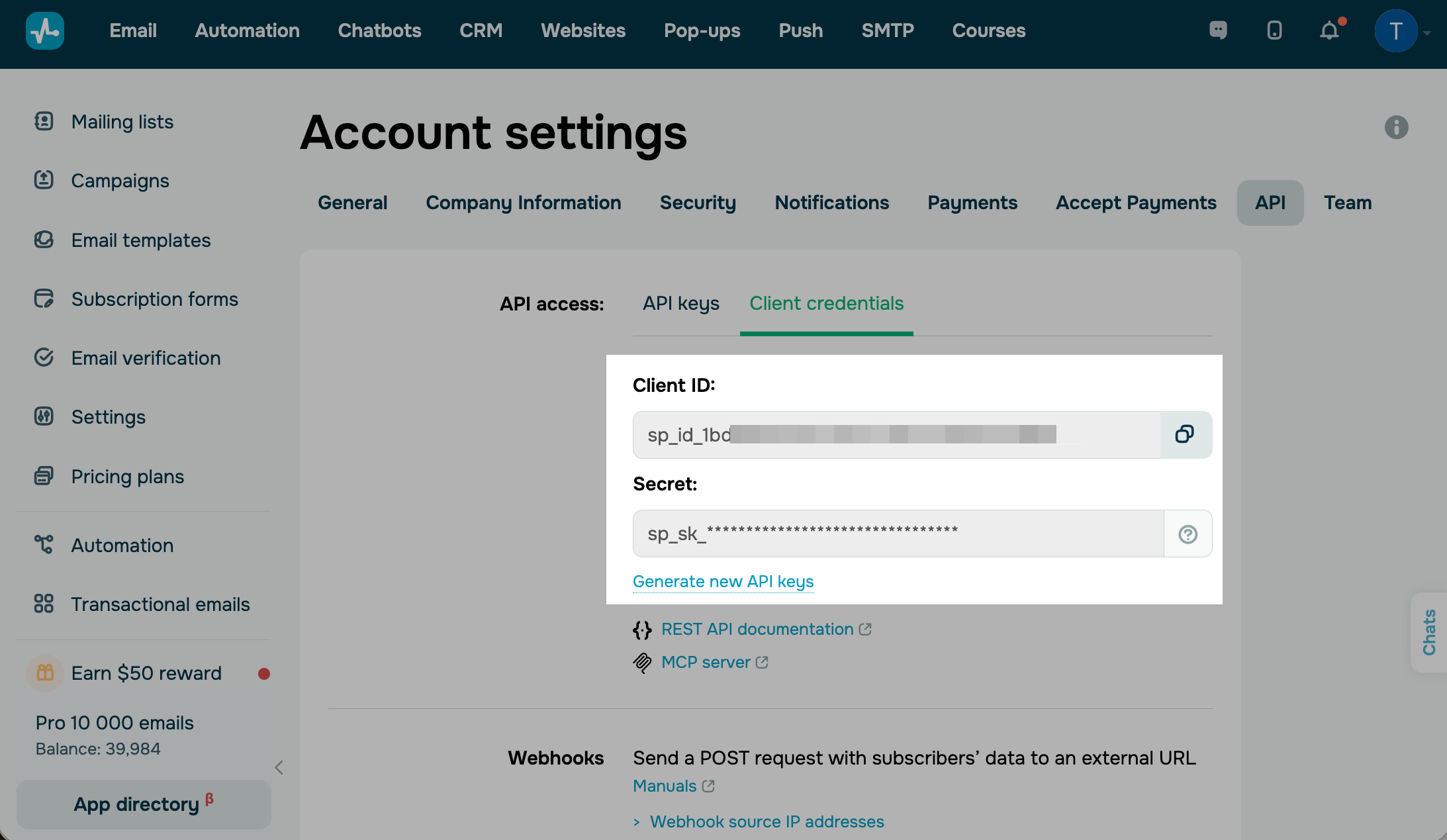
Copy your SendPulse ID and Secret
Go to your SendPulse account > Account Settings > API > Client credentials. Сlick Generate new API keys and copy your Client ID and Secret.
Note: Save your credentials locally as soon as you generate them. You won't be able to copy your Secret again later. Read more: Generate keys for integrations.
Paste your SendPulse ID and Secret key
Then follow these steps in Prestashop: "Modules" → "Configure" and enter the field "SendPulse ID" and "Secret key." Then, please click "Save."
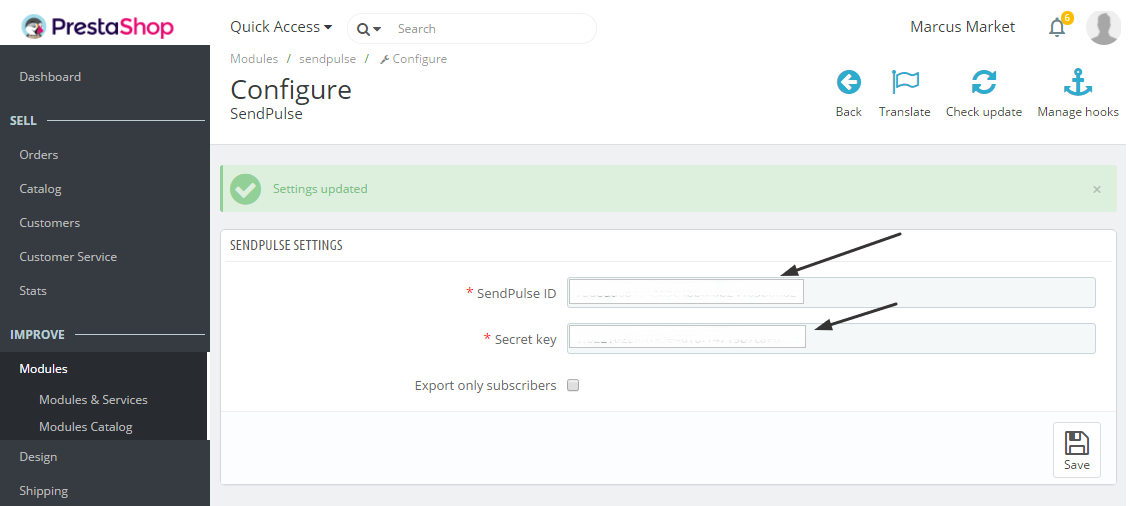
Export Subscribers
Tick "Export only subscribers" to export only the email addresses of users who signed up for your mailings. The system exports all your users without this tick.
How to Export Email Addresses from PrestaShop to SendPulse
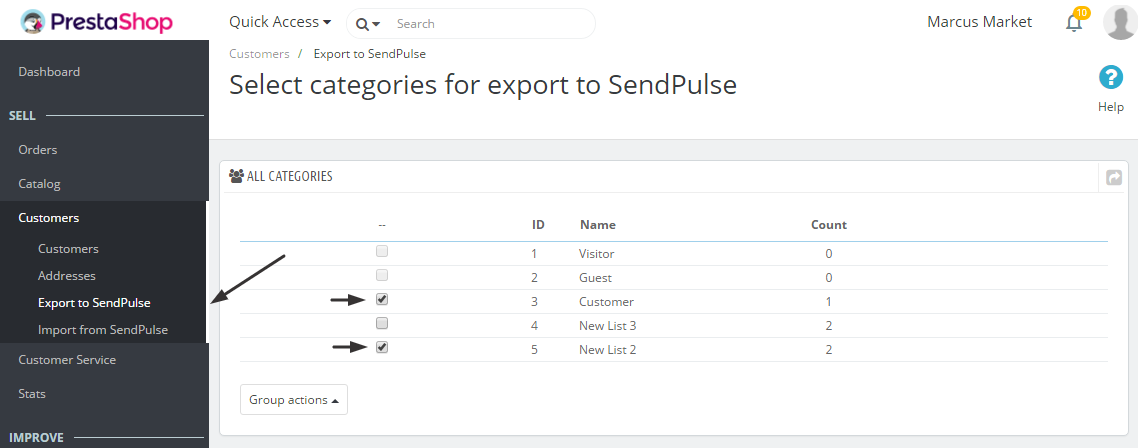
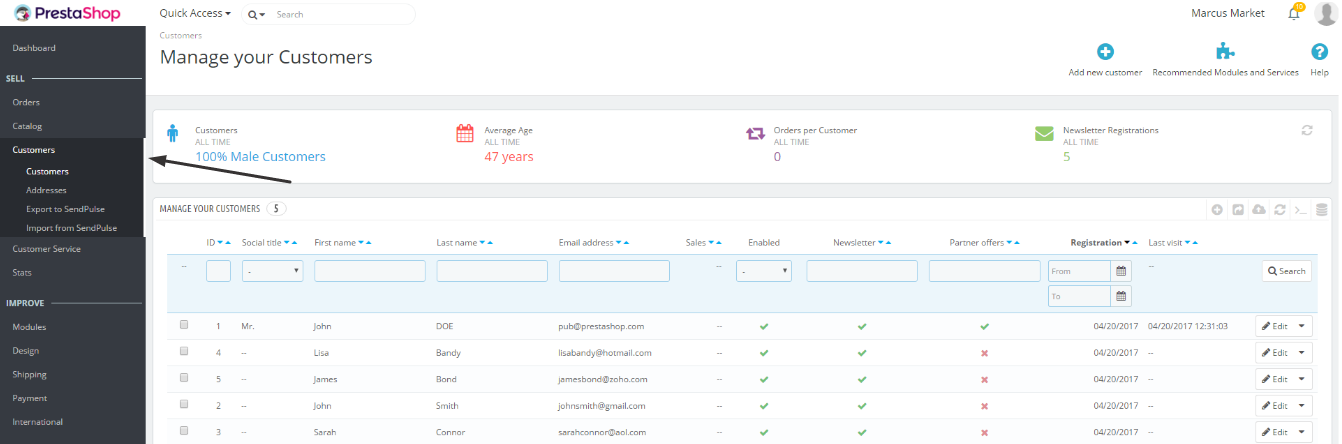
Click "Customers" → "Export to SendPulse" in the PrestaShop's admin panel.
Specify the categories for export.
Tick the box next to the category you need.
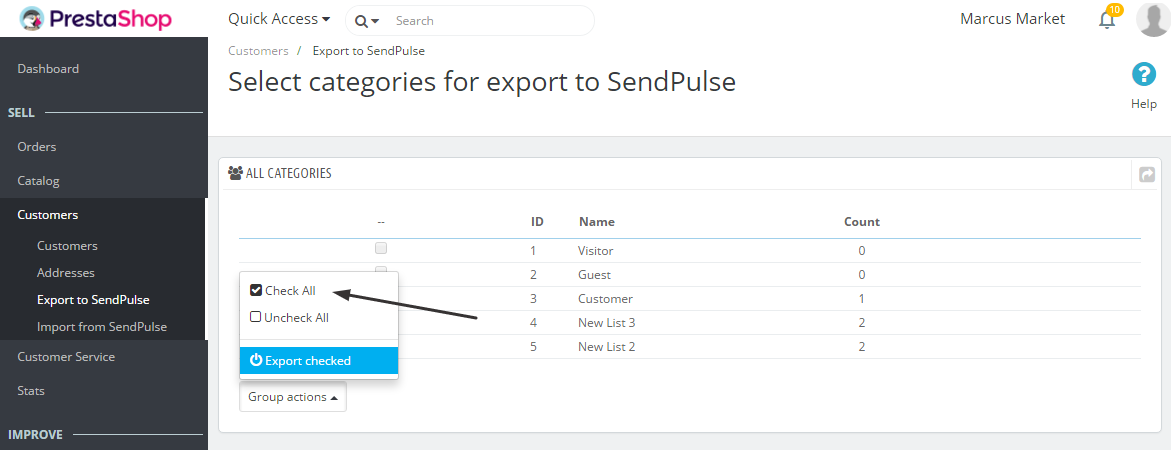
In the drop-down menu "Group actions" select "Export checked" → "Check all"
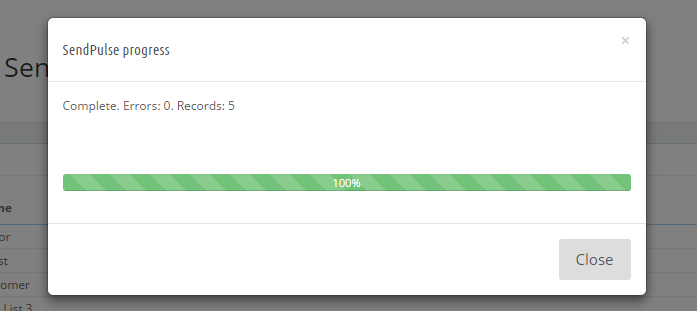
PrestaShop confirms export showing you a pop-up window "SendPulse progress." If you started export by mistake, you can cancel the process by clicking the button "Close."
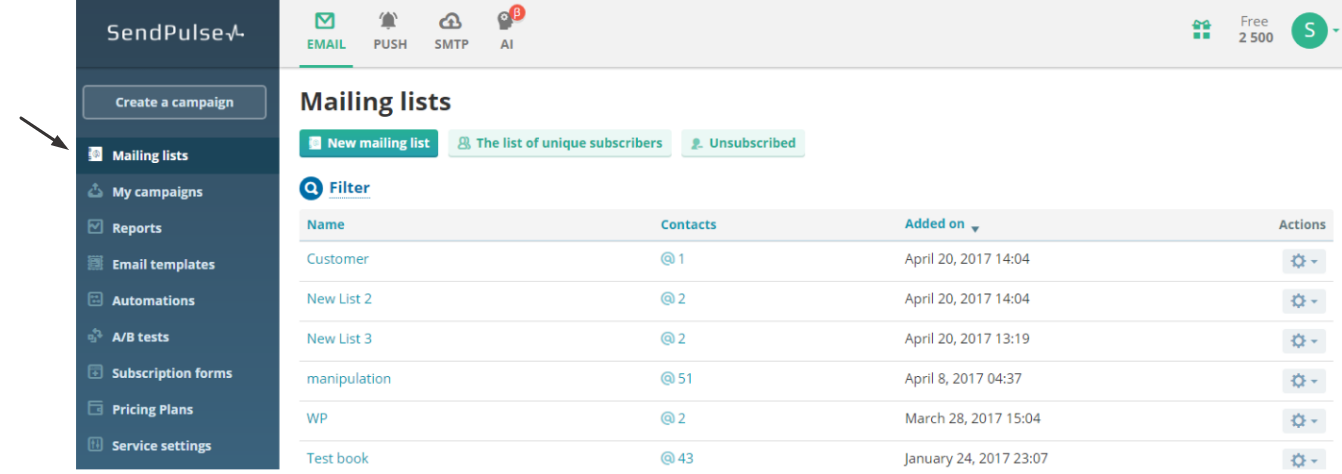
Check the export.
After the process of export is over, check your emails in your SendPulse account. Select "Mailing Lists" in the left menu. Here you will see the category of emails that were exported from Prestashop.
How to Import Email Addresses from SendPulse to PrestaShop
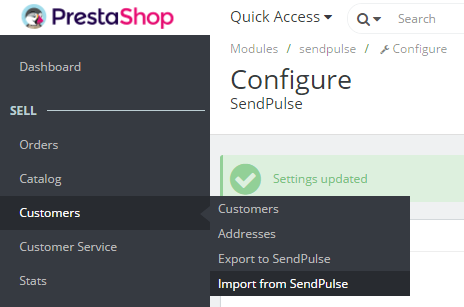
Click "Customers" → "Import from SendPulse"
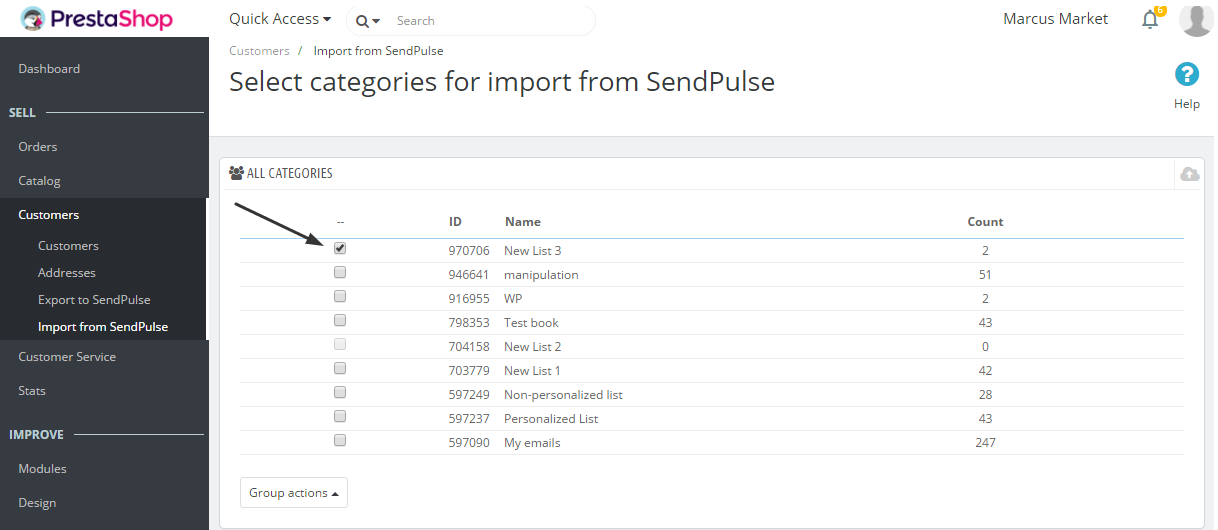
Select categories of emails for import from SendPulse
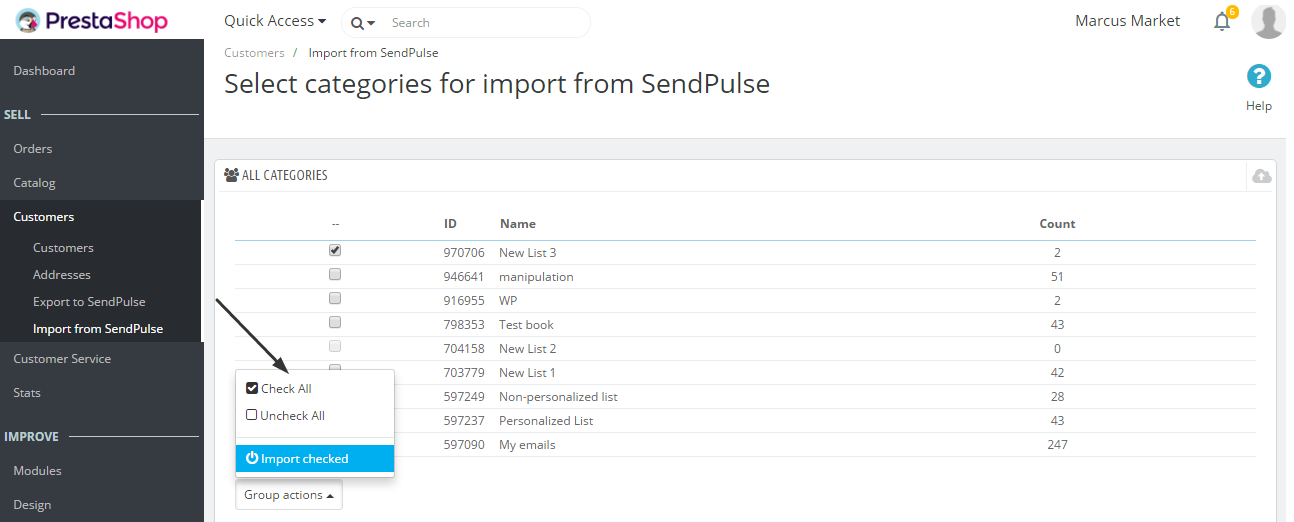
Click "Import checked" → "Check all" in the drop-down menu "Group actions"
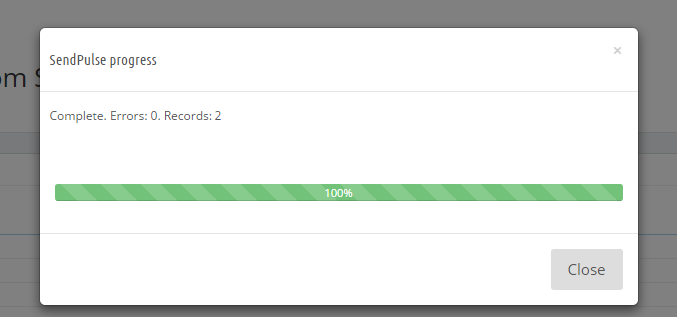
PrestaShop confirms your import by showing a pop-up window "SendPulse Progress." If you need to cancel the process of import, click the button "Close."
The list of contacts from the mailing list in SendPulse will be imported to "Customers" in PrestaShop.
Learn more about the SendPulse plugin for PrestaShop.
 Last Updated: 14.08.2025





or