Set a shadow
Shadow adds a colored area behind a block or widget to create depth. You can adjust its horizontal and vertical offset, blur, spread, color, and opacity.
Shadow settings are applicable to the following elements:
- Column
- The Image widget
- Widgets with buttons, including Buttons, Product, Payment, Form, Course login, Chatbots, and Socials
- Cart icon in online stores
By default, the shadow is turned off. When you turn it on, the settings use standard values that you can adjust for each element individually.
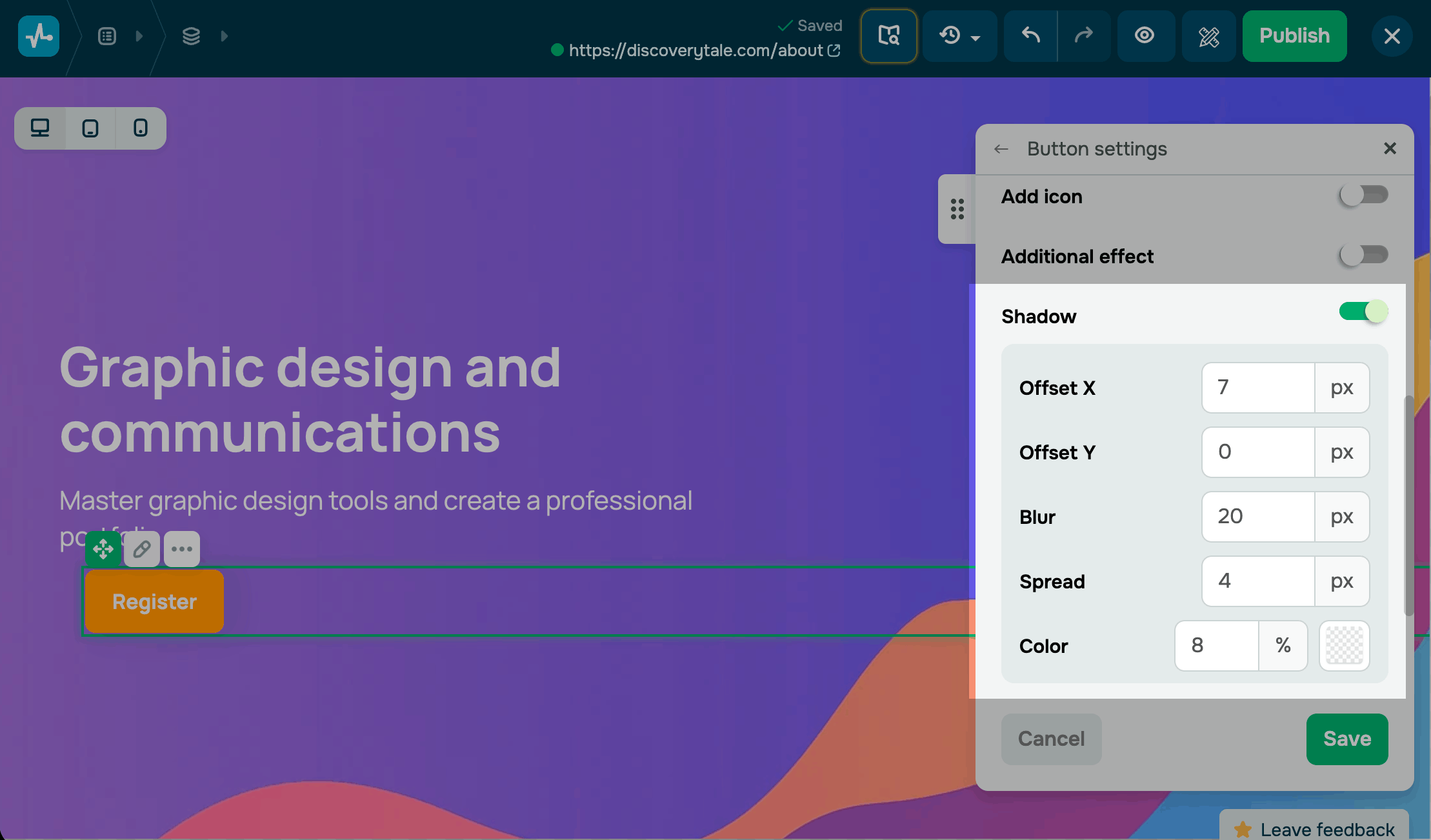
To access shadow settings in a column or an image, turn on the Shadow toggle in the element settings.
Customize the shadow using the following options:
| Offset X | Set the horizontal position of the shadow in pixels. Positive values move the shadow to the right, and negative values move it to the left. |
| Offset Y | Set the vertical position of the shadow in pixels. Positive values move the shadow down, and negative values move it up. |
| Blur | Set the softness of the shadow edges in pixels. The higher the value, the smoother and more diffused the shadow looks. |
| Spread | Set the size of the shadow in pixels. The higher the value, the further the shadow extends beyond the element's borders. |
| Color | Select a shadow color from the palette, then set its opacity from 0% to 100%. Lower opacity creates a lighter, more subtle shadow. |
 Last Updated: 21.04.2026





or