Use the automated flow builder
SendPulse's Automation is a visual workspace where you create and manage automated flows. Use the builder tools to arrange elements, keep your workspace organized, and work efficiently with flows of any complexity.
Let's talk about how to use the auto-flow builder.
Create an automated flow
To start building an automated flow, go to Automation and click Create automation. The workspace appears with the starting element.
To add a new element, drag the connector from an existing element to an empty area. Then, select an element type from the menu that appears.
You can also choose a customizable flow template or generate a flow layout using AI.
Read more: Create an automation and Create an automated flow using AI.
Rename elements
Custom element names help you and your team understand the flow layout at a glance without opening each element.
To rename an element, click it. In the Element name field, enter a name and click Change. The updated name will appear on the workspace.
Show or hide grid lines
Grid lines help you position elements with precision.
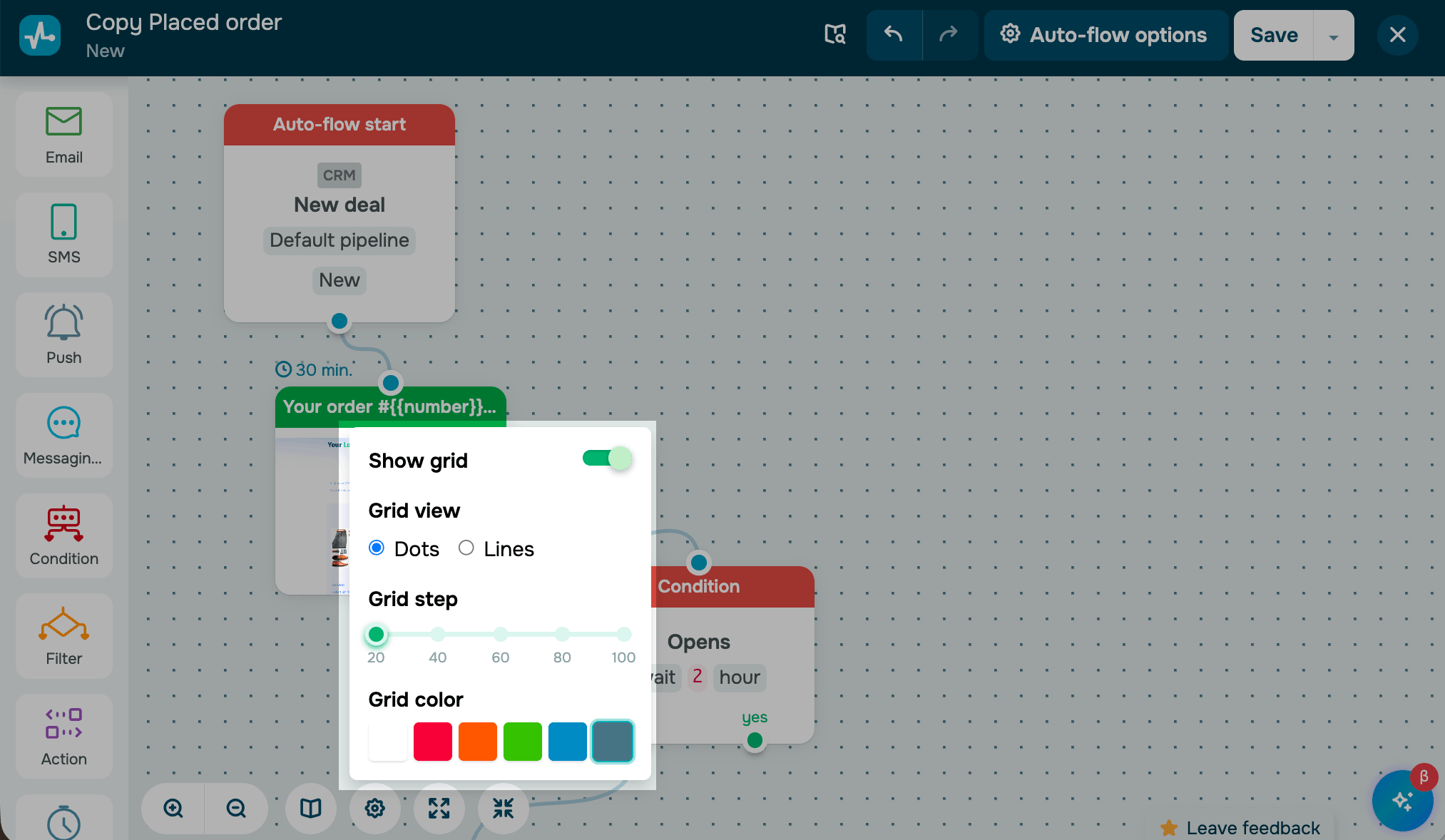
To turn them on, click the settings icon at the bottom of the builder and turn on the Show grid toggle. Select a grid type (Dots or Lines) and a spacing value: 20, 40, 60, 80, or 100 pixels.
Scale the workspace
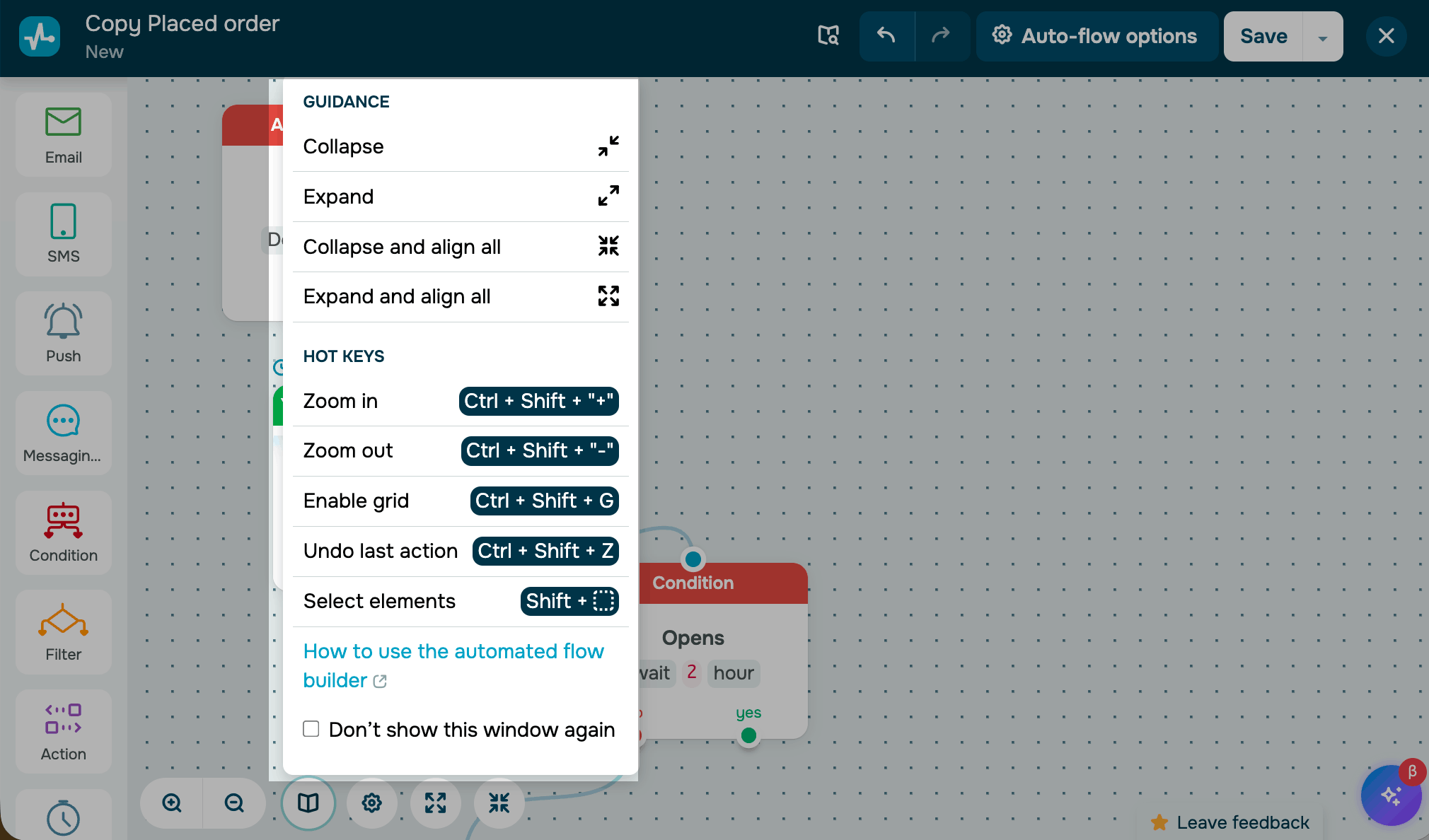
You can scale the visible area by scrolling the mouse wheel or using hotkeys:
- Press Ctrl + Shift + + to zoom in;
- Press Ctrl + Shift + - to zoom out;
- Press Ctrl + Shift + G to show/hide the grid.
To find more quick actions, click the book icon at the bottom.
Collapse and expand elements
Collapse elements into compact icons to keep the workspace clean and make it easier to see the whole flow. This is useful when going over a complex flow with your team or presenting it to a client.
To collapse an element, click the collapse button in its upper-left corner. To expand it, click the icon again.
To collapse or expand all elements at once, use the corresponding buttons at the bottom of the builder.
When you collapse all elements, the workspace also automatically aligns them to give you a compact view of the entire flow.
Copy an element
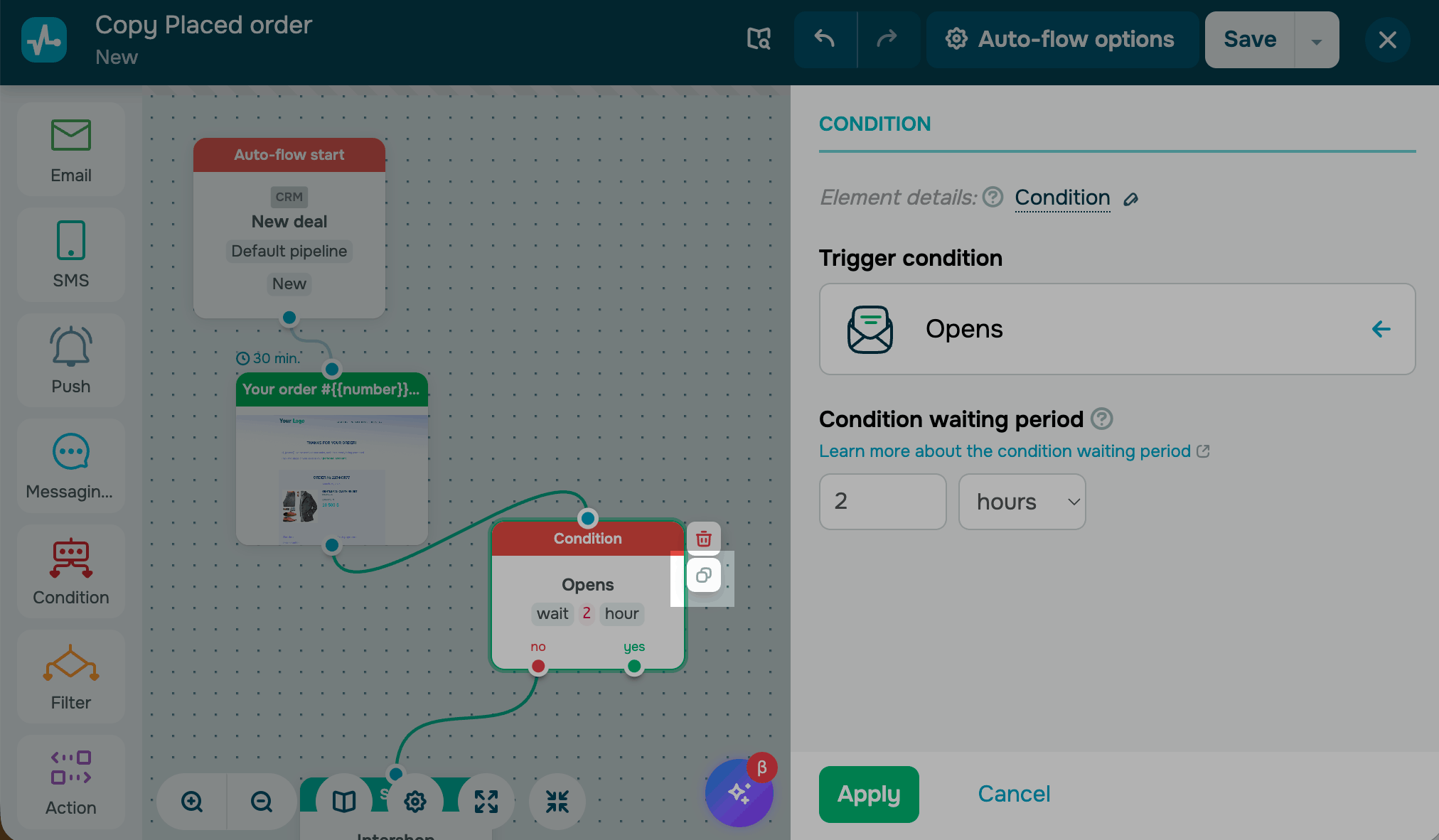
To duplicate an element and reuse its configuration, select it and click Copy. The copy appears on the workspace with all its settings preserved, and it can be linked to the next element.
Edit multiple elements
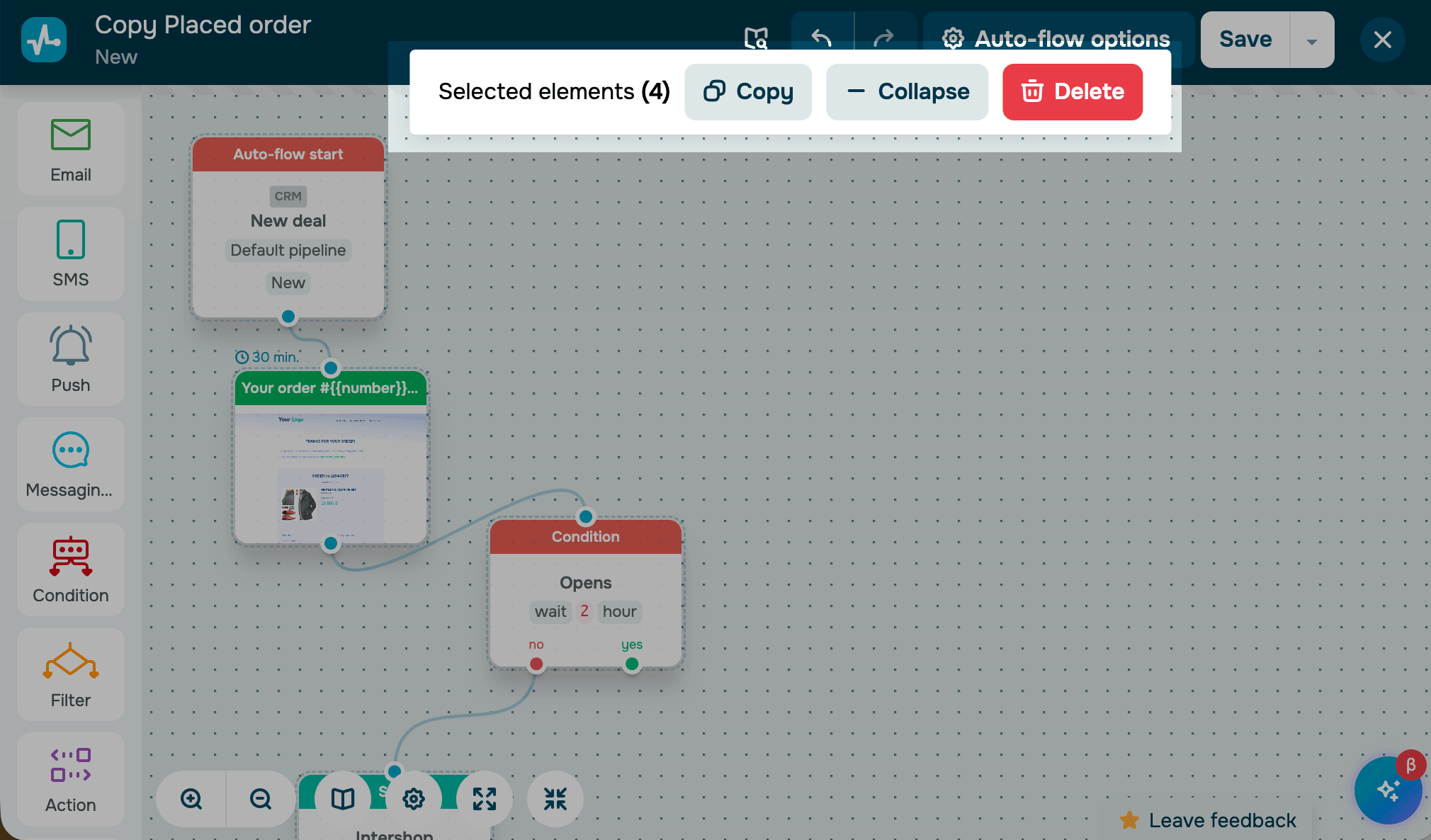
To take an action with multiple elements at once, hold Shift and click each element you want to select. A command panel will appear with the following options:
| Collapse | Folds all selected elements into compact icons |
| Expand | Restores all selected elements to full size |
| Copy | Duplicates the selected elements with their settings and connections |
| Delete | Removes the selected elements from the flow |
Last Updated: 09.09.2024
or