Manage chatbot flows
You can find all your chatbot flows in the Flows tab of the Bot structure section. While the Triggers tab defines when a flow starts, the Flows tab stores the flows themselves, including default flows, custom flows, and flows that aren't linked to a trigger yet.
As you add new flows, the list gets longer. In the Flows tab, you can group flows into folders, find, sort, test, rename, copy, or delete them. You can also get a link or a QR code that launches a flow and share it with others.
Suppose you run a restaurant chatbot. You can keep reservation, delivery, and promotion flows in different folders. Flows that your team starts manually from chats can go into a dedicated folder at the top of the list.
Let's talk about how to manage your chatbot flows.
View your flows
Go to your chatbot and open Bot structure > Flows.
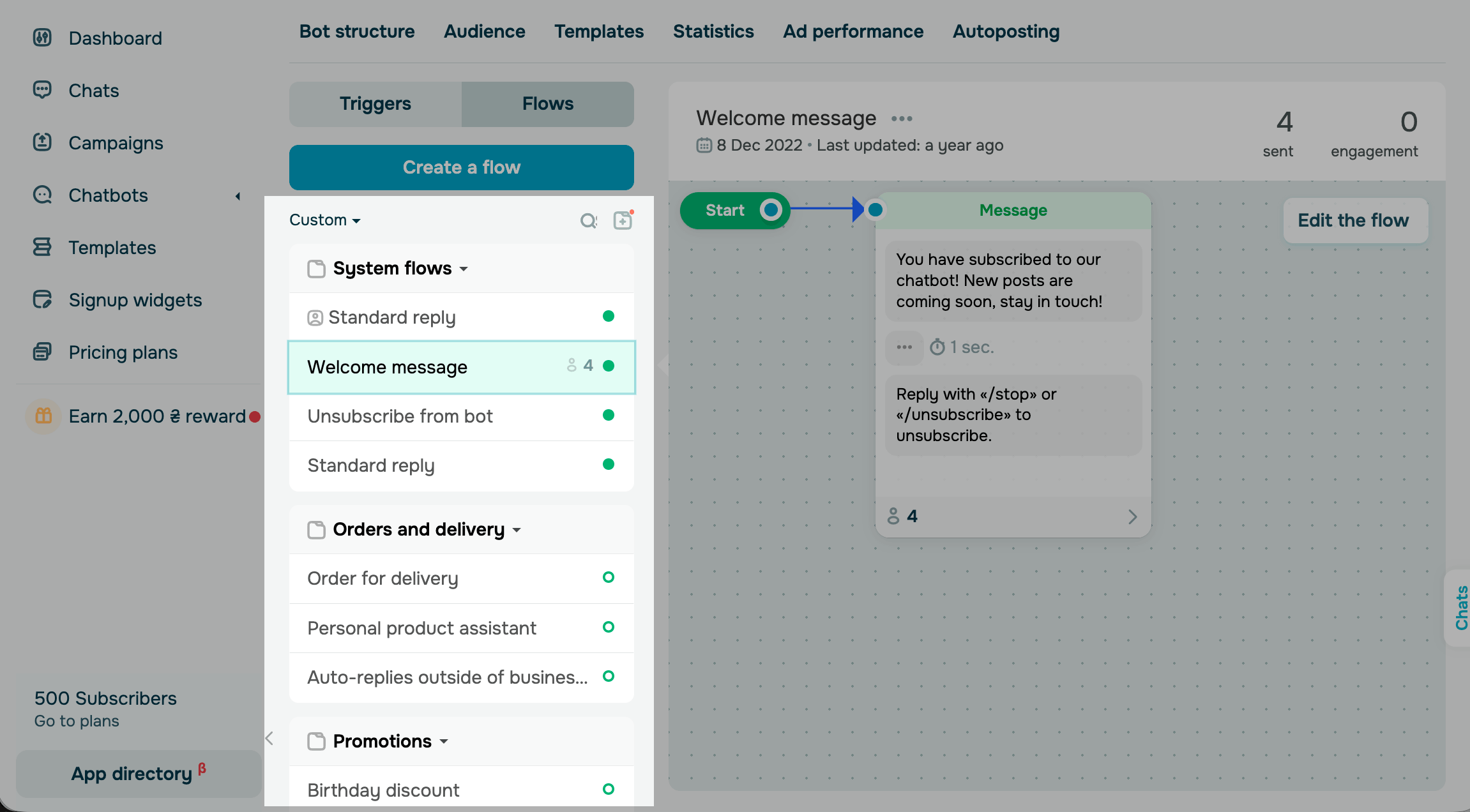
SendPulse groups your flows into folders:
| System flows |
Default flows, such as Welcome message, Standard reply, and Unsubscribe from bot. You can't delete or move these flows or add custom flows to this folder. |
| Custom folders | Folders you create to organize flows, for example, flows triggered by a purchase. |
| Unsorted | Flows that aren't in any folder. |
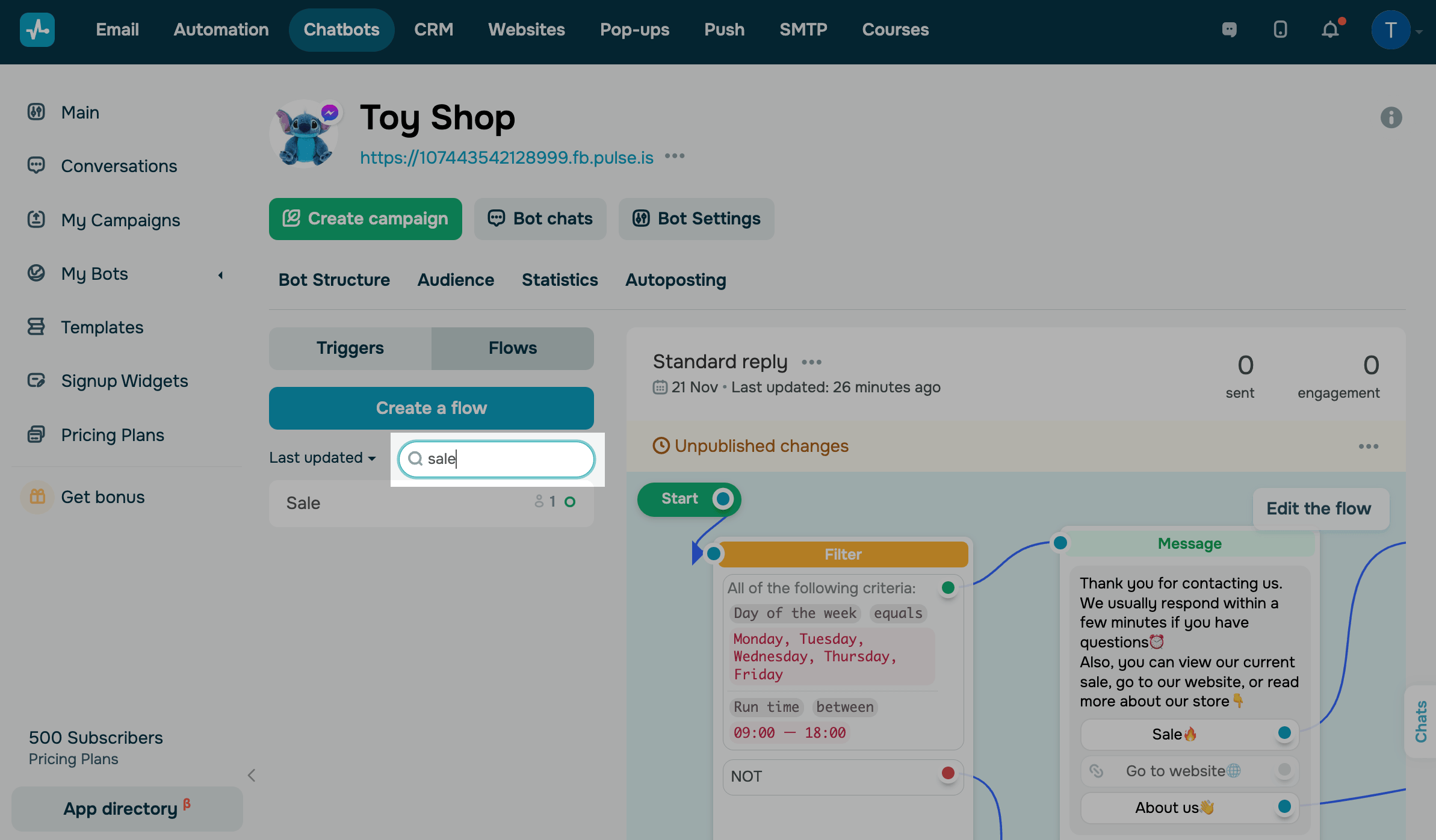
To find a flow, click the search icon and enter the flow name.
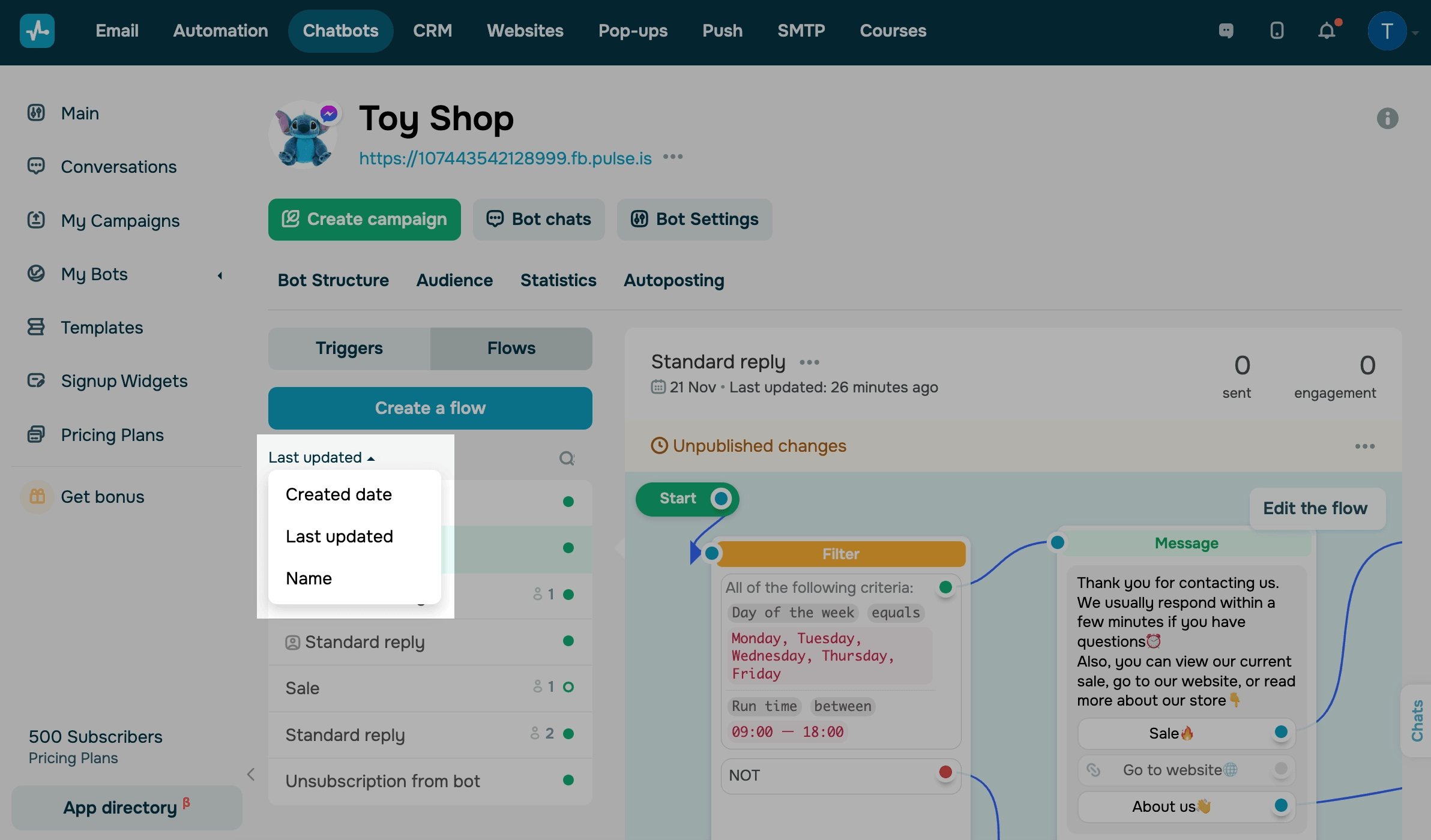
To sort flows by creation date, last update, or name, click Date created and choose an option.
Organize flows into folders
To create a folder, click the folder icon and enter the folder name. Folders help you organize your flows and make navigation easier. To give you an idea, you can create a folder with flows triggered by a purchase or another event.
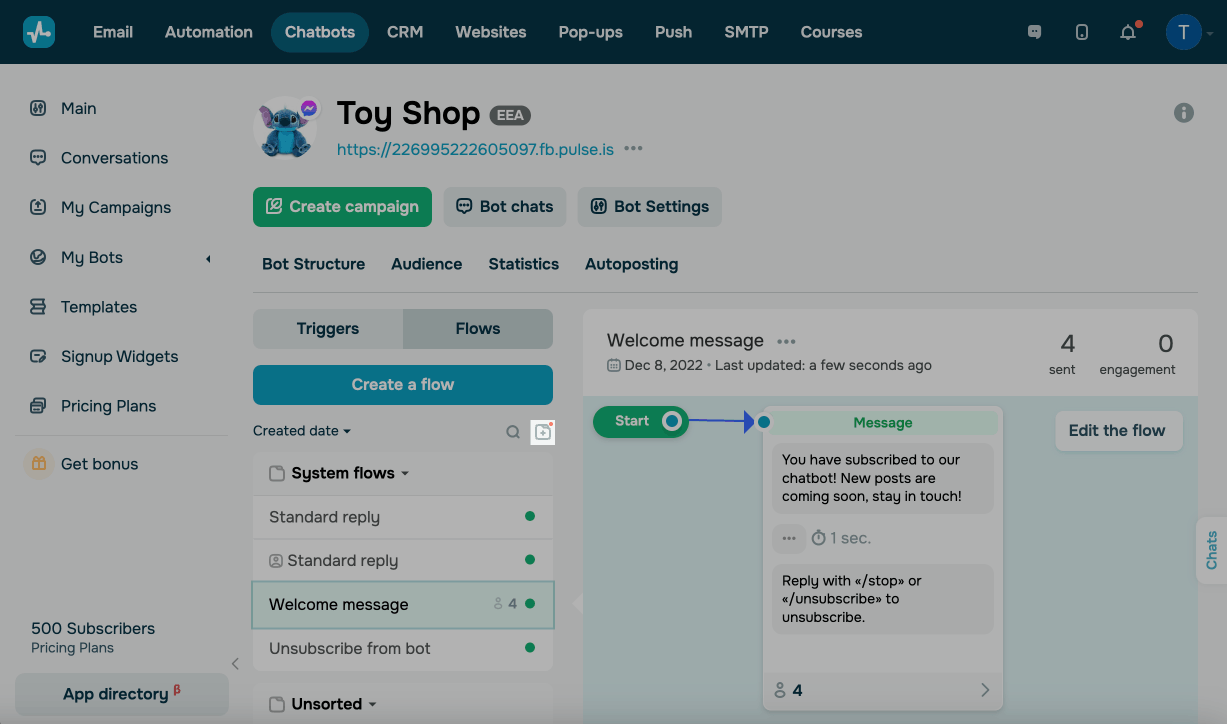
To move a flow to a folder, drag it by the handle next to its name and drop it under the folder.
Manage your flow
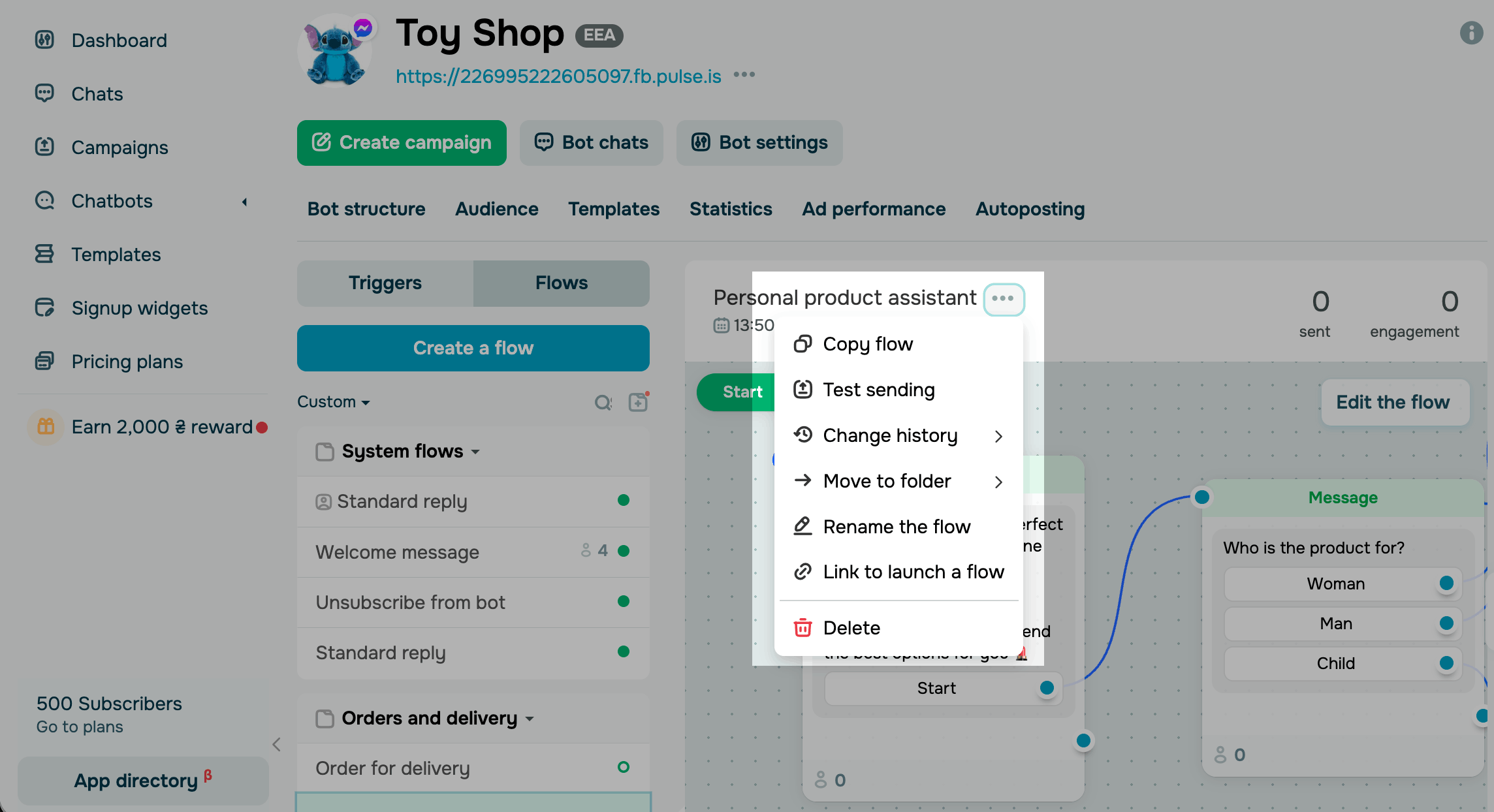
To manage a flow, select it in the Flows tab, click the three dots icon next to the flow name, and select an action:
| Copy flow |
Copies the flow to another chatbot. Read more: Сopy a chatbot flow scenario and Copy a chatbot flow from one messaging platform to another. |
| Test sending | Sends the flow to you in the messaging app. |
| Change history | Shows the saved versions of the flow. |
| Move to folder | Moves the flow to another folder. |
| Rename the flow | Changes the flow name. |
| Link to launch a flow |
Copies the link that launches the flow or creates a preview you can share. Read more: Launch a bot via a link or QR code and Create a public chatbot flow preview. |
| Delete | Removes the flow permanently. |
 Last Updated: 03.10.2026





or