Snovio LinkedIn to SP Chatbots
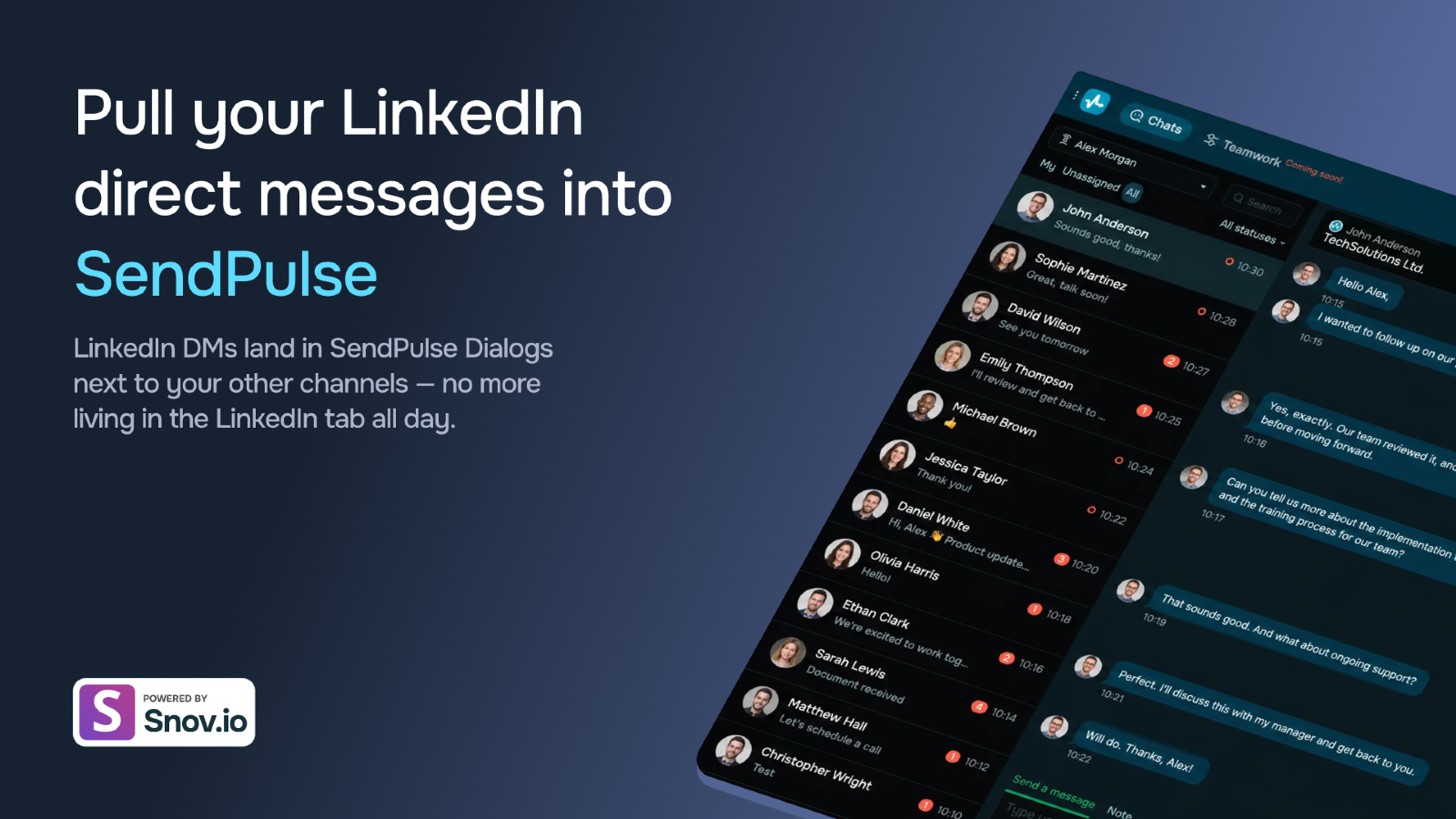
Turn your LinkedIn conversations into SendPulse chats. Connect your LinkedIn account (via Snov.io) to SendPulse and manage every LinkedIn conversation right in your Chatbots inbox. New messages arrive automatically, and you can optionally import your entire past history — incoming and outgoing — as chats you can read, search, automate, and reply to without leaving SendPulse.
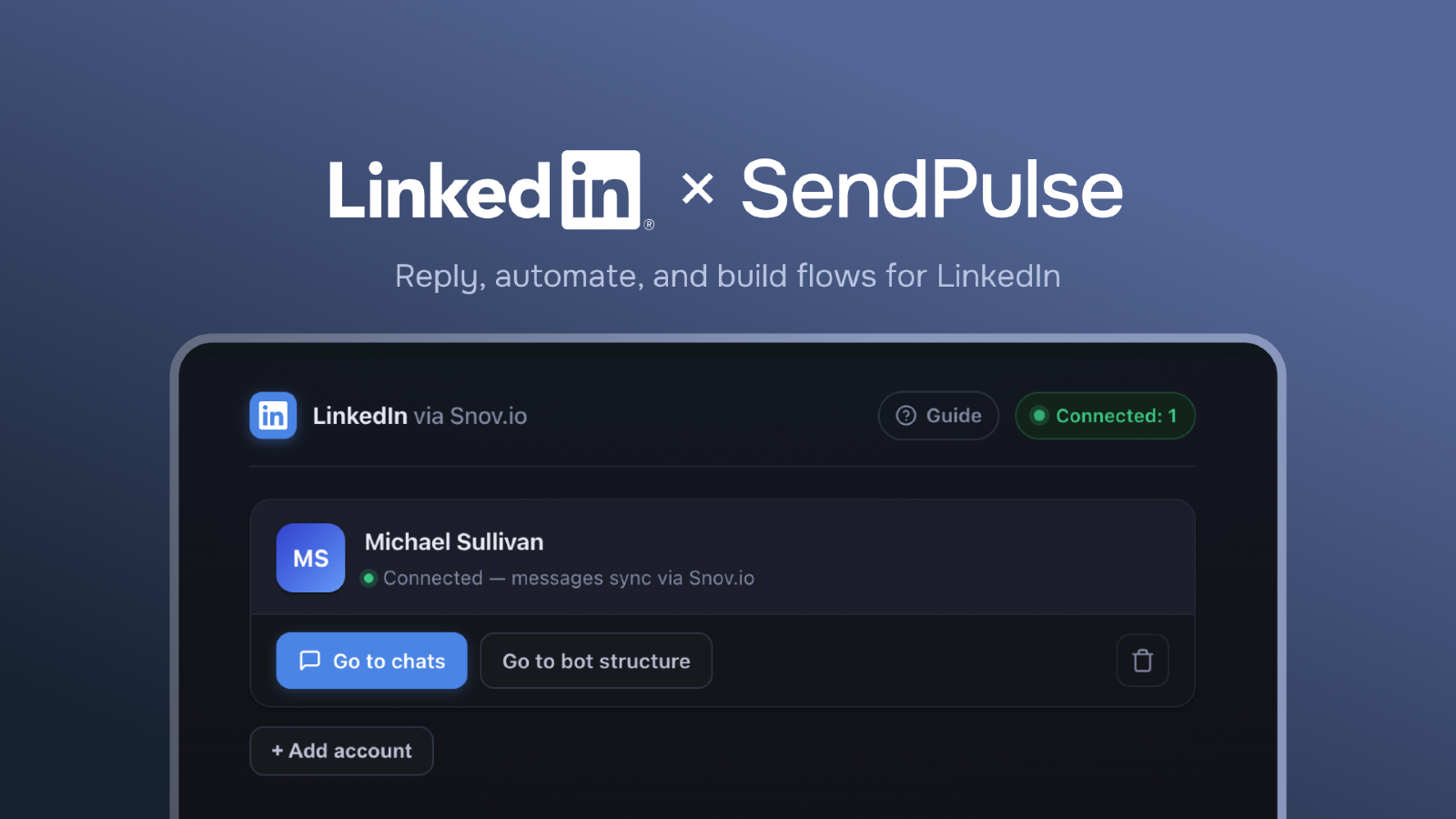
Add LinkedIn to SendPulse. This integration links your LinkedIn account — connected through Snov.io — to a SendPulse chatbot, so your LinkedIn networking lives right next to all your other messaging channels.
**WHAT IT DOES**
- Delivers new messages in near real time. Incoming LinkedIn messages appear in your SendPulse inbox automatically, typically within ~5 minutes.
- Imports your message history — optionally. By default the bot is created clean and only receives new messages. Switch on "Load chat history" to bring in your existing conversations: each one loads with both sides of the exchange, in the right order and with real dates.
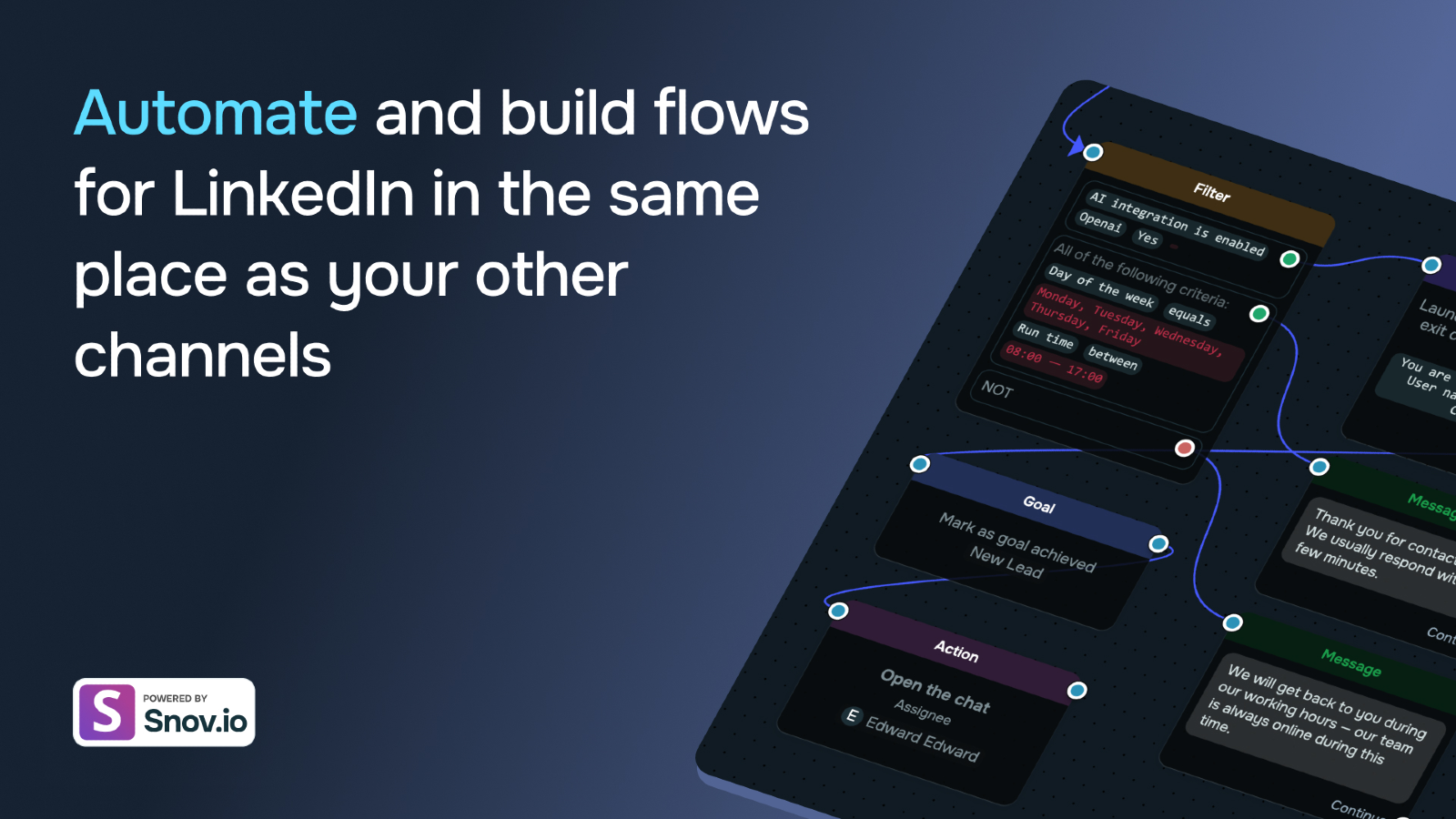
- Two-way replies. Reply from the SendPulse Dialogs panel or automate responses with the chatbot builder — your messages are delivered back to LinkedIn.
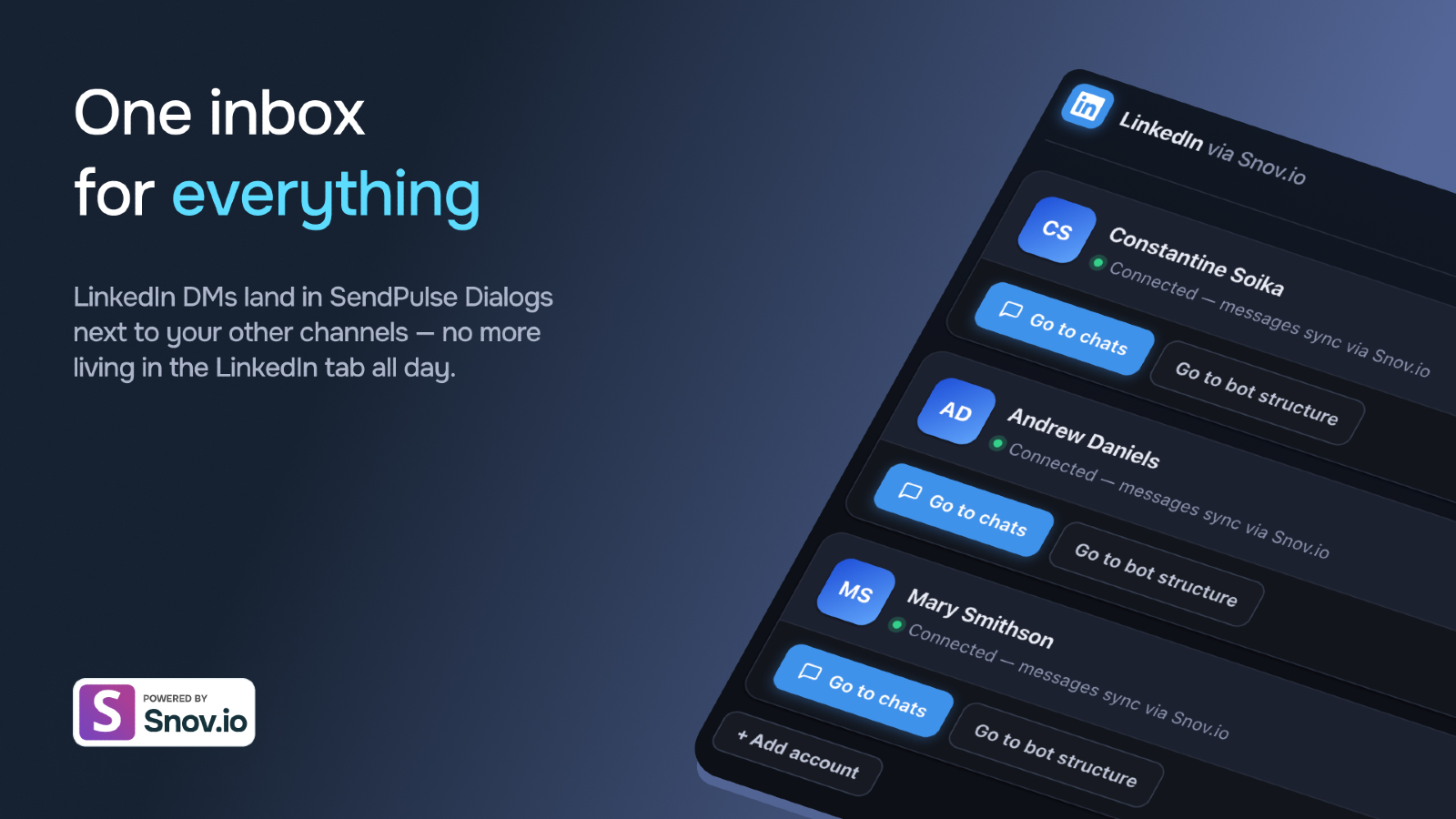
- Multiple accounts. Connect several LinkedIn accounts; each one gets its own chatbot.
- You control empty chats. If you switch history loading on, choose whether to also import contacts you've never messaged, or only real conversations.
**HOW IT WORKS**
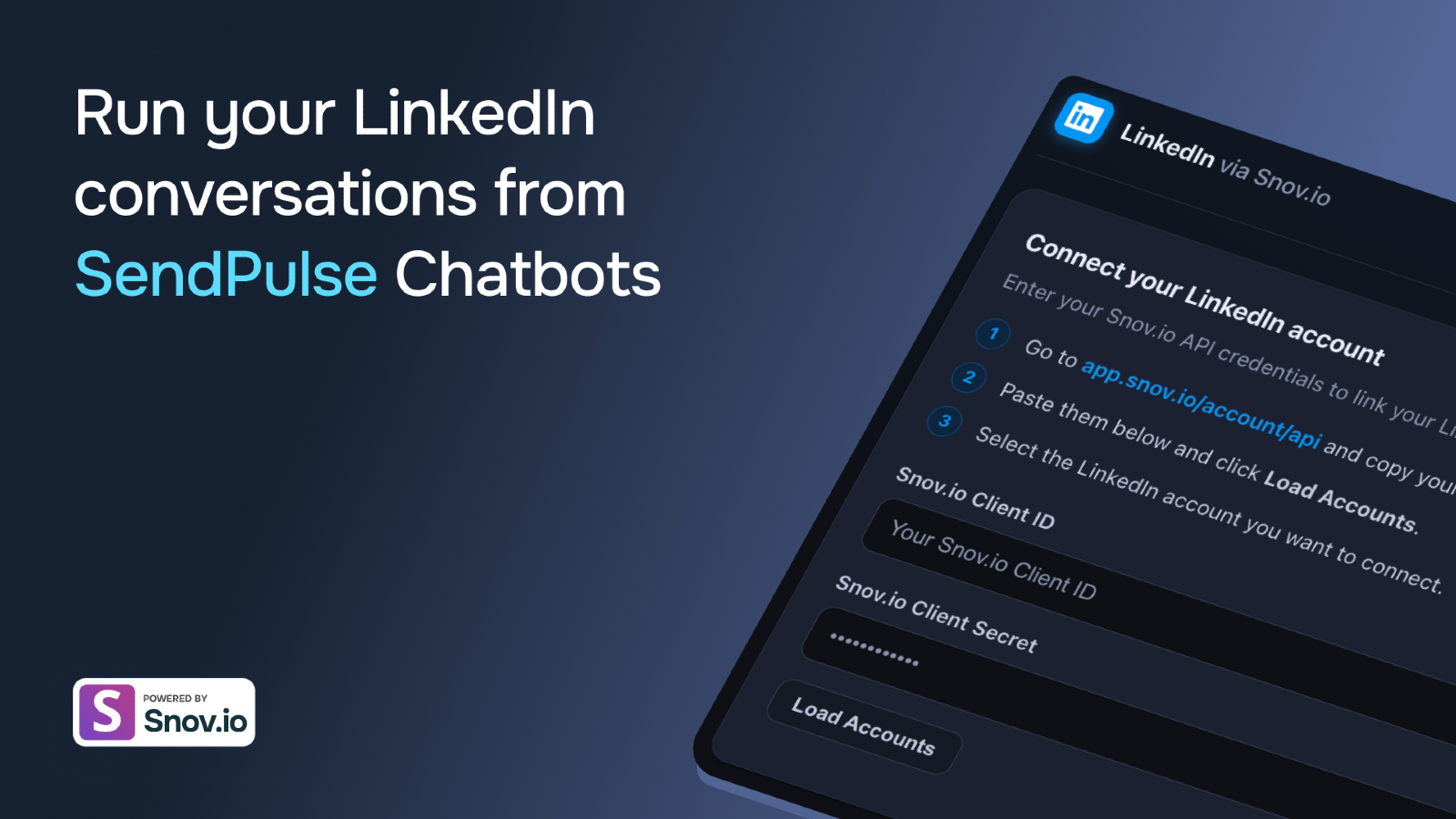
You enter your Snov.io API credentials, pick the LinkedIn account to connect, and decide whether to load past history. From there it behaves like any other SendPulse channel — automations, operator routing, CRM, and a shared inbox.
REQUIREMENTS
A Snov.io account.
✓ API access enabled — copy your Client ID and Client Secret from app.snov.io/account/api. These are what you paste into the integration.
✓ A LinkedIn account connected in Snov.io (via Snov.io's LinkedIn tool). The app reads your accounts, contacts, and chats through Snov.io — without LinkedIn connected there, there's nothing to sync.
FIRST LOAD
If you switched history loading on, the app doesn't load everything at once — it imports conversations one at a time, from the oldest to the newest. This is deliberate: it preserves the correct chat order (the most recent at the top) and avoids overloading Snov.io, which keeps the import reliable.
What you'll see: contacts and chats appear gradually, filling in from oldest to newest rather than all at once. For a large account this can take a few minutes — that's normal, just let it finish. After that, new messages arrive automatically, typically within ~5 minutes of landing on LinkedIn.



or