Create and manage expense templates
Expense templates are preset expense names that you set up in your pipeline. Use them to add recurring expenses to deals faster and keep expense names consistent across all your deals. For example, reuse predefined names like Logistics or Advertising instead of typing them manually each time.
Let's talk about how to create and manage expense templates.
Add an expense template
To be able to add expenses to a deal, turn on the Net profit calculation toggle.
Five standard expense types are available by default: Logistics, Advertising, Commission, Operating, and Other.
To create your own template, go to your pipeline settings, open the Expenses tab, and click Add expense template. Enter an expense name, then click Add.
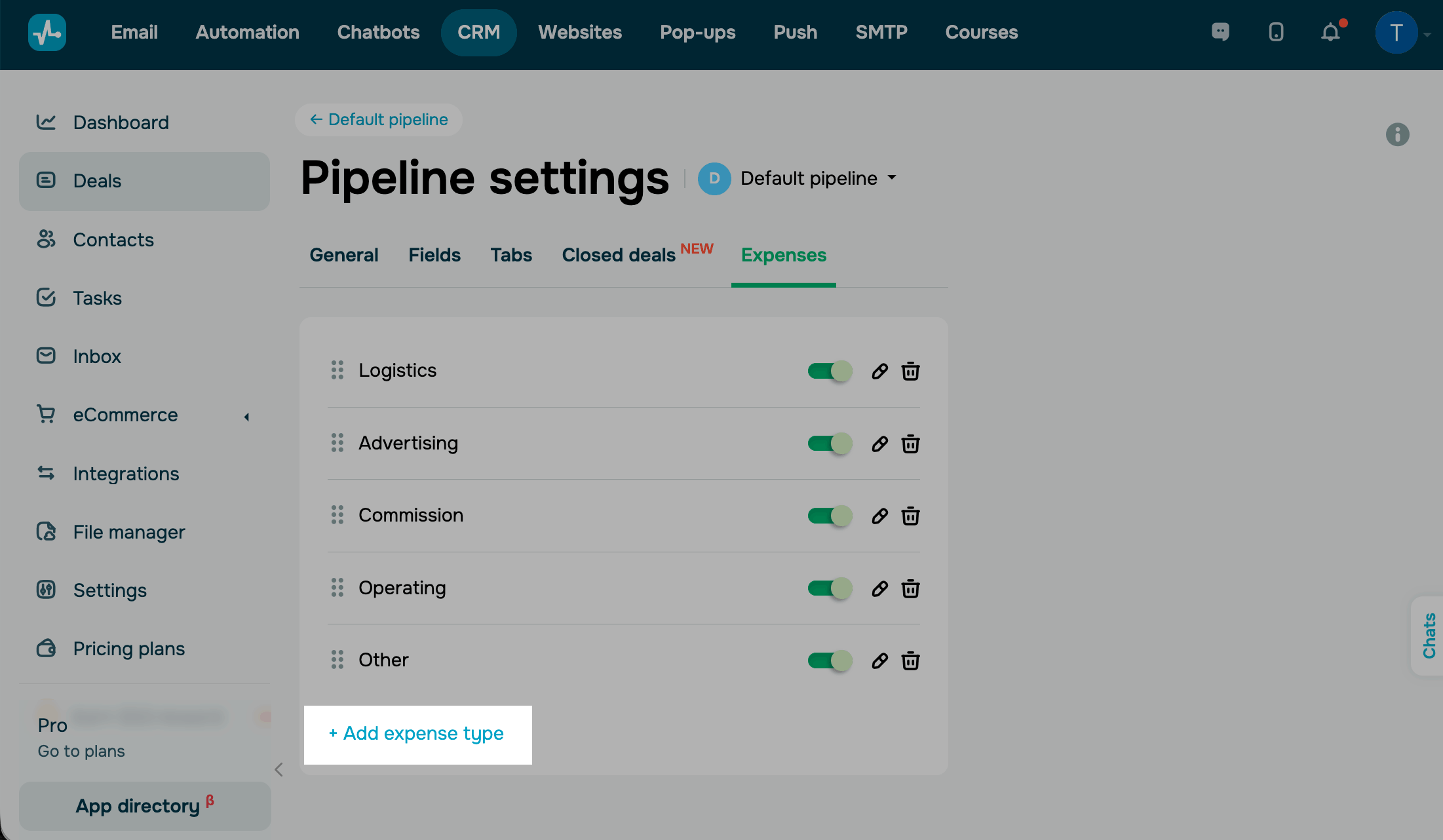
To create a template from a deal card, go to the Expenses tab, click Add expense record, and select Add expense template.
Use an expense template
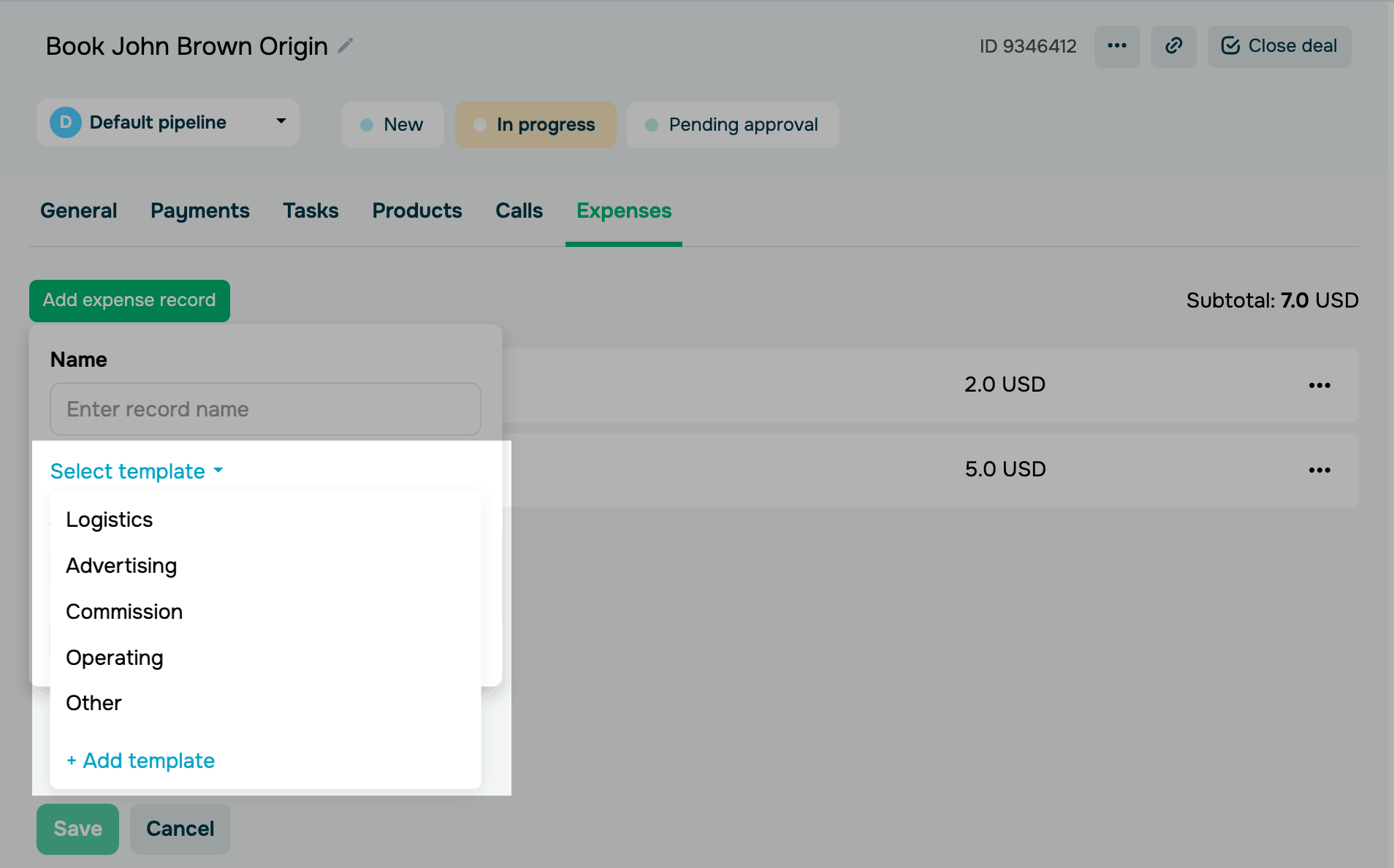
To add an expense template to a deal, go to the Expenses tab, click Add expense record, and choose a template.
Read also: Add expenses to your deal.
Manage expense templates
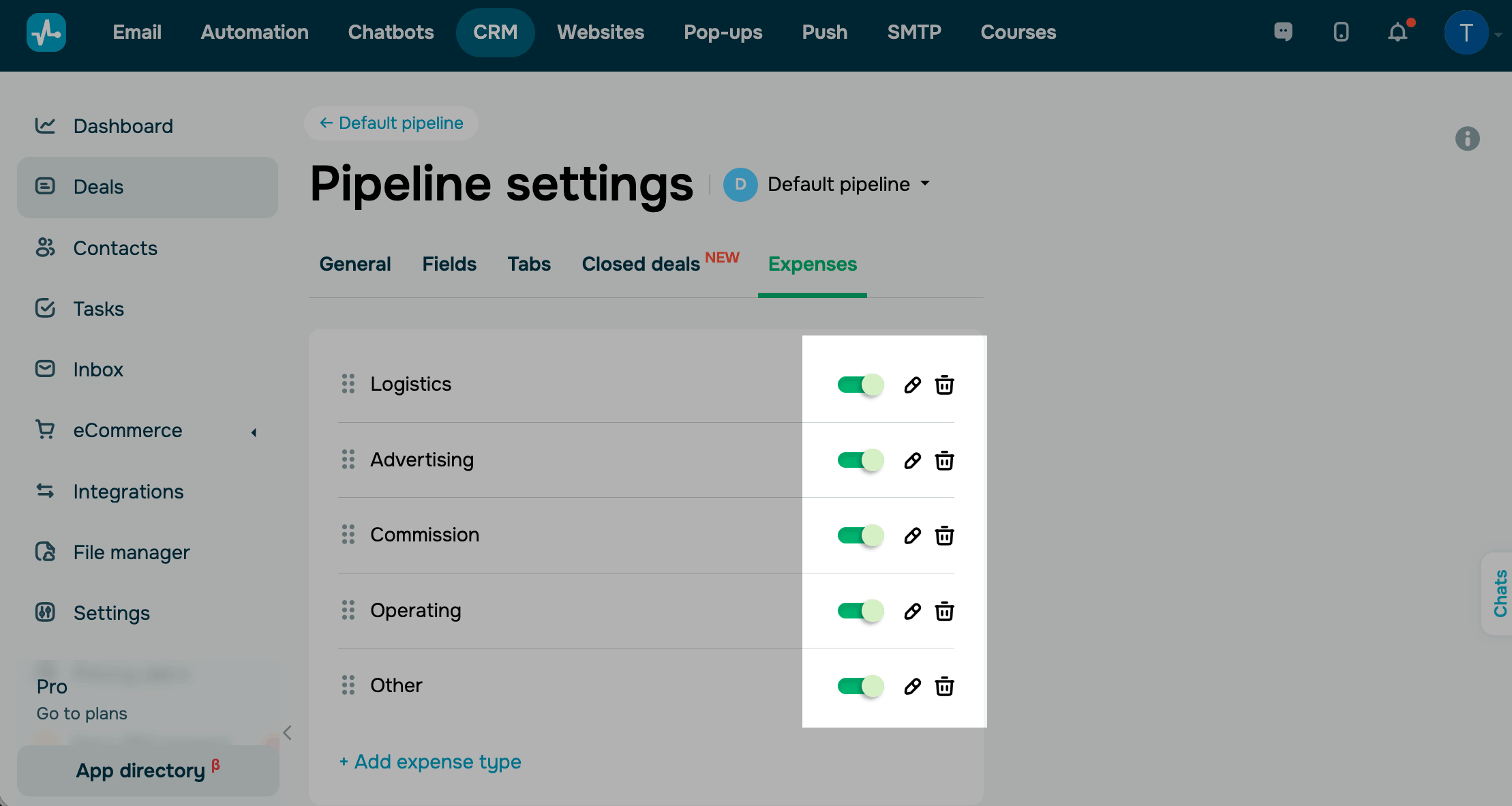
To view and edit your expense templates, go to your pipeline settings, open the Expenses tab, and choose an action:
| Enable / disable | Shows or hides a template. Disabled templates do not appear in the list, and existing expense records remain unchanged. |
| Edit | Renames a template. Expense records that were already added to deals keep their original names. |
| Delete |
Removes a template from the list. Expense records that were already added to deals remain but are no longer linked to the template. At least one active template must remain in the list. You cannot delete or disable all expense templates. |
You can also rearrange templates. Drag a template by its left edge and drop it where you want it.
 Last Updated: 14.07.2026




or