
























How WhatsApp calls work in SendPulse
By default, your WhatsApp Business API phone number only supports text messaging — customers can't call you, and you can't call them. This means you have to handle urgent or complex issues in chat or switch to a phone call outside WhatsApp.
Turn on voice calls for your SendPulse-powered WhatsApp chatbot so that customers can reach you right from the chat. A call button will appear on your business profile, and your team will be able to take calls in the omnichannel inbox or anywhere else in your SendPulse account.
What changes once you turn on calls:
-
 Customers call your business right in the chat instead of dialing another number or filling out a callback form.
-
 Your team can follow up with a call to keep a deal moving.
-
 You can sort out complex questions in a single call instead of a long back-and-forth in chat.
-
 A call that converts the customer automatically becomes an order, payment, or the next deal stage in your CRM system.
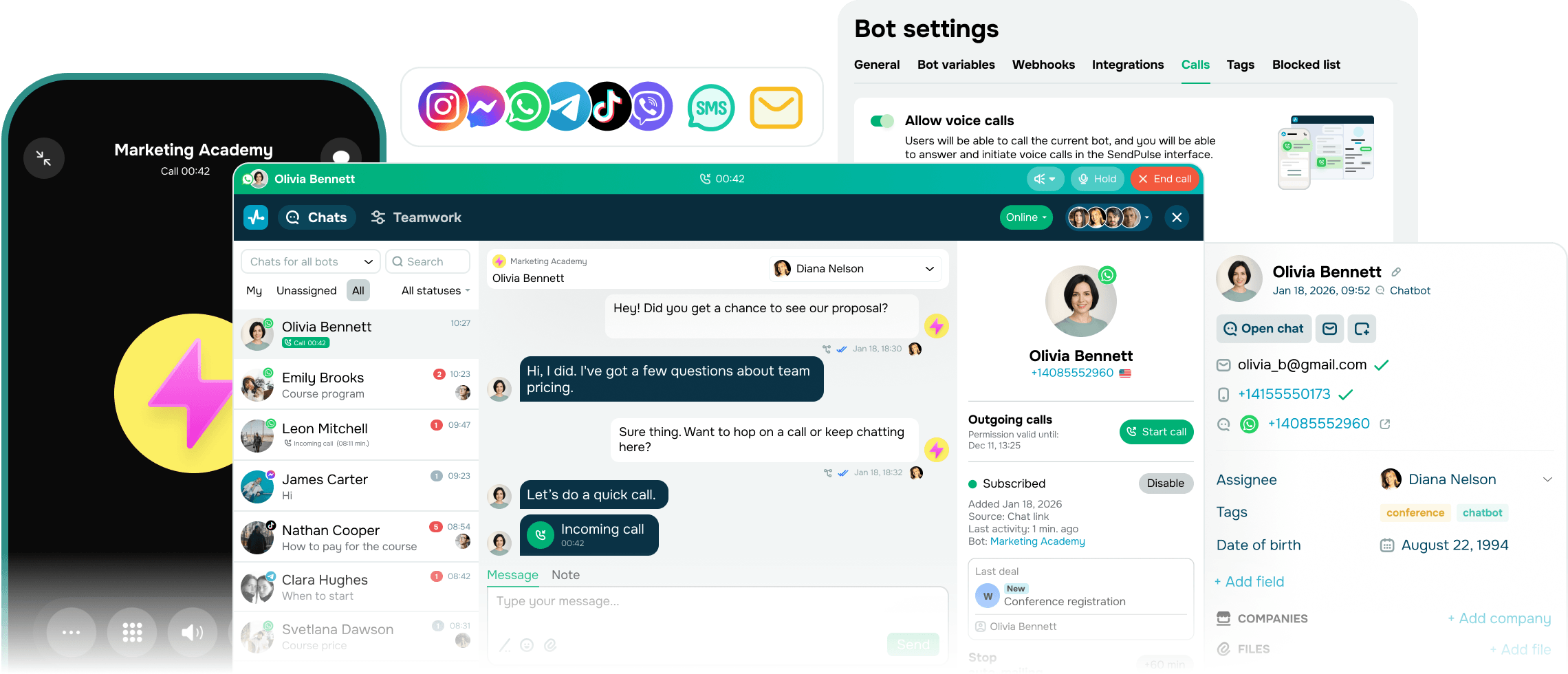
Power sales and support with WhatsApp calls
Take incoming calls or reach out yourself to build trust and close deals faster, all without leaving the chat.
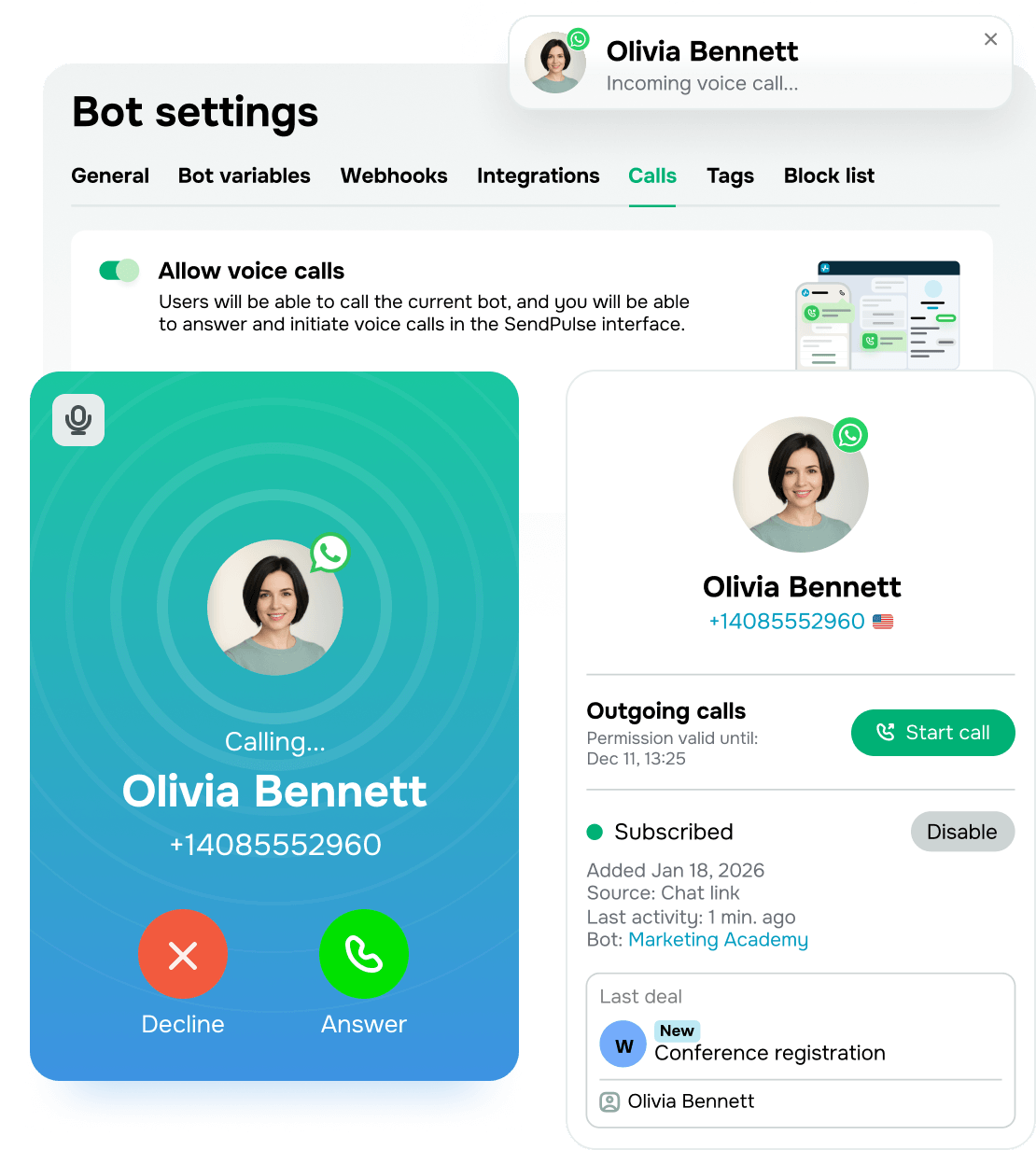
Streamline incoming calls
Turn on calls in your chatbot settings to add a call button to your WhatsApp business profile. Customers can then dial you right from the chat whenever texting isn't enough.
When a customer calls, you can:
- Get notified across your SendPulse account
- Answer or decline right where you are
- Put calls on hold to look something up or check in with your team
Set calling hours in WhatsApp Manager, so customers reach you only when someone is available to answer.
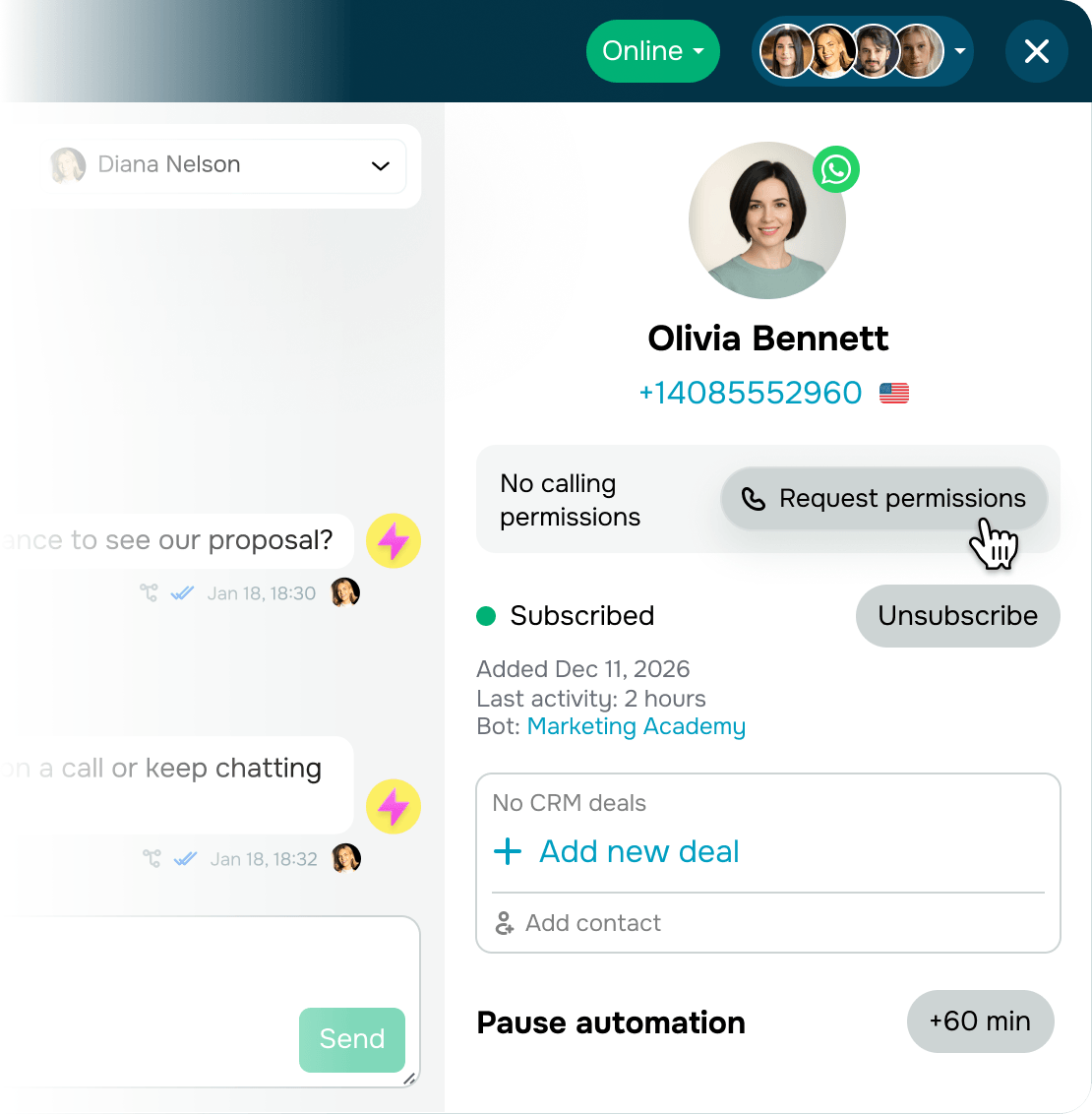
Start calls with your customers
If a deal stalls or something is easier to talk over by phone, call customers and sort it out in a single conversation instead of lengthy texting. To initiate calls, you'll need customers' consent first. WhatsApp requests it after every customer-initiated call, but you can also ask for it manually in the chat.
With customer consent, you can:
- Go over order details and delivery terms
- Guide customers through payments
- Answer questions or help with product setup
- Bring back customers who went quiet in the chat
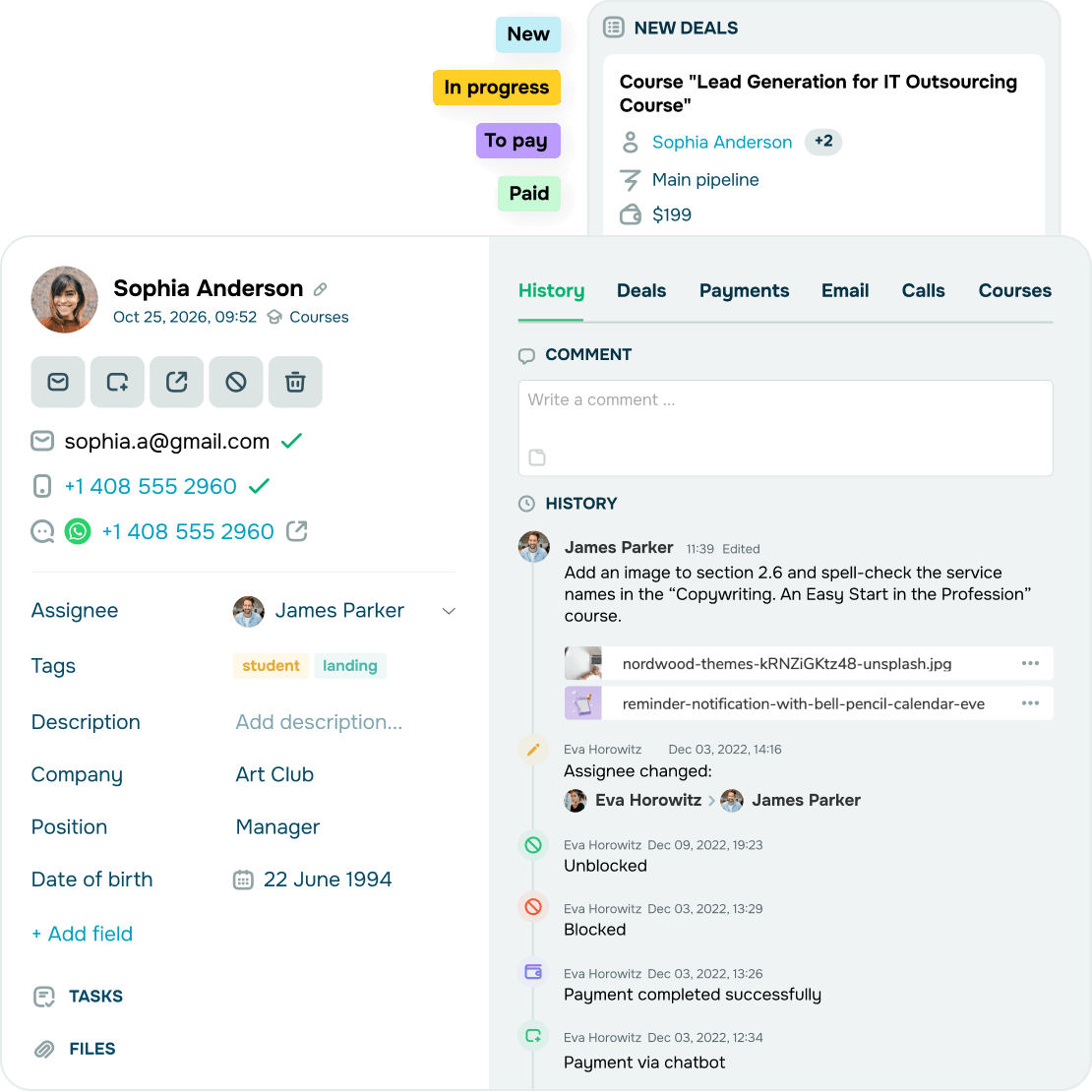
Talk to clients as if you know them
Keep an eye on customer data and previous conversations while you talk. Just click their name to jump to the chat or contact card whenever you need.
During the call, you can:
- View contact cards and related deals in the CRM
- Create new deals or move existing ones to the next stage
- Add team-only notes
Call details stay in the chat history next to your messages, so your team always knows what was discussed and what to do next.SOON
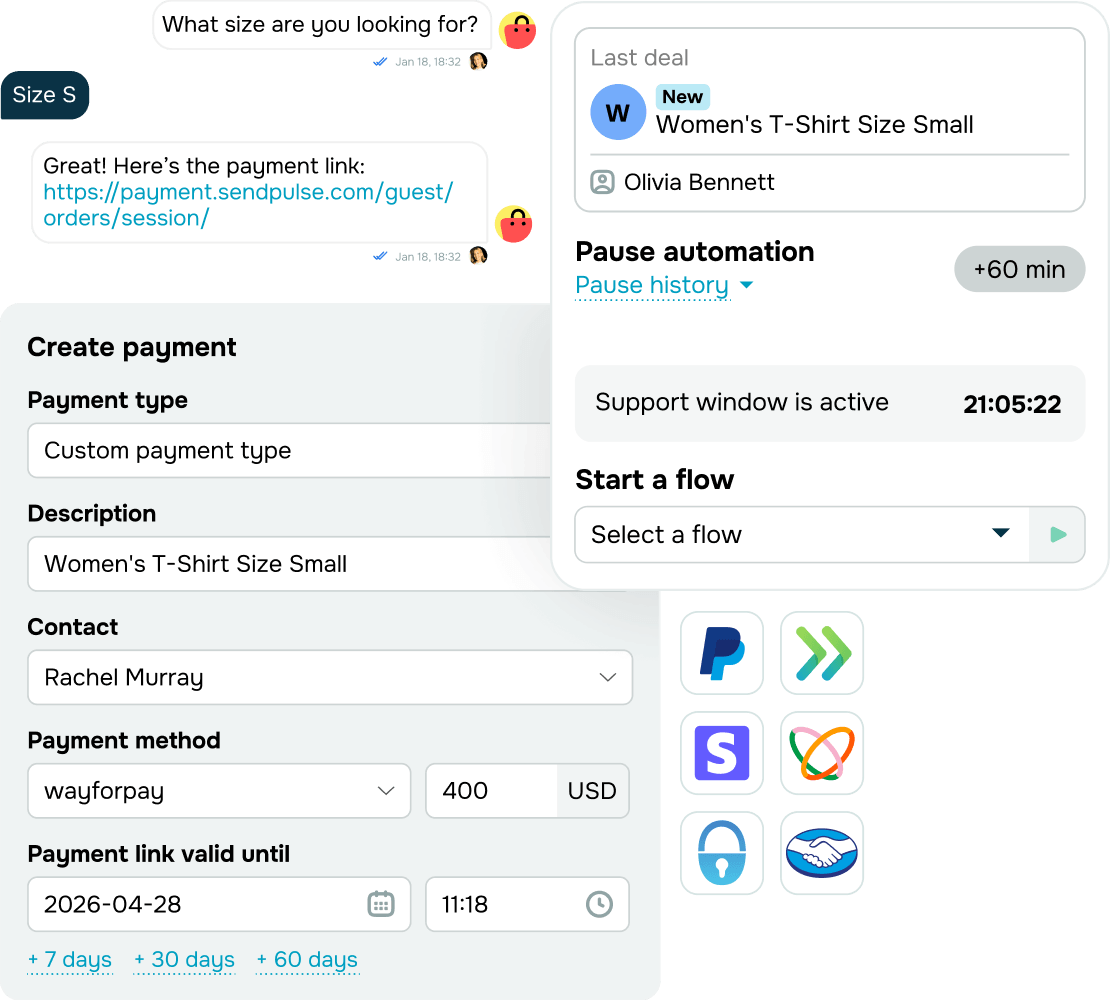
Chat for free for 24 hours
Follow up in chat with everything you discussed on the call. Whenever customers call you or answer a call from your team, you get a 24-hour customer service window with up to 1,000 free messages per month — no templates or messaging fees required.
Within the 24-hour window, you can:
- Share a payment link right from your deal card in the CRM
- Double-check your customer's delivery address or preferences
- Send a setup guide, price list, or product recommendations
This helps you act on what you agreed during the call without waiting for the customer to message you back.
How to set up WhatsApp calls
Turn on voice calls for your business phone number in a few simple steps — no developer needed.
-
Check if your phone number is eligible
Your business needs to be verified by Meta, and your phone number needs to have a messaging limit of at least 2,000 recipients per 24 hours. If you still use the number in the WhatsApp Business app, calls will go to the app instead due to Meta limitations. -
Sign up or log in to SendPulse
Create a SendPulse account or log in if you already have one. Choose a plan that fits your needs or start a 7-day free trial. -

Connect your WhatsApp chatbot
-
Enable voice calls
Turn on voice calls in your chatbot settings. Then, head to WhatsApp Manager and set your business hours for incoming calls in your phone number settings.
Pay only for the WhatsApp calls you make
Answer incoming calls for free and only pay for outgoing ones based on your customer's country. Check local rates and top up your balance to start calling.
See local ratesFAQ
What do I need to start making calls in my WhatsApp chatbot?
To start making WhatsApp calls in your chatbot, you'll need a phone number in the WhatsApp Business API, a Meta-verified business account, and a messaging limit of no less than 2,000 recipients per 24 hours. Meta unlocks this limit once your business is verified.
If your phone number remains active in the WhatsApp Business app, calls will go there instead, as Meta doesn't route them through the API.
Why am I not receiving calls on my WhatsApp Business API number?
By default, WhatsApp Business API numbers only support text messages. To let customers call you, turn on voice calls in your chatbot settings. A call button will then appear on your business profile.
Are WhatsApp calls free?
Incoming calls are free. Outgoing calls are billed per minute, depending on your customer's country. See current rates on our pricing page.
Can I start a call with a customer?
Yes, but only with the customer's permission. WhatsApp asks for it automatically whenever a customer calls you. You can also request it manually in the chat.
Who can make and take calls in my account?
Calls are currently available only to the SendPulse account owner. Soon, invited team members will be able to make and receive calls too, not just view chats and conversation history.
What happens after a call ends?
Every call starts a 24-hour customer service window, so you can follow up with regular messages without templates or messaging fees. You get 1,000 free service messages per business phone number every month. After that, standard rates apply, and unused messages don't roll over. Calls are also saved to your conversation history and appear under "Chats" in the "Chatbots" section and in the CRM system.
Can I set specific hours for calls?
Yes. You can add your call hours in WhatsApp Manager to match your team's schedule. Outside this timeframe, customers can still message you in the chat.
Can I get help if I need it?
Absolutely! If you need help or have a question, start a chat with our support team — we're here for you 24/7.

Official WhatsApp Business API Provider
Handle sales and support with WhatsApp calls
Turn on voice calls in your WhatsApp chatbot to streamline sales and manage high-touch deals without dozens of messages.
Turn on WhatsApp calls
or