Plain text is simply not enough. Sometimes you need to emphasize a certain word or prioritize one idea over another, and that’s when Telegram text formatting comes in handy. Make your messages and posts more readable and expressive — here’s how.
TL;DR Telegram text formatting cheat sheet
Here are all available Telegram text styles at a glance — with keyboard shortcuts and Markdown syntax.
| Format |
Shortcut |
Markdown |
Notes |
| Bold |
Ctrl + B |
**text** |
Double asterisks on both sides |
| Italic |
Ctrl + I |
__text__ |
Double underscores, not single |
| Monospace |
Ctrl + Shift + M |
```text``` |
Triple backticks; click to copy |
| Strikethrough |
Ctrl + Shift + X |
~~text~~ |
Double tildes on both sides |
| Underline |
Ctrl + U |
Menu only |
No Markdown equivalent |
| Spoiler |
Ctrl + Shift + P |
||text|| |
Double vertical bars; tap to reveal |
| Quote |
Ctrl + Shift + . |
Menu only |
Adds a vertical bar on the left; can be made collapsible |
| Date |
Ctrl + Shift + D |
Menu only |
Clickable timestamp; auto-adjusts to recipient’s timezone |
| Hyperlink |
Ctrl + K |
Menu only |
Select text, then paste URL; preview can be removed |
On macOS, replace Ctrl with Cmd. All shortcuts work on the desktop app and Telegram Desktop for Web.
Overview of Telegram text formatting options
Telegram offers eight text formatting options: bold, italic, monospace, strikethrough, underline, spoiler, quote, and date. You can also add links and use collapsible quotes to keep long quotes short and tidy.
The spoiler feature lets you hide part of your message, which is useful if some readers might not want to see certain information right away. Quote formatting helps you set referenced text apart from the rest of your message. Date formatting lets you add clickable timestamps that adjust to each recipient’s timezone.
All these formatting options work in personal chats, group messages, and Telegram channel posts.
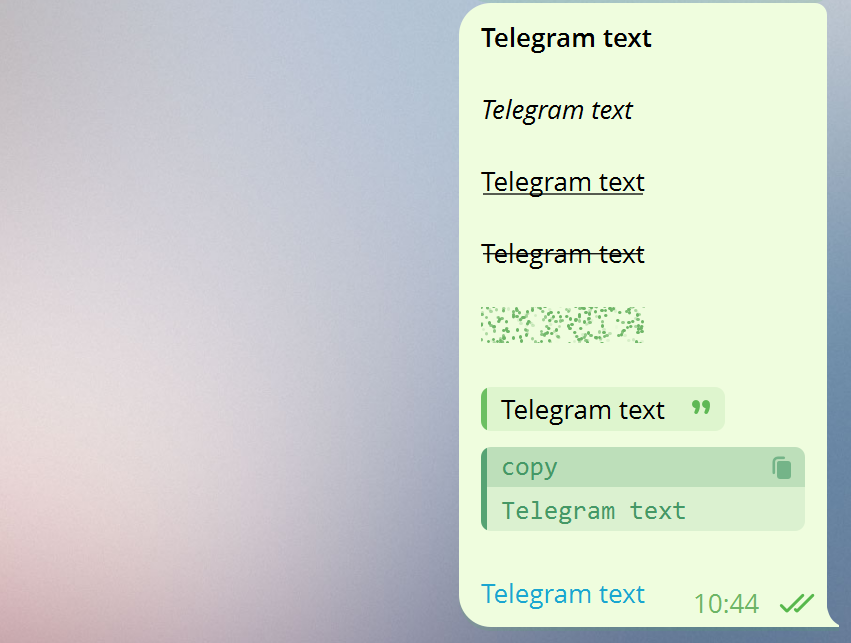 Telegram text styles
Let’s take a closer look at some of the newer options before covering all the ways to apply formatting.
Quoted text in Telegram
Telegram introduced quote formatting in late 2023, and it quickly became a helpful styling tool, especially in group chats and channels with long conversations.
To format text as a quote, select it and choose “Quote” from the formatting menu. On desktop, you can also press Ctrl (Cmd) + Shift + period. The quoted text will appear with a vertical bar on the left, making it stand out from the rest of your message.
There’s no Telegram Markdown syntax for quotes — you can only apply this style through the formatting menu or the keyboard shortcut.
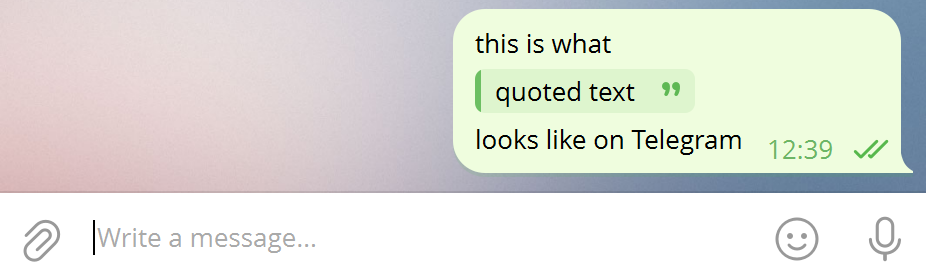 Quoting text in Telegram
Quotes are useful for referencing someone else’s message, highlighting a key point in a channel post, or setting off a testimonial or excerpt. However, try not to use too many quotes in one message, as it can make things harder to read.
Collapsible quotes
Collapsible quotes let you include a long block of text without forcing readers to scroll through it. Just apply the quote formatting, then tap the collapse button in the input field. Readers will see a short preview and can tap to expand the full quote.
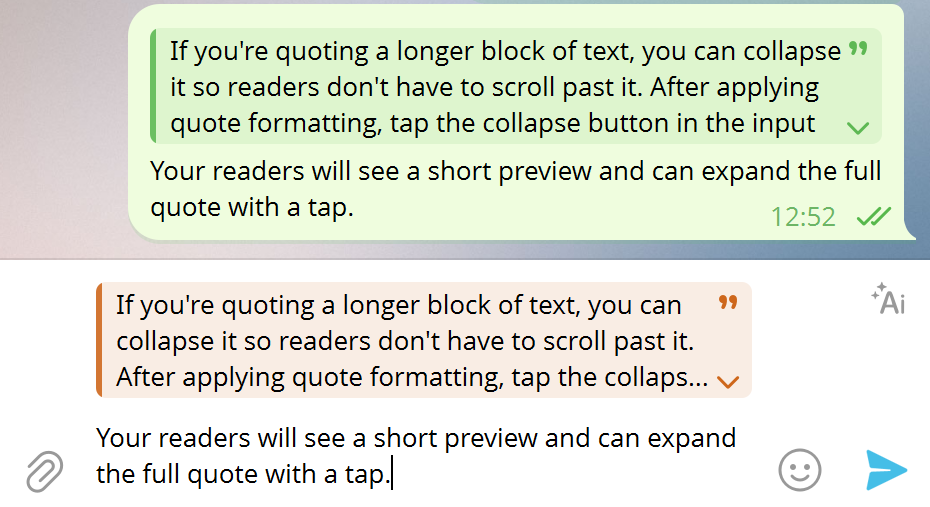 Hiding fragments of text inside a collapsible quote block in Telegram
This feature is helpful for channel posts when you want to add extra context or a full excerpt without interrupting your message. Readers can expand it if they want more details or simply skip it.
Date formatting in Telegram
Telegram’s date formatting feature, added in March 2026, lets you insert clickable timestamps that automatically adjust to each recipient’s timezone, so no one has to do the math themselves.
To use it, highlight any text in your message and pick “Date” from the formatting menu. On desktop, you can use the shortcut Ctrl (Cmd) + Shift + D. Then, a date and time picker will pop up so you can choose the exact moment you want to mention.
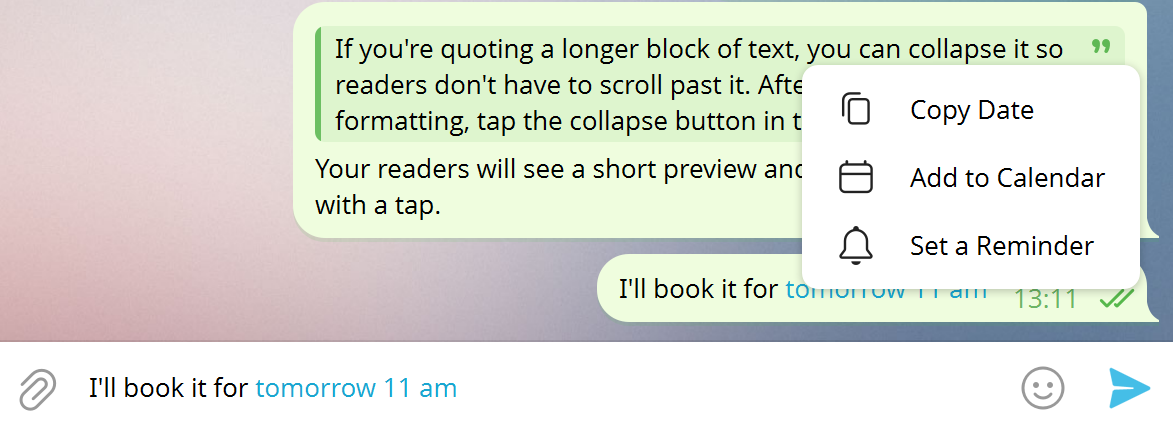 Date formatting lets recipients set reminders or add events to their calendars
After you send the message, the date appears as a clickable part of the text. If someone taps it, they can add the event to their calendar or set a quick reminder right from the chat. It’s great for scheduling events, setting deadlines, sending reminders, or sharing any time-sensitive information in a group or channel.

Engage users on Telegram
Use our drag-and-drop builder to create AI-powered Telegram chatbots that sell, support, and connect. Run campaigns, share updates, and convert leads hands-free.
Create a free account
How to format text in Telegram
Telegram doesn’t allow you to change the font itself — only its style. In the following sections, we’ll show you a few workarounds for that. Let’s go through all of the essential Telegram text style tricks, one method at a time.
The built-in Telegram panel
The built-in formatting panel is the simplest way to style text in Telegram, and it works on both desktop and mobile.
To access the panel, select the text you want to format. Then, click on the three-dot menu in the top right corner if you use Android. On iOS, long-press the text and choose “B/U.” And in the desktop version, right-click the text and choose “Formatting.”
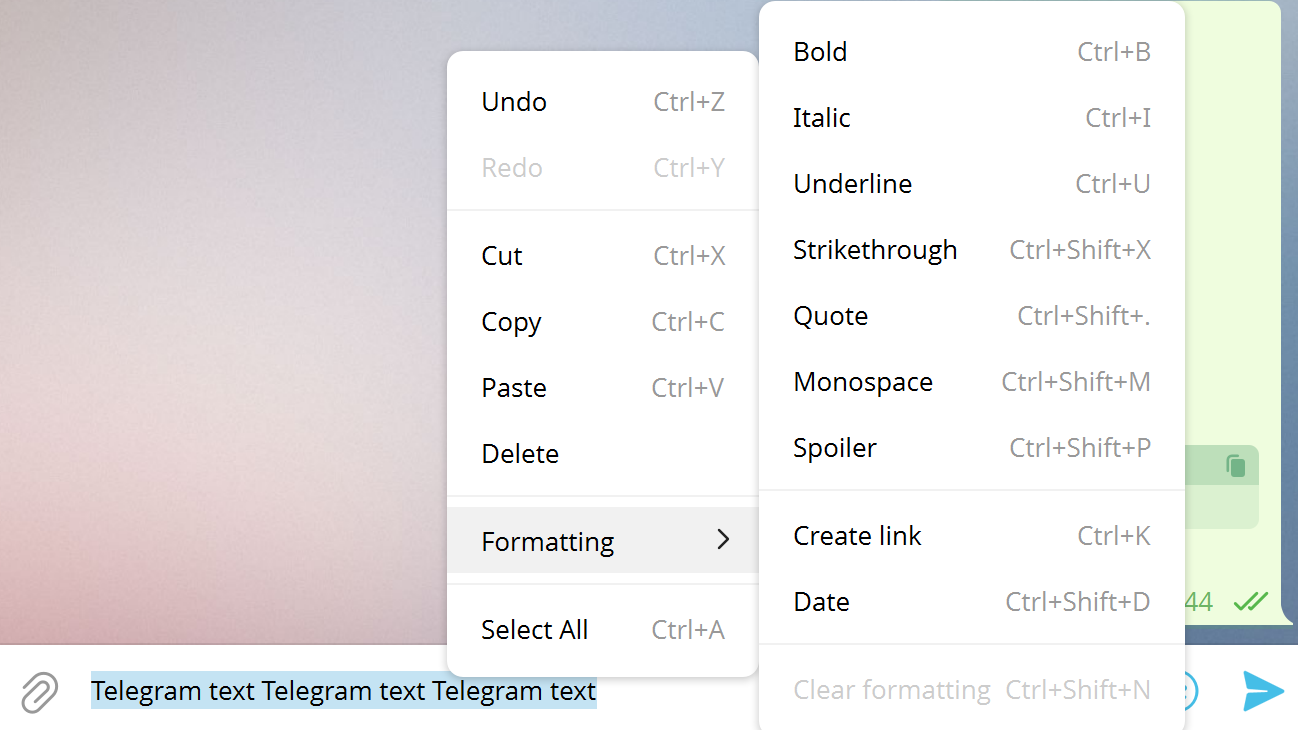 Telegram text formatting panel on desktop
After that, you’ll be able to change the style of your selected text or turn it into a hyperlink. Nothing is stopping you from combining different text styles, either.
Telegram formatting shortcuts
Telegram supports keyboard shortcuts for all major text styles, including bold, italic, strikethrough, and more. They are not Telegram-specific — you can use most of them in other programs and apps when working with text.
Here’s the list of options you have:
- to hide your text as a spoiler, select it and press Ctrl (Cmd) + Shift + P;
- to make your Telegram text bold, select the text and press Ctrl (Cmd) + B;
- to use italics in Telegram, select the text and press Ctrl (Cmd) + I;
- to apply Telegram strikethrough text formatting, select the text and press Ctrl (Cmd) + Shift + X;
- to underline your text, select it and press Ctrl (Cmd) + U;
- to make your Telegram font monospaced, select the text and press Ctrl (Cmd) + Shift + M;
- to format Telegram text as a quote, select it and press Ctrl (Cmd) + Shift + period;
- to insert a date, select the text and press Ctrl (Cmd) + Shift + D.
You can also add a link using hotkeys — select the text and press Ctrl (Cmd) + K.
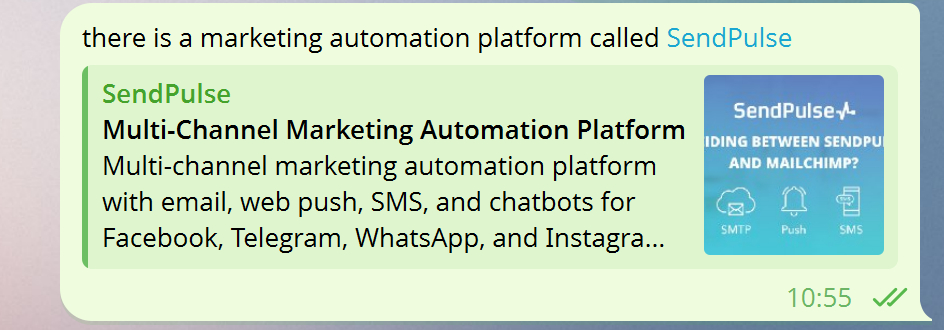 You can use text formatting on Telegram to create elegant links
When inserting a hyperlink, you can remove the preview to give your message a cleaner look before sending it.
Special characters for formatting text in Telegram
Telegram supports Markdown-style syntax for inline formatting, like asterisks for bold, underscores for italic, or tildes for strikethrough. While using special characters is a less obvious way to change your Telegram text style, it’s more convenient than copy-pasting formatted text from another app.
Insert special characters when you write your message, and it’ll be formatted automatically when you send it:
- enclose your text in double asterisks to make it bold: **text** → text
- enclose your text in double underscore symbols to make it italic: __text__ → text
- enclose your text in triple backquote symbols to make it monospaced:
```text``` → text
- enclose your text in double tilde characters to make it strikethrough: ~~text~~ →
text
- enclose your text in double vertical bars to make it hidden: ||text|| →
Note that not all formatting options have a Markdown equivalent — quotes and date formatting can only be applied through the Telegram formatting menu or keyboard shortcuts.
Here’s how your Telegram text becomes bold:
How to format bold text in Telegram using double asterisks
Monospaced text is great for highlighting a piece of code, a number, an address, or a formula in your text. But did you know that it’s also easier to copy? Thanks to another Telegram feature, you can click on any monospaced text, and it’ll be immediately copied to your clipboard. Use this formatting option to share important data with your subscribers faster.
A monospaced font is perfect for code and formulas
How to format Telegram text using the Markdown bot
If other options aren’t available, you can use Telegram Markdown — it’s a third-party bot that allows you to turn a “raw” text with HTML tags into a nicely formatted text, which you can just copy. Don’t worry — you won’t need to write any code. It works like this:
How to change the Telegram text style with the Markdown bot
Remember that you always need to use an opening and a closing tag with your text in between, just like in our examples. Here are the most useful HTML tags for Telegram text formatting in Markdown:
<b>text</b> — bold;<i>text</i> — italic;<u>text</u> — underline;<s>text</s> — strikethrough.
And here’s the result you get:
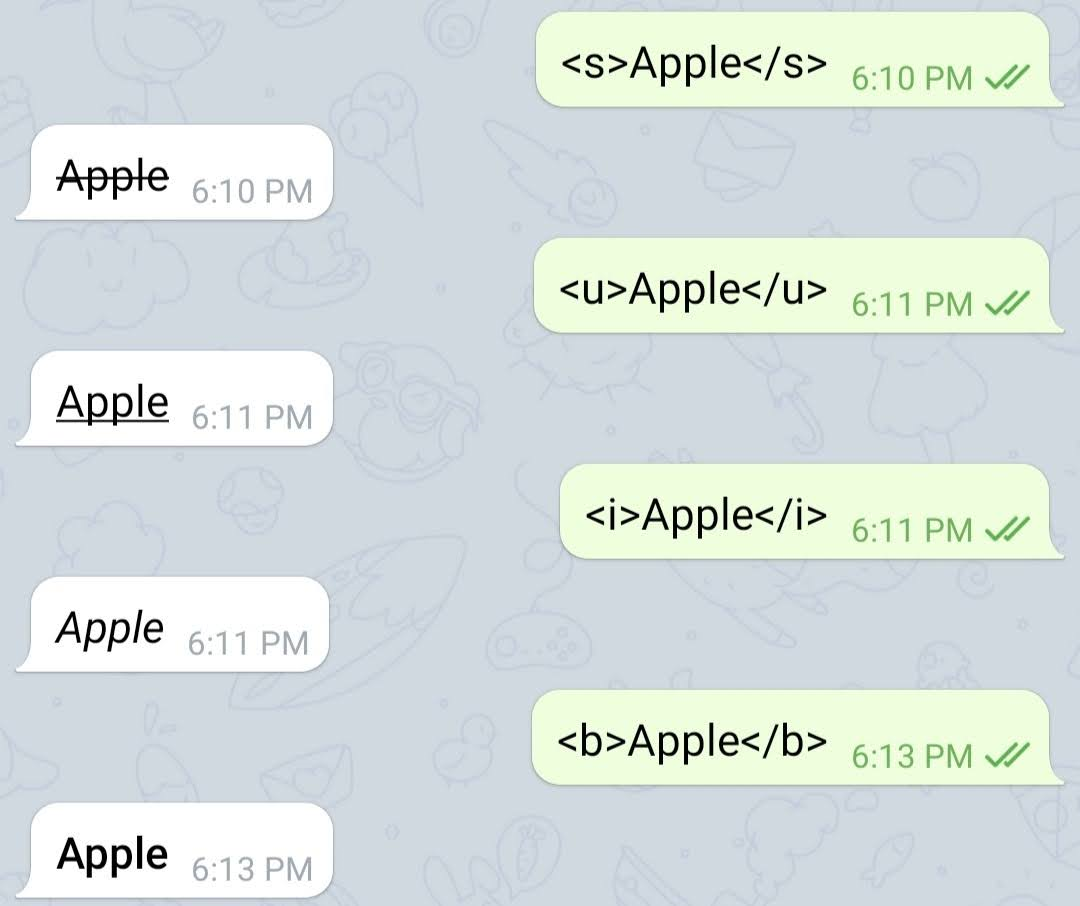 HTML tags for the Telegram Markdown bot
Is it the most convenient way? Probably not. But it’s a simple alternative if, for some reason, you can’t use the methods we’ve described earlier. With the help of this bot, you can format big paragraphs of text by simply adding the right HTML tags where you want them to be.
For similar formatting tricks on WhatsApp and Instagram, check out the corresponding guides.
How to format text in Telegram bots and channels via the API
The formatting options we’ve covered so far apply to messages you type manually. But if you use a Telegram chatbot or manage a channel through the Bot API, you get even more ways to control how your text looks.
When you send messages via the Telegram Bot API, you can format text with HTML tags or Markdown. Just set the parse_mode parameter to HTML or MarkdownV2.
These are the most common HTML tags for Telegram bot messages:
<b>text</b> — bold;<i>text</i> — italic;<u>text</u> — underline;<s>text</s> — strikethrough;<code>text</code> — inline monospace;<pre>text</pre> — preformatted code block;<a href="URL">text</a> — hyperlink;<tg-spoiler>text</tg-spoiler> — spoiler;<blockquote>text</blockquote> — quote;<tg-emoji emoji-id="ID">emoji</tg-emoji> — custom emoji.
MarkdownV2 uses special characters like *bold*, _italic_, ~strikethrough~, ||spoiler||, `code`, and [text](URL). In MarkdownV2, you have to escape some characters, like dots, dashes, and brackets, with a backslash. Because of this, many developers prefer HTML mode since it is more forgiving and easier to debug.
If you use SendPulse to run a Telegram chatbot, you can format messages with buttons in the input field or by using keyboard shortcuts. Both options work when creating campaigns and in the chatbot flow builder.
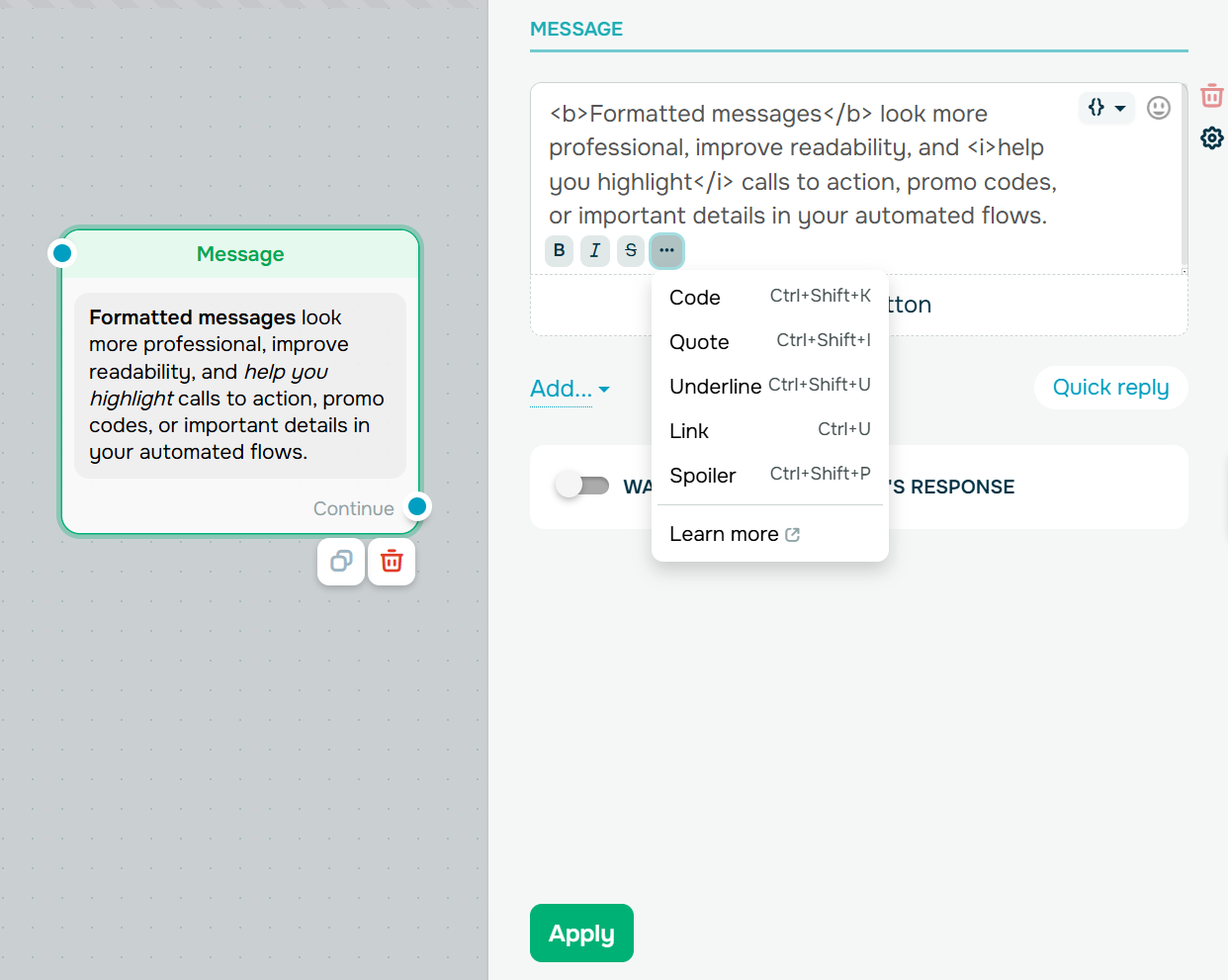 Formatting a message for a Telegram chatbot in SendPulse
How to use trendy fonts on Telegram
While you can’t directly change the font in Telegram, you can use font generators to get a bit more expressive with your messages. The app allows you to copy-paste formatted text from other sources, which opens up a world of creative possibilities.
For instance, these typefaces are all the rage on social media right now, and they will definitely make your Telegram messages or bio description stand out.
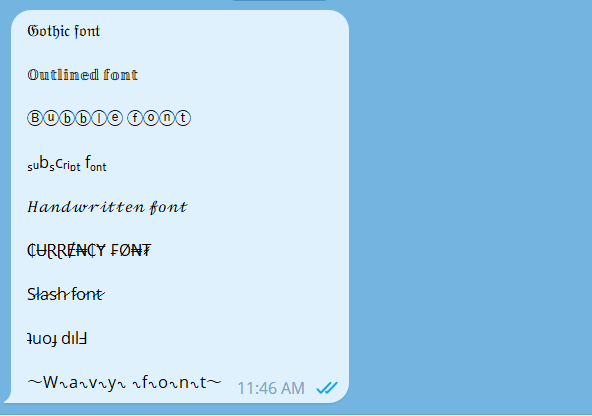 Creative fonts for Telegram
These are just some styles that Telegram supports and that are guaranteed to be displayed correctly. There are countless fonts and styles that you can try — just keep in mind that some symbols may not be shown as intended, so always test them before including them in your messages.
The best part is that you don’t even need to install a special keyboard or app to get access to these and other fancy fonts. Simply head to your search bar and type in the name of your desired style plus “font generator.” This is the best way to find relevant fonts and styles, as each font generator offers a slightly different set of options.
Quicktools by Picsart is one of the most popular font generators out there, and it’s super intuitive to use. Just add the text you want to format, preview it in different styles, and copy the version that appeals to you the most.
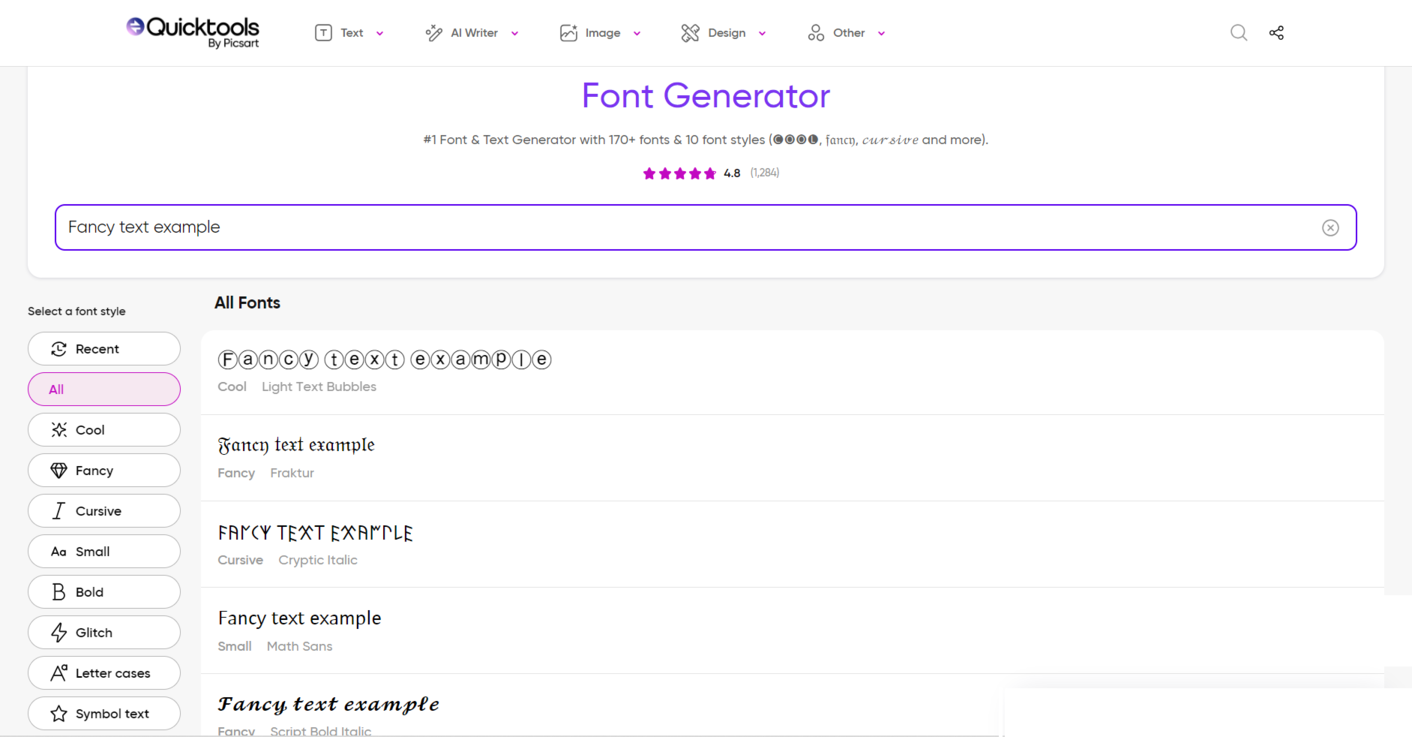 A Telegram font generator by Picsart
Other similar Telegram font generators to consider:
These creative styles are great for curated Telegram channels and personal profiles where aesthetics matter just as much as the content itself. By choosing an unusual font, you can demonstrate your creativity and attention to detail as well as make your channel more memorable.
How to use Telegram’s built-in AI text editor
In March 2026, Telegram introduced a built-in AI text editor powered by Cocoon AI. It can fix grammar, rewrite your message in different styles like Formal, Short, Corp, Zen, and more, or translate it into another language, all within the app.
To use the editor, type more than three lines of text and tap the “Ai” icon above the “Send” button. All requests are processed in a confidential environment with no access to user data.
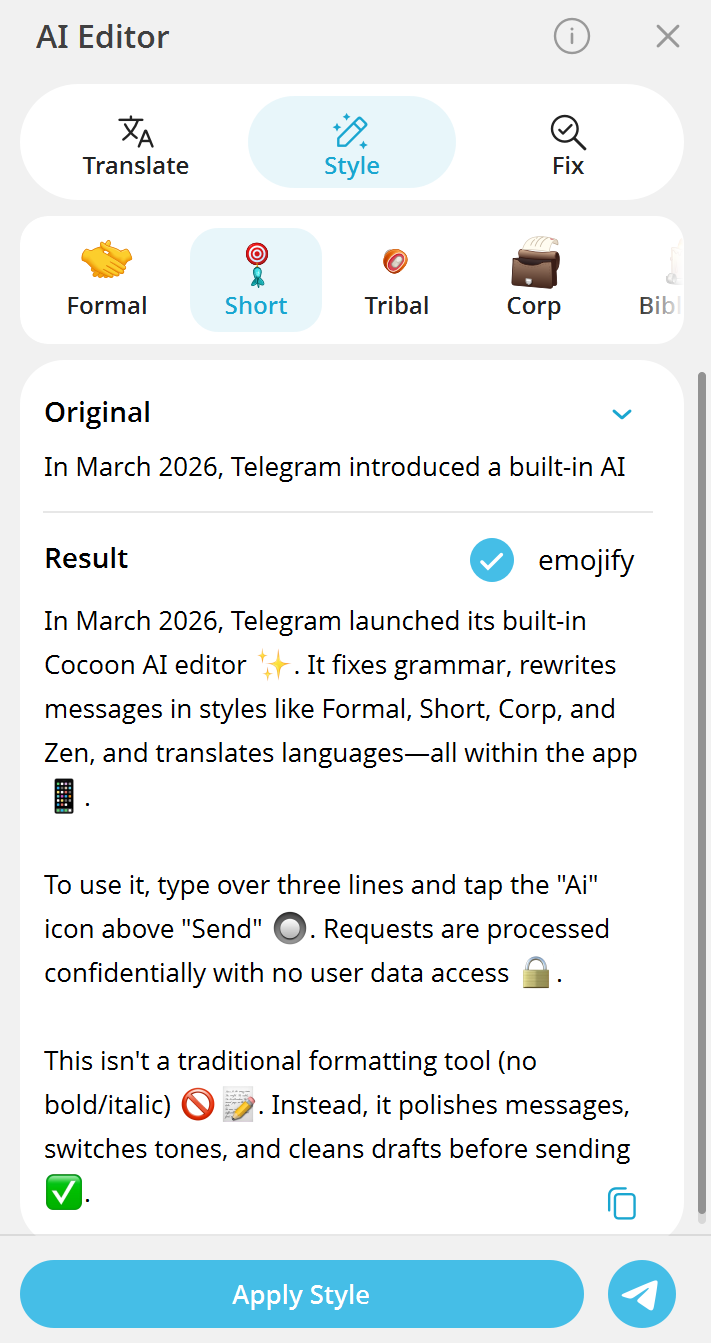 Telegram’s AI editor can translate, style, or fix your text
The AI editor is not a traditional text formatting tool, so it will not apply bold or italic. However, it is a useful way to polish your Telegram messages before sending them, especially if you want to change the tone or tidy up a quick draft.
Take your Telegram presence further
Telegram is one of the most downloaded apps in the world, with over 1 billion monthly active users — and many of them could be your prospective customers. So, if your business isn’t on Telegram yet, it’s time to change that.
Getting started with Telegram marketing is easier than you might expect. Using SendPulse, you can create your own intelligent Telegram bot to send promotional campaigns and provide your customers with support around the clock. Also, you can enable seamless online payments and turn your chatbot into an effective sales channel.
Our platform lets you send up to 10,000 messages per month for free — plenty of room to test SendPulse before upgrading to a paid plan. We also offer 24/7 support and comprehensive learning materials to help you get started. Give it a try!